X35 Console Overview
2.11
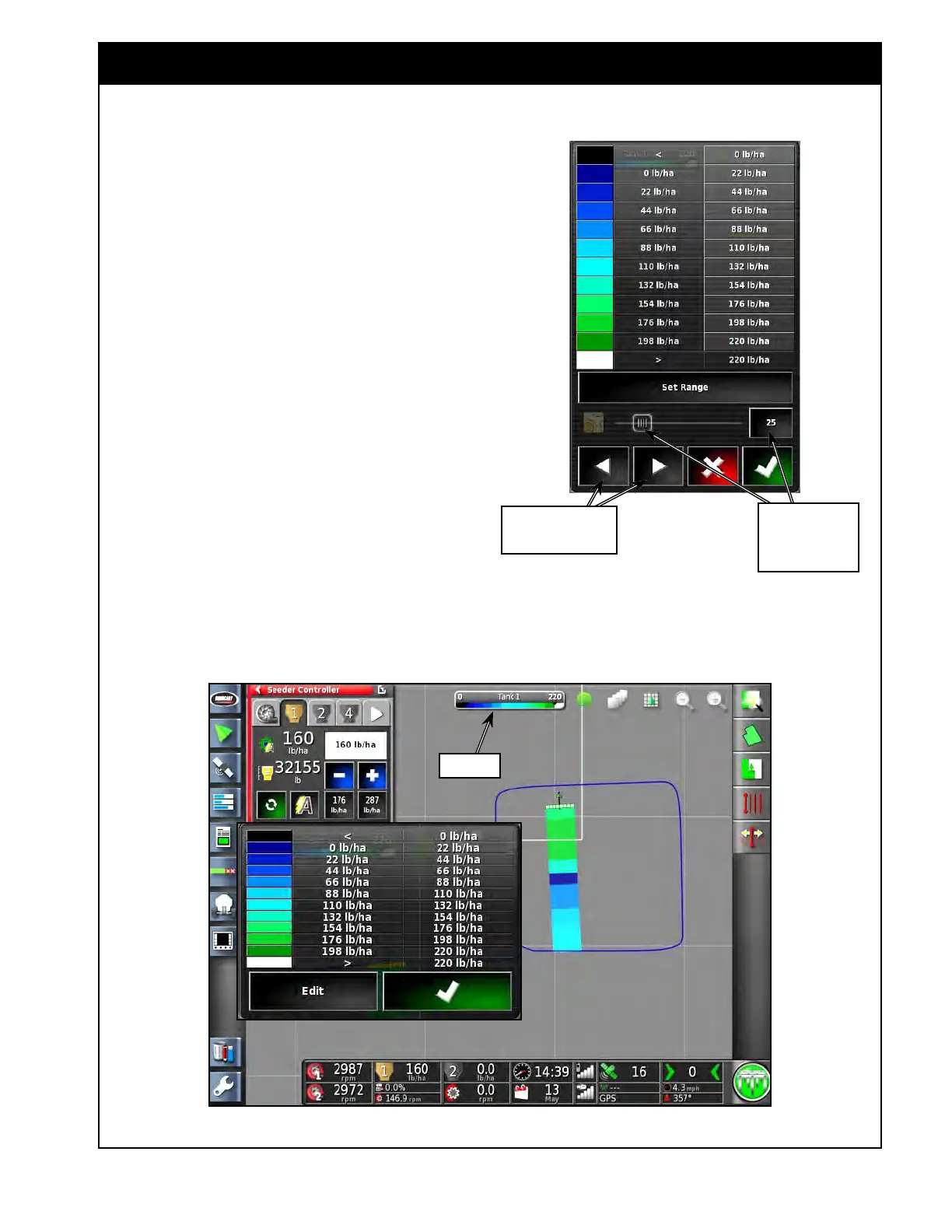
6. Applied Rate Map Legend
This legend bar shows the current layer that is
being viewed on the guidance screen. If viewing
the as applied rate map then this bar will be a
coloured rate legend indicating the rate being
applied. Refer to Figure 2.16.
a.
Selecting the legend will bring up
a window showing rates range and
corresponding colors, that can be edited.
b. Selecting the "Edit" button will open up
the edit window. Refer to Figure 2.15.
i.
Using Up/Down arrows you can
switch between different color
schemes.
ii.
Selecting Set Range will allow to
set the range by entering minimum
and maximum values, and number of
ranges between 1-10.
iii. Selecting Auto Applied will display
the range based on actual applied
minimum and maximum rates.
c. You also can change background color
intensity for prescription map.
Legend
Figure 2.16 - Applied Rate Legend
Figure 2.15 - Applied Rate Map Settings
Use this buttons to
change color scheme
Use this slide bar
or button to set
background color
intensity



 To Next Page