X35 Console Field / Job
9.11
7. Select Configure Action;
a. This is used to set an alarm and zoom
actions, (Item E, Figure 9.15).
b. The Configure Headland Actions window
will
appear, refer to Figure 9.16.
Important
When an action is enabled it is marked with a
green check mark. When an action is disabled,
it is marked with a red cross. It is recommended
to check if these actions are enabled or disabled
before starting work on the job.
c. Select Alarm, the background will change
to white;
i. Select Action State, to enable/disable
an alarm.
ii. Select Message, to enter the message
that will appear on the screen when
approaching the headlands (for
example "Approaching Headland").
iii. Select the Action Type to set an
audible alarm.
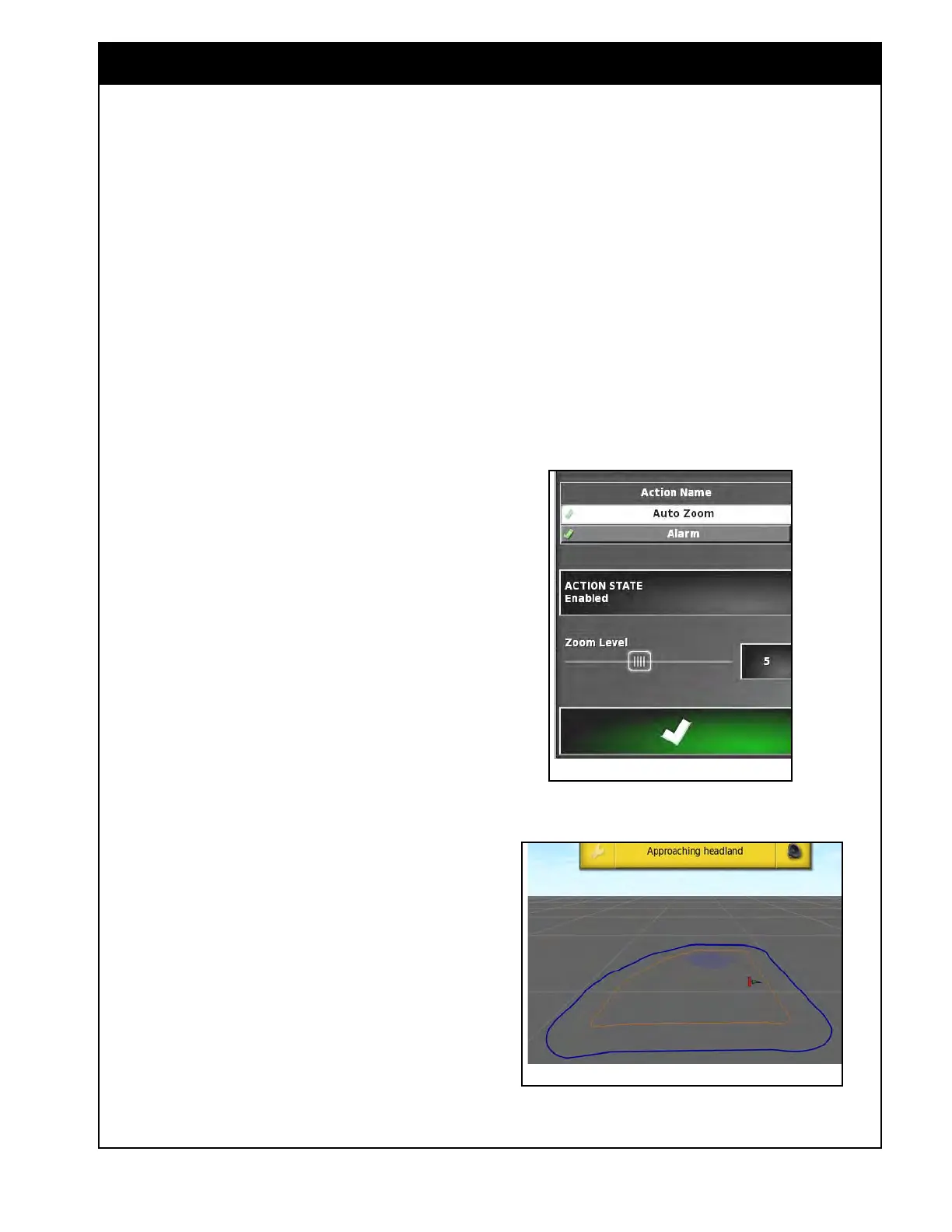
d. Select Auto Zoom, refer to Figure 9.17. If
enabled,
the map view will zoom in or out
to the defined zoom level, as the vehicle
approaches the headland, and will then
return to the original defined zoom level as
the vehicle leaves the headland.
i. To allow the map View to zoom
in when approaching the headland,
select Action State and choose
Enabled and Confirm.
ii. Select the Preferred Zoom Level in
the range from 1 to 10, where 1 is
zoomed all the way out and 10 is
zoomed all the way in.
8. Confirm the Alarm and Zoom actions.
a. An orange headland will be displayed
inside the boundary line.
b. Approaching the headland will trigger the
alarm and the zoom that has been set, refer
to Figure 9.18.
c.
If you want to control the Boundary
Limit in Auto Section Control within the
headland, the mini-view window needs to
be set to Headland, as described in Section
8.10
- Using Auto Section Control.
Figure 9.17 - Setting Headland Actions - Zoom
Figure 9.18 - Approaching Headland



 To Next Page