X35 ConsoleOptional Equipment
13.24
c. Swipe in from the left edge of the screen
to bring up an access bar.
i. Icons for available features will
appear in the top left portion of the
access panel.
ii. The arrow in the bottom left will
disconnect the Xtend app from the
console.
d.
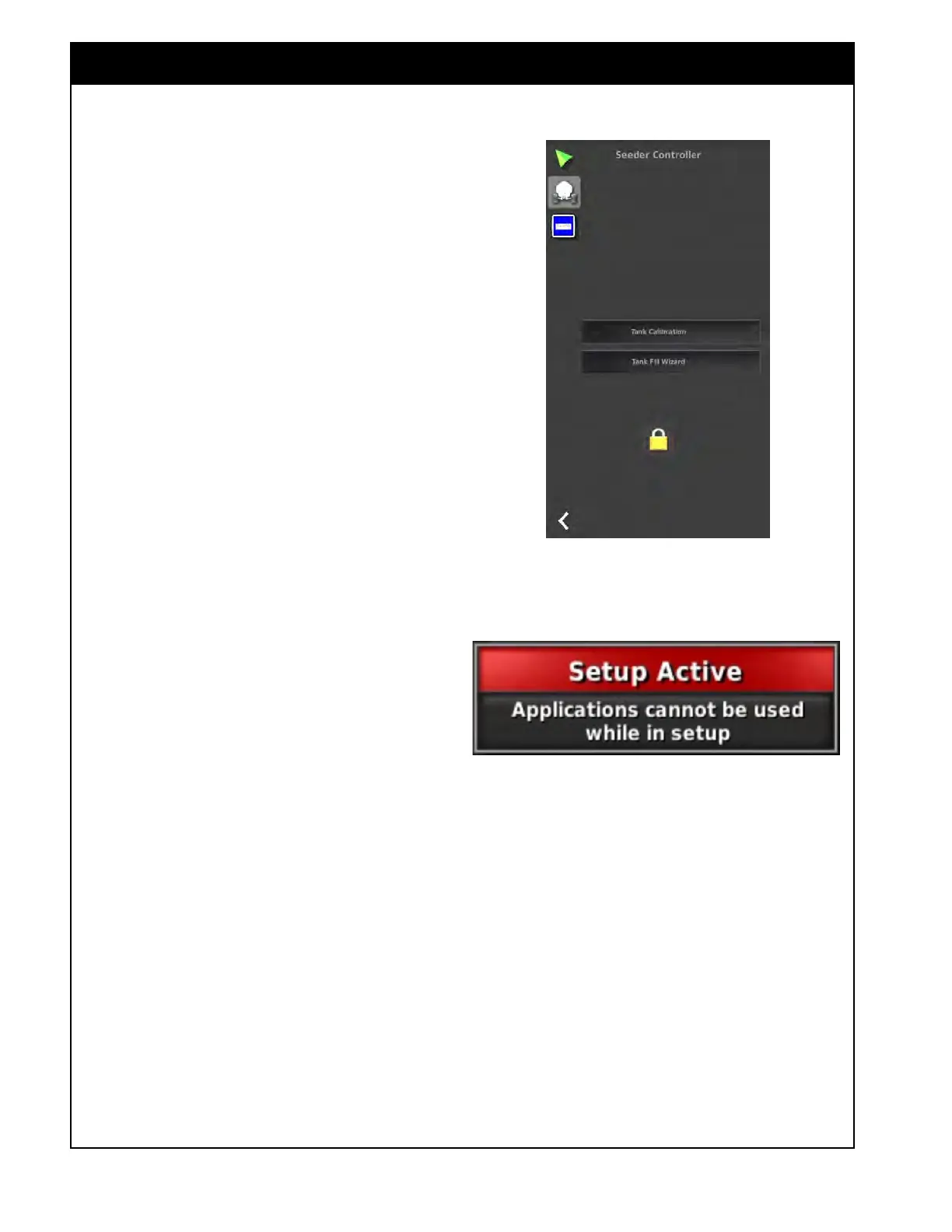
If the device screen times out you will
need to press on the lock icon that appears
to regain control through the Xtend app.
e. If the X35 console is in the Settings menu
you will get a Setup Active message and
will not be able to control anything from
the Xtend app.
i. Go back to the Operation screen
from the X35 console to regain
control with Xtend.
f. If you have multiple devices linked
then when you overwrite the connection
by connecting another device it will
automatically give the new device control
after a set time unless the original device
selects to retain control before the set time
passes.
Note
If the Wi-Fi connection is lost on the device, Xtend
will lose connection with the console and the
seeder is forced into a safe state and the master
is shut off to protect the operator.
The connection will need to be regained to
continue from the Xtend device or the console will
need to be used.
Note
If your device is connected to the Wireless
Hotspot signal generated by the X35 console it
will not have access to the internet. You will need
to reconnect to the original Wi-Fi signal or shut
off Wi-Fi when not using the Xtend app on your
device to receive data.
Figure 13.30 - Unlocking timed out screen
Figure 13.31 - Setup Active Message
Note
Ensure you disconnect Xtend from the X35
console or close the Xtend app before turning Wi-
Fi off from your device.
If you simply shut off Wi-Fi on your device it will
lose connection with Xtend and force the console
into a safe state and will stop seeding.
Keep your device charged, if it powers off it will
also force the console into the safe state and stop
seeding.



 To Next Page