X35 ConsoleOverview
2.6
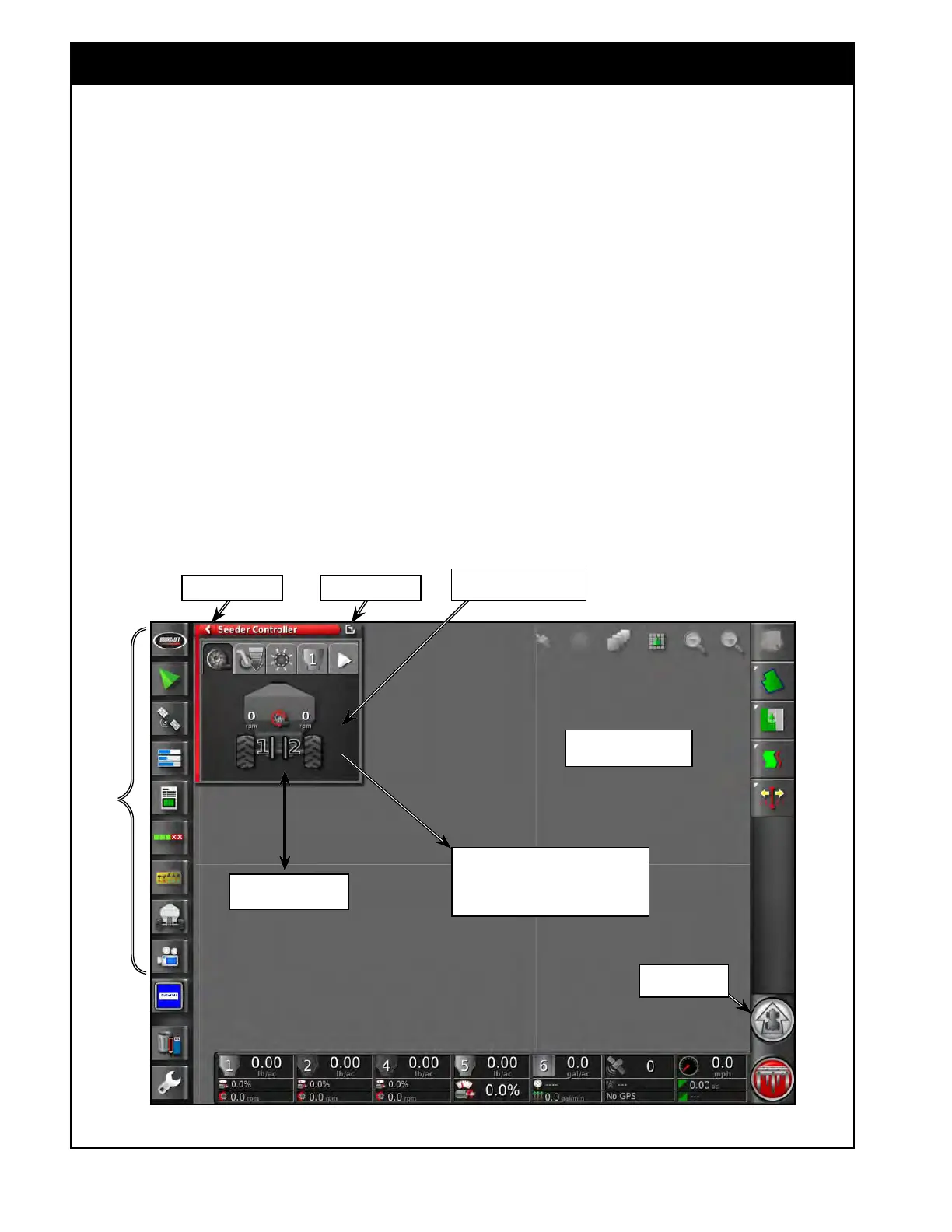
Figure 2.8 - Manipulating Mini-View Windows
Mini-View Menu
Guidance Window
Expanded
Touch the mini-view and slide towards
the main screen, see Figure 2.9 (Seeder
controller window expanded, guidance
window minimized)
Slide mini-view up or
down for a new position
Seeder controller mini-view
window opened
Maximize ArrowMinimize Arrow
6. Auto Steering Engage - turns auto steering
ON/OFF if auto steering feature is enabled,
refer to Section 4.2.3 - Guidance.
7. Forward/Reverse
Control - this option can
only be enabled for non-Topcon GPS receivers.
a. The icon will be white and point up when
forward movement is detected.
b. The icon will be yellow and point down
when reverse movement is detected.
c. If the actual travel direction is opposite
of what the monitor is displaying then
press the icon to flip the direction on the
guidance screen.
8. Inventory
Manager - allows the user to view,
rename, delete, or transfer files to a USB
or import them from a USB. These are the
files that keep information related to vehicles,
implements, fields, jobs, guidance and so on.
9. Setup - provides access to the Main Setup
screen.
Forward/Reverse
Control button



 To Next Page