X35 Console Overview
2.17
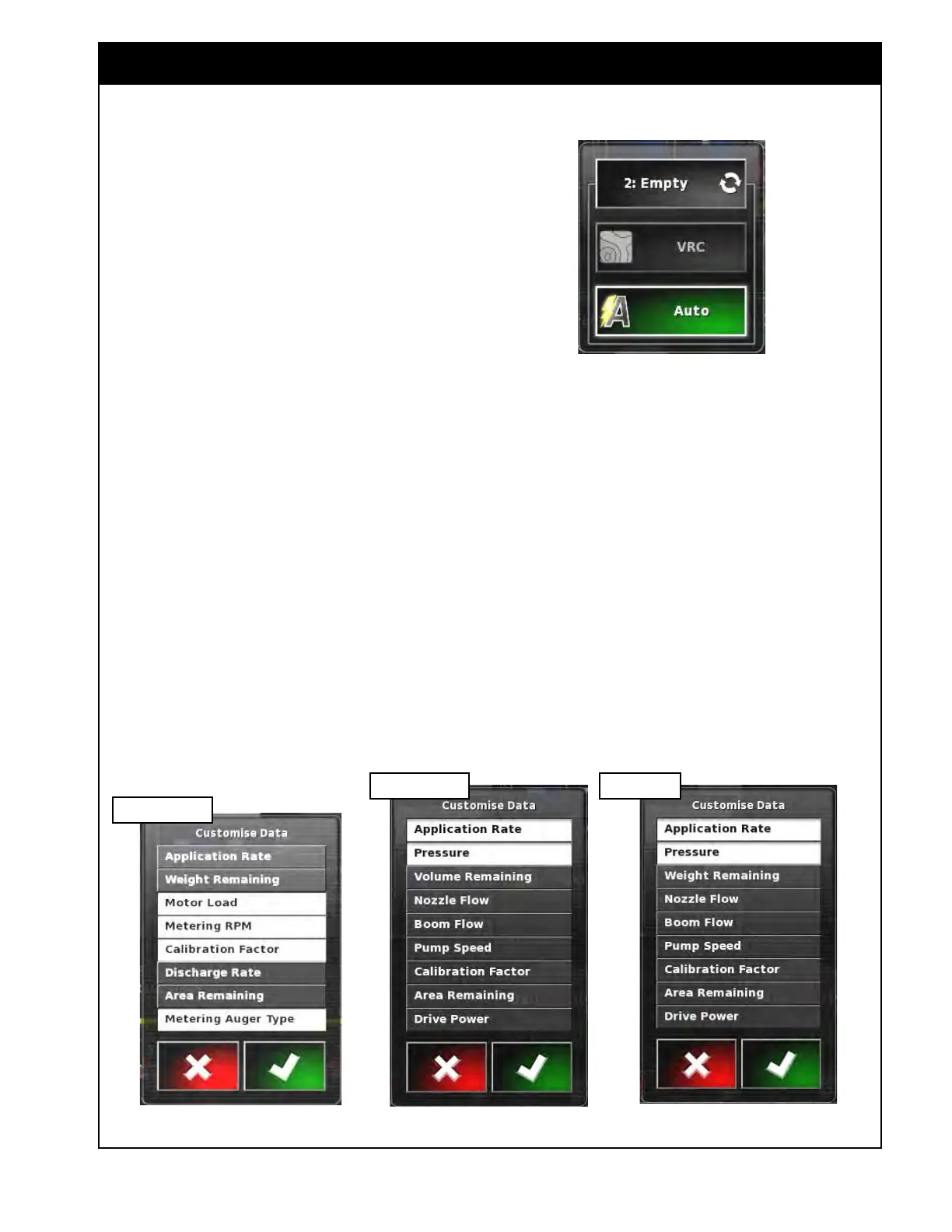
9. (I) Viewing Area 2 - displays data related to
the specific tank. This can be customized to
display up to five parameters. When selected,
a Customize Data window will open with a list
of available parameters to be displayed, refer
to Figure 2.26 and Section 2.6.3.1 - Tank
Parameters. Selected items will have white
background.
Note
Refer to Figure 2.26. Depending on the tank
(granular, liquid or NH3), the list of parameters in
the Customize Data window will be different.
10. (J) Tank Panel Title Bar - displays the name
of the tank (Bin # or Tank #, product name
or empty, or custom name) depending on the
settings, refer to Section 6.7.1 - Granular
Setup and 6.6.2 - NH3/Liquid Setup.
11. (K)
Product Selection - when selected it will
open up the product setup window for the
tank, where you can select the product for the
tank and adjust the details. Refer to Section
8.1 - Selecting Product.
Figure 2.25 - Rate Control Mode Window
Figure 2.26 - Customize Data Window
Granular Tank
Liquid Tank
12. (L) Tank Fill - when selected it will open the
Tank Fill window that is used to add weight/
volume of the product used in the tank. Refer
to Section 8.2 - Filling The Tank.
13. (M)
Tank Capacity - this shows the
theoretical capacity of the tank based on the
set volume and the product density entered for
the selected product.
14. (N)
Time to Empty - this displays how long it
will take before the tank is empty based on the
product remaining and the current application
rate. It will display a time when the master/
tank is on and meter is running otherwise it
shows zero.
NH3 Tank



 To Next Page