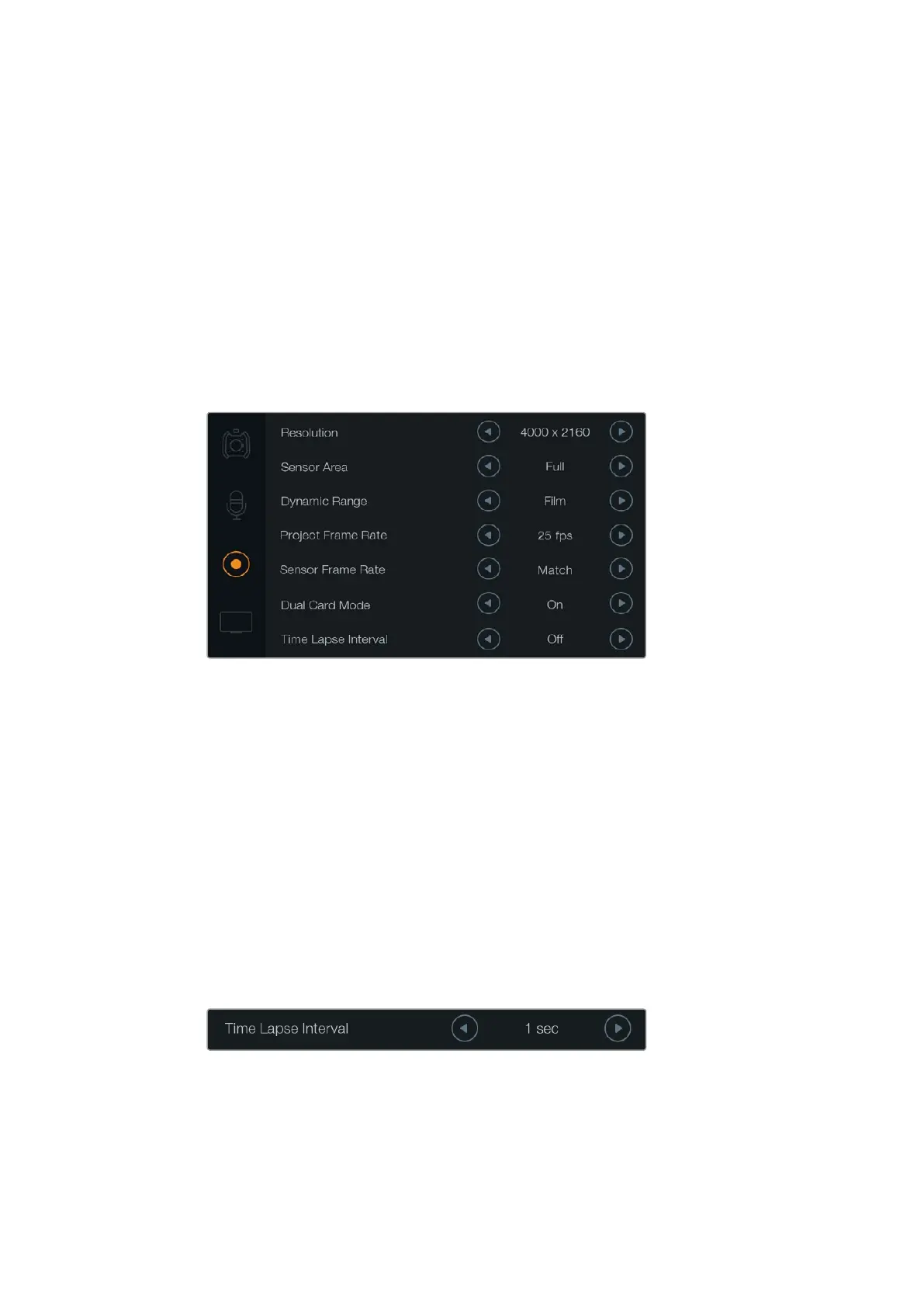
Dual Card Mode
Blackmagic URSA lets you record CinemaDNG RAW clips at higher frame rates by recording to
both CFast cards simultaneously. Turn ‘dual card mode’ on or off by tapping the setting arrow
icons. You can also enable ‘dual card mode’ to increase the reliability of CFast cards if you find
a single card is dropping frames while recording CinemaDNG RAW clips.
When dual card mode is enabled an icon will appear on the touchscreen linking the two CFast
slot indicators together. While recording, both CFast slot indicators will flash to show the cards
are active and their respective media timelines will update accordingly.
When recording in dual card mode, the CinemaDNG RAW clip folders on both Cfast cards share
the same name. To copy the files to your storage location, simply transfer the contents from
each CFast card to the same storage folder. You can choose to keep the audio file from only
one CFast card as both are exactly the same.
Set dual card mode to ‘on’ to record CinemaDNG RAW clips to two
CFast cards simultaneously. This feature lets you record clips using
higher frame rates than is achievable on a single CFast card.
Time Lapse Interval
This setting activates the time lapse feature to automatically record a still frame at the following
intervals:
Frames: 2 - 10
Seconds: 1 - 10, 20, 30, 40, 50
Minutes: 1 - 10
For example, you can set the camera to record a still frame every 10 frames, 5 seconds,
30seconds, 5 minutes etc.
The time lapse feature offers many creative options. For example, setting a 2 frame time lapse
interval will give your recorded video a high speed effect when played back.
The time lapse feature lets you set Blackmagic URSA to automatically record a
new frame at a chosen time interval. For example, one frame every second.
The format of each still frame is based on your recording format, so if you set the camera to
record in 4K ProRes HQ, the time lapse setting will maintain this format. The frame rate will be
based on your project frame rate setting, i.e., 24 fps. This is so your time lapse footage can be
easily incorporated into your post production workflow.
34Blackmagic URSA Settings












 To Next Page