Dynamic Range
Blackmagic URSA’s fold out monitor and touchscreens let you view your video as you are
recording. You can set the display dynamic range to ‘video’ or ‘film’ settings. The ‘display’
settings dynamic range lets you monitor your video with the display set to video even when the
recording format is set to film!
To adjust the ‘display’ settings dynamic range, touch the dynamic range arrow icons.
5” Brightness
On Blackmagic URSA, move the 5” Brightness setting slider icon left or right to adjust
brightness for each touchscreen.
10” Brightness
On Blackmagic URSA, move the ‘10” brightness’ slider icon left or right to adjust brightness for
the 10” fold out monitor.
Zebra
To activate and adjust the zebra setting, tap the left and right zebra arrow icons.
The zebra helps you achieve optimum exposure by displaying diagonal lines over areas of the
video that exceeds your set zebra level. For example, setting the zebra to 100% shows which
areas are over exposed.
Simply open the lens aperture until the zebra pattern appears, then gradually close the
aperture until the zebra pattern disappears. To achieve optimum exposure, you may need to
decide which areas of your picture to leave over exposed. Car headlights and extreme
highlights are a good example of what can often be left over exposed.
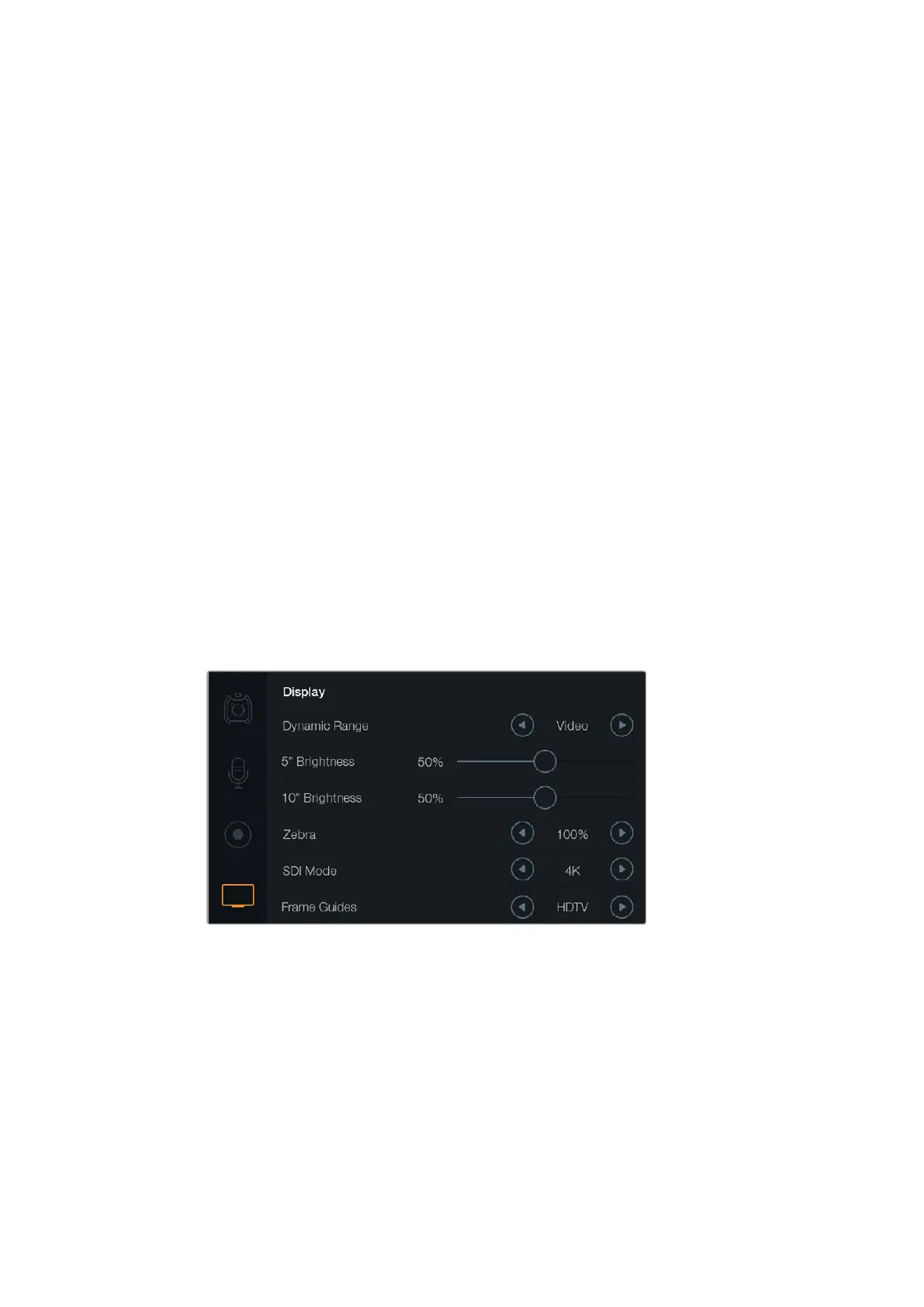
Display settings screen with zebra set to 100%. This will let
you see which areas of your image are over exposed.
SDI Mode
Use this setting to switch Blackmagic URSA’s 12G-SDI output between Ultra HD and HD video.
When the recording resolution is set to HD, only HD will be output.
Your selected overlays can be viewed independently via URSA’s 10” fold out monitor,
touchscreens and SDI outputs. Press the ‘disp’ button on the fold out monitor to independently
cycle through the SDI overlay settings on the fold out monitor.
36Blackmagic URSA Settings












 To Next Page