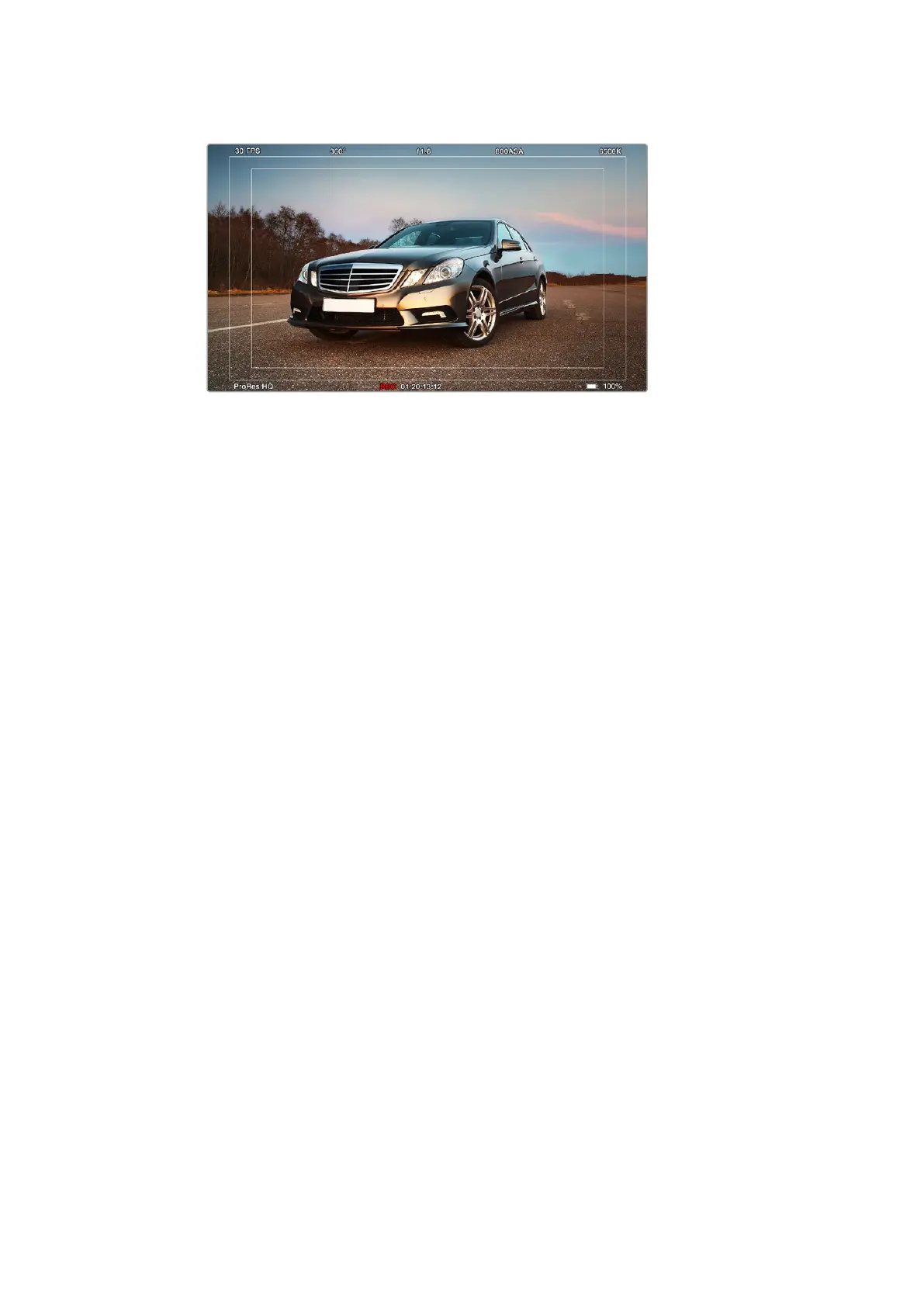
SDI overlays set to ‘all’ with the HDTV frame guide.
Overlay Settings
You can monitor your video with overlays via the fold out monitor and touchscreens. Overlays
can also be viewed via URSA’s HD-SDI monitoring output and 12G-SDI output. To choose an
overlay to display, tap the overlay setting arrow icons:
Off
Provides a clean feed.
Status
Displays only the recording information, such as f-stop number,
frame rate and shutter angle.
Guides
Displays only the frame guides.
All
Displays both frame guides and recording information.
5” LCD Overlays
On Blackmagic URSA, select ‘on’ or ‘off’ to enable or disable a touchscreen’s overlays.
Main SDI Overlays
This setting lets you choose which overlays to display via the rear 12G-SDI output.
Front SDI Overlays
This setting lets you choose which overlays to display via the HD-SDI
monitoring output.
Frame Guides
You can choose from seven different frame guides to display on your camera’s fold out monitor
and SDI outputs. Frame guides include aspect ratios for various cinema, television and online
standards, plus a rule of thirds composition grid.
Tap the ‘frame guide’ setting arrow icons to select your desired frame guide. When using
Blackmagic URSA Viewfinder, make sure you have frame guides turned off in your camera’s
front SDI settings as the URSA Viewfinder will generate its own frame guides or you will find
them doubled up in the viewfinder display.
37Blackmagic URSA Settings












 To Next Page