Matrix ETERNITY NE System Manual 1255
• Listening Port: Enter the port number using which you want SARVAM UCS to send the packets to the
remote device. Make sure this port number is also configured in the remote device.
• Remote Device IP Address: This is IP address of the Remote Device on which SARVAM UCS will
send the PCAP data.
The PCAP packets will be captured on the remote device as per the filters set in Wireshark or Ethereal
or any other similar software at the remote end.
• Click the Start button to begin the capturing of the packets.
• Click the Stop button to stop packet capture.
If you are not changing any configuration related to the remote location, we recommend you not to press
the Start-Stop-Start buttons frequently within a 1 minute, as it may lead to improper functioning.
Using PCAP Trace for Matrix SPARSH VP248 Extended IP Phone
PCAP Trace supported by the Matrix Extended IP Phone can capture up to 1 MB of packets and store them in the
embedded FTP server of the phone. The access to the FTP is secured by a password, for details see “FTP Access
for Extended IP Phones”.
You are not required to set any filters; the phone captures all packets that it sends and receives.
To be able to use PCAP Trace for a Matrix Extended IP Phone, there must be a DSS Key for accessing the Local
Menu on the phone. If you have not already configured the DSS Key for Local Menu, you may do so now. For
instructions on configuring DSS keys of the Extended IP Phone, see “Configuring SIP Extension Settings as per the
Device Type” under SIP Extensions.
To use PCAP Trace from an Extended IP Phone extension,
• Press the DSS Key assigned to ‘Local Menu’.
You can access the Local Menu only when your phone is in idle state.
• The Local Menu appears on your phone display.
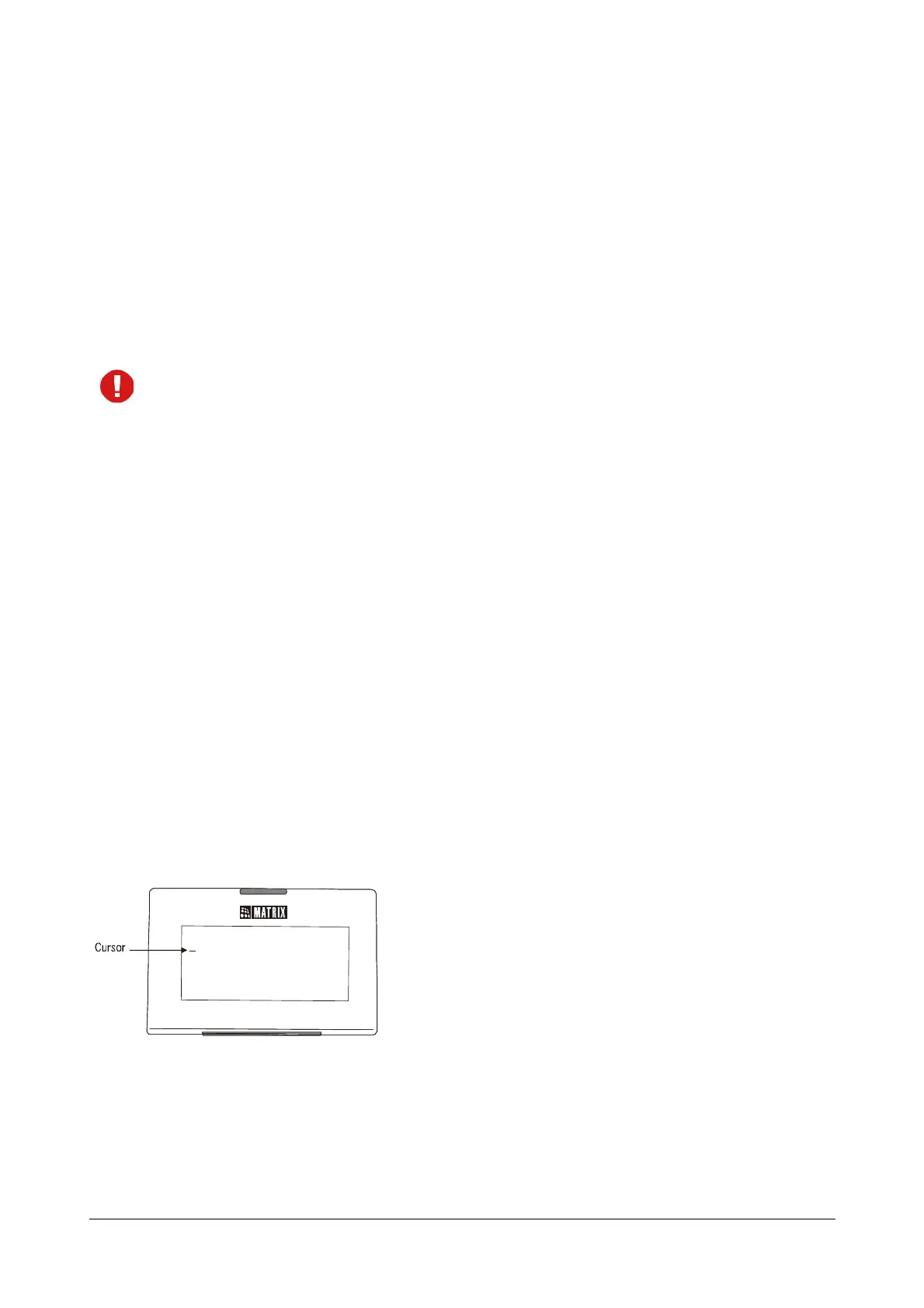
• The cursor appears under ‘Network Parameters’.
• Press Enter key to select ‘Network Parameters’.
• The Network Parameters submenu appears.
etwork Parameters



 To Next Page