296 Matrix ETERNITY NE System Manual
If you select Voice Mail Auto Attendant Menu as landing destination, the parameters Ring Timer and
Continuous Ring will not be applicable.
• By default, When member rejects the call, place the call again is disabled. Therefore, if any SIP
extension user rejects an incoming call, the system will not place the same call on this extension
again while checking the routing group to land the call. You may enable this check box, if required.
If this check box is disabled and you have selected the Continuous Ring check box, the extension
that rejects the call stops ringing while the system hunts for other extensions in the routing group to
land the call.
• Click OK. All the extensions you selected will appear in Extension, in the sequence you selected,
separated by commas.
• You may route the incoming call to an auto attendant, if the selected extensions do not answer the call.
• Select the Ring Extension/s check box and set the ring duration in for___seconds. Default: 10
seconds. This is the time for which the system will ring on the destination extensions you selected, and
wait for the extension to answer. If the call remains unanswered on the expiry of this timer, SARVAM
UCS will route the call to the auto attendant.
• Select the destination for an unanswered call in the If not answered, route to. You may select Built-In
Auto Attendant or Voice Mail Auto Attendant. Default: Built-In Auto Attendant.
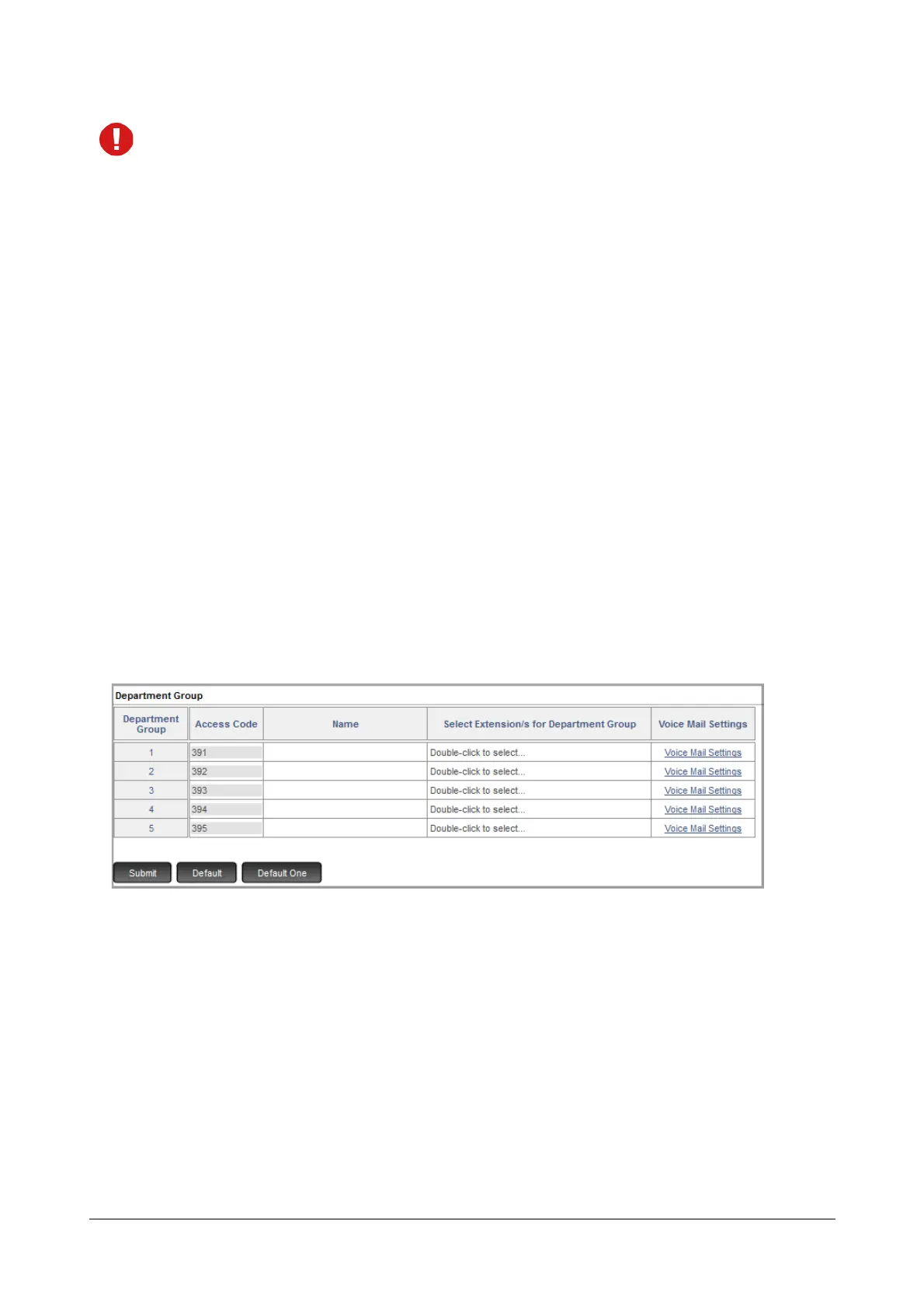
• If you select a Department Group as the landing destination,
• Click the Settings icon. A new window opens.
To configure the Department Group parameters, see “Department Call”.
• If you select Built-in Auto Attendant as the landing destination for calls during the day,
• the Voice Modules 02 to 13 will be played as “Built-In Auto Attendant Greeting Messages” and “Built-In
Auto Attendant Guidance Messages”.
• If you want to play a different message, make sure you record the desired messages in the Voice
Modules after completing the installation with Basic Settings. Refer the “Voice Message Applications”
topic to know more.
See “Auto Attendant” to know more.



 To Next Page