3.11
Date Code 20171021 Instruction Manual SEL-421 Relay
Testing
Checking Relay Operation
Step 2. Upload the new setting to the SEL-421.
a. Click File > Send.
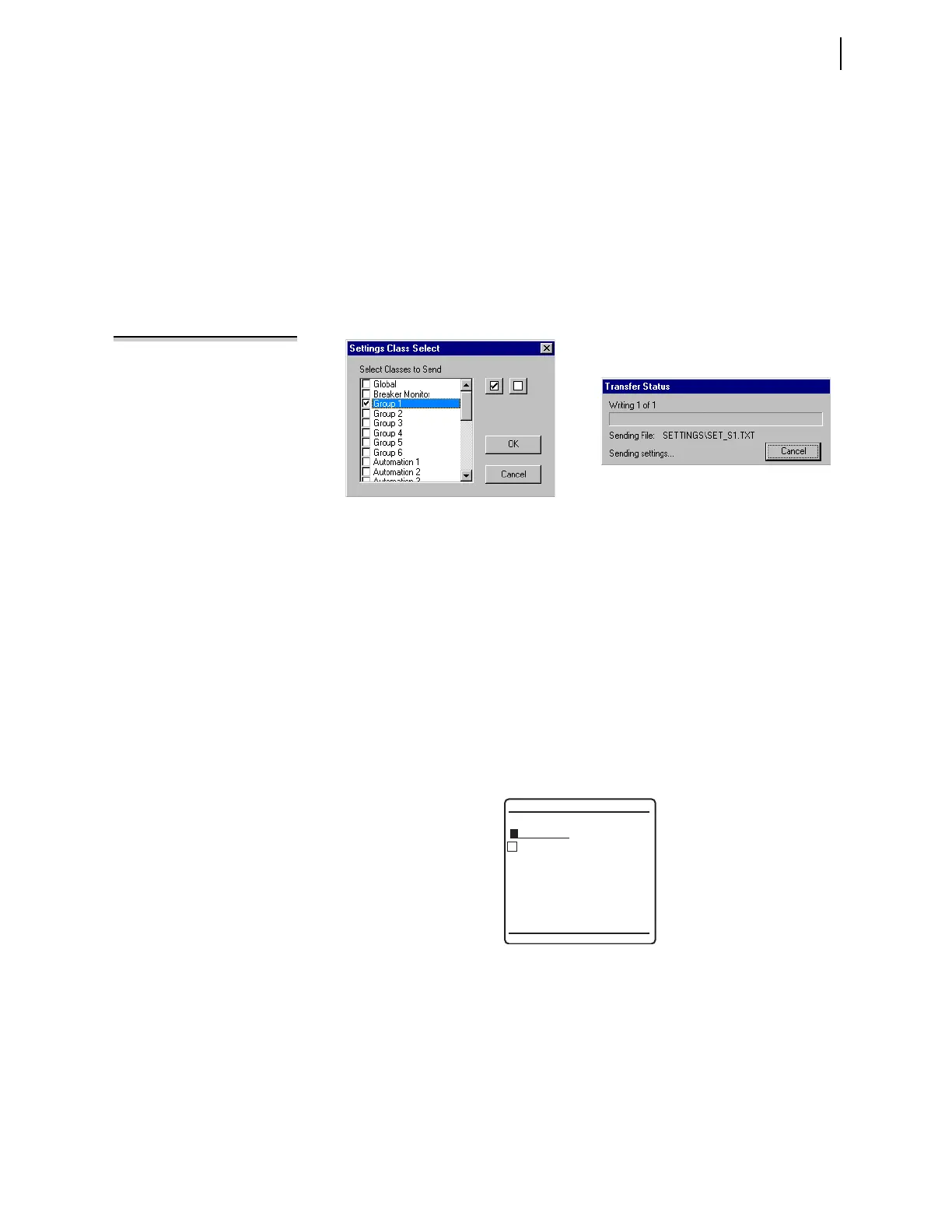
QuickSet prompts you for the settings class you want to send to
the relay, as shown in the Group Select dialog box in Figure 3.8.
b. Click the check box for Group 1.
c. Click OK.
The relay responds with the Transfer Status dialog box similar
to Figure 3.8.
If you see no error message, the new settings are loaded in the
relay.
Step 3. Display the 50Q1 Relay Word bit on the front-panel LCD screen.
a. Access the front-panel LCD
MAIN MENU.
b. Highlight
RELAY ELEMENTS and press ENT.
c. Press ENT to go to the
ELEMENT SEARCH submenu shown in
Figure 3.9.
d. Use the navigation keys to highlight
5 and then press ENT to enter
characters in the text input field.
e. Enter the
0, Q, and 1 characters in turn.
f. Highlight
ACCEPT and press ENT.
The relay displays the screen containing the 50Q1 element, as
shown in Figure 3.10.
Figure 3.8 Uploading Group 1 Settings to the SEL-421
Figure 3.9 ELEMENT SEARCH Screen
NOTE: The Relay Editor dialog boxes
shown in Figure 6.19 are for the
S E L- 421 - 5 . The S E L- 4 2 1 - 4 d i a l o g
boxes do not contain Automation 2
through Automation 10 setting
instances.
ELEMENT SEARCH
A B C D E F
G H I J K L
M N O P Q R
S T U V W X
Y Z 0 1 2 3
4 5 6 7 8 9
-
ACCEPT BACKSPACE



 To Next Page