B.4
SEL-400 Series Relays Instruction Manual Date Code 20171006
Firmware Upgrade Instructions
Upgrade Procedure
Step 3. Connect a communications cable and determine the port speed.
If using the EIA-232 front port to upgrade firmware, determine the
port speed as follows:
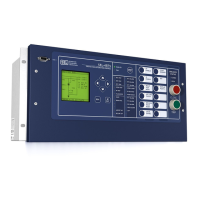
a. From the relay front panel, press the ENT pushbutton.
b. Use the arrow pushbuttons to navigate to
SET/SHOW.
c. Press the ENT pushbutton.
d. Use the arrow pushbuttons to navigate to
PORT.
e. Press the ENT pushbutton.
f. Use the arrow pushbuttons to navigate to the relay serial port you
plan to use (usually the front port, Port F).
g. Press the ENT pushbutton.
h. Use the arrow pushbuttons to navigate to Communication
Settings.
i. Press the ENT pushbutton to view the selected port
communications settings. Write down the value for each setting.
j. Once the port settings have been recorded, press the ESC
pushbutton four times to return to the
MAIN MENU.
k. Connect an SEL-C234A EIA-232 serial cable, SEL-C662 USB
to EIA-232 converter, or equivalent communications cable to the
relay serial port and to the PC.
C Establish Communications With the Relay
NOTE: Once serial port
communication is established, it is
recommended to set the SEL
BOOT Max
Baud setting to the highest possible
port speed available (typically 115200
bps). This will reduce the time needed
to read settings and events from the
relay.
Use the Communications > Parameters menu of QuickSet to establish a con-
nection using the communications settings determined in Step 3 under B Remove
Relay From Service on page B.3. See Section 2: PC Software for additional infor-
mation.
D Save Settings and Other Data
It is possible for data to be lost during the firmware upgrade process. Follow the
steps in this section carefully to ensure that important data are saved.
Step 1. For SEL-400 series relays with optional IEC 61850 protocol config-
ured, follow the steps in section Verify IEC 61850 Operation
(Optional) on page B.13 to save the CID file and send it back to the
relay after the firmware upgrade.
Step 2. Select Tools > Firmware Loader and follow the onscreen prompts.
Step 3. In the Step 1 of 4 window of the Firmware Loader (as shown in
Figure B.1), click the ellipsis button and browse to the location of the
firmware file. Select the file and click Open.



 To Next Page