258
4 Adjusting knitting machine
Working with files
Call up "Search" selection
window
The corresponding location is sought when you enter line numbers or text and
select the keys.
Search an d Continue keys
"Search" and "Continue" keys
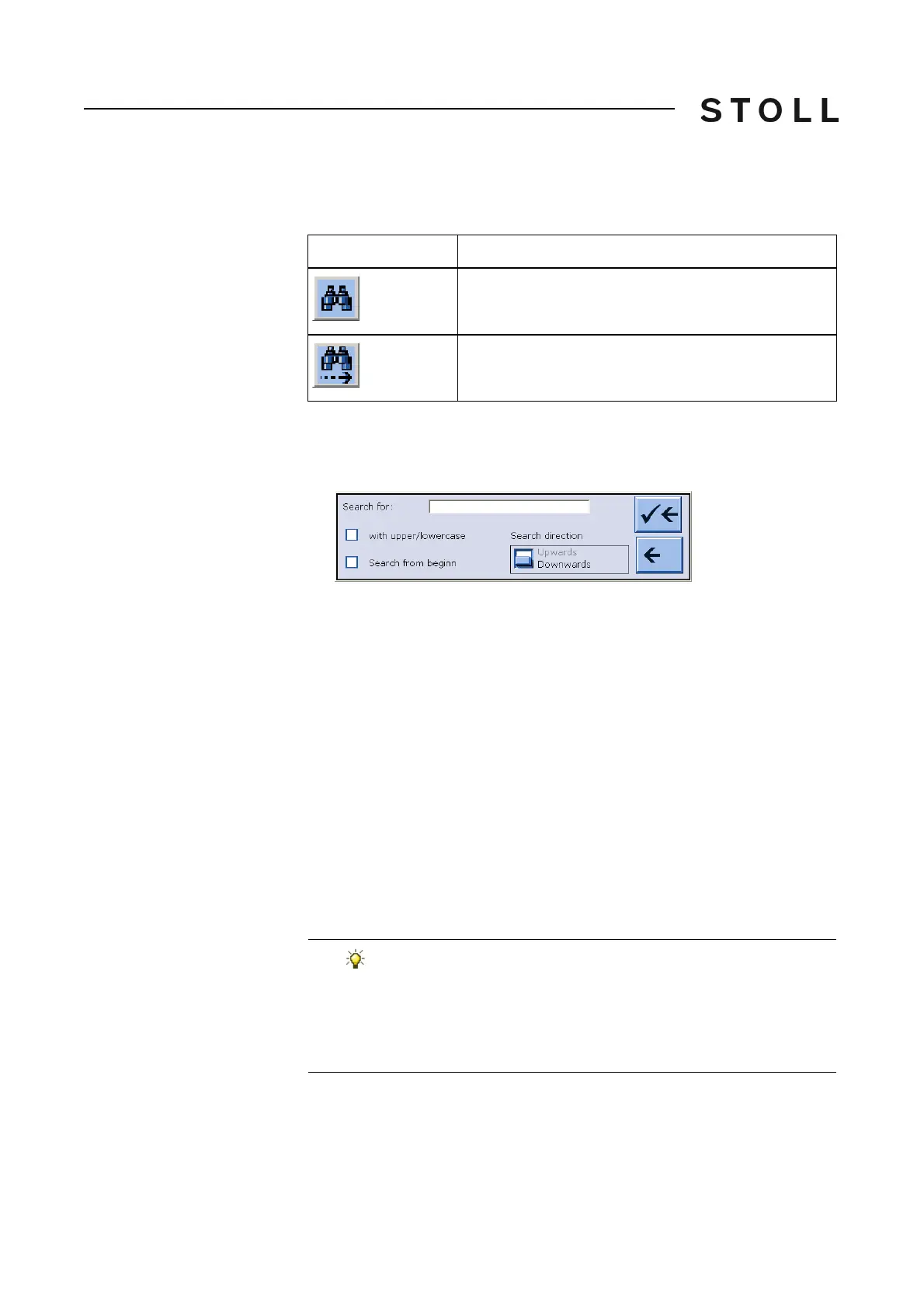
1. Call up the "Search" selection window with the "Search" key.
The "Search for" window appears.
Search se lection window
"Search" selection window
2. Enter the line number or text to be searched for with the virtual keyboard.
3. Select options for uppercase/lowercase letters
and the search direction.
4. To start the "Search from begin", select the "Y
es" key.
- or -
➜ Select the "No" key if you only want to search f
rom here.
5. To activate the search, tap the top arrow ke
y,
- or -
➜ To exit the window, ta
p the bottom arrow key.
6. To find other instances of the text, tap the "Continue" key,
- or
-
➜ To start the next search, ent
er a new line number or text with the virtual
keyboard.
Key
Function
"Search": search for a specific term
"Carry on searching": Continue searching for a certain
term
If the message "Search title not found" appears:
Either the text searched for is not con
tained in the knitting
program or the options are not set correctly.
➜ Check the text entered.
➜ Change the search direction.



 To Next Page