X35 ConsoleGeneral Operations
8.6
c. Fill Tank to Capacity
(Item D, Figure 8.7)
i.
For tanks with just a calculated
weight remaining this will fill them
to the theoretical full capacity based
on the tank volume and the set
product density.
ii. For tanks with dedicated load cells
this will set the calculated weight
remaining to the current measured
weight.
d. Incr
ease Weight by Increment
(Item E, Figure 8.7)
i. Will add the product weight based on
the preset increment (refer to Item C)
e. Fill
All Tanks to Capacity
(Item F, Figure 8.7)
i. This will apply the filling function to
all tanks.
ii. For tanks with just a calculated
weight remaining this will fill them
to the theoretical full capacity based
on the tank volume and the set
product density.
iii. For tanks with dedicated load cells
this will set the calculated weight
remaining to the current measured
weight.
4. Adjust
Calibration (Item G, Figure 8.6)
i. Use this wizard by entering the actual
weight remaining in the tank and it
will compare to the theoretical weight
remaining to adjust the calibration factor
for that tank accordingly.
5. T
ank Fill Wizard (Item H, Figure 8.6)
With the integrated weigh system the Tank Fill
wizard will enter the added weight for each tank
as it is filled.
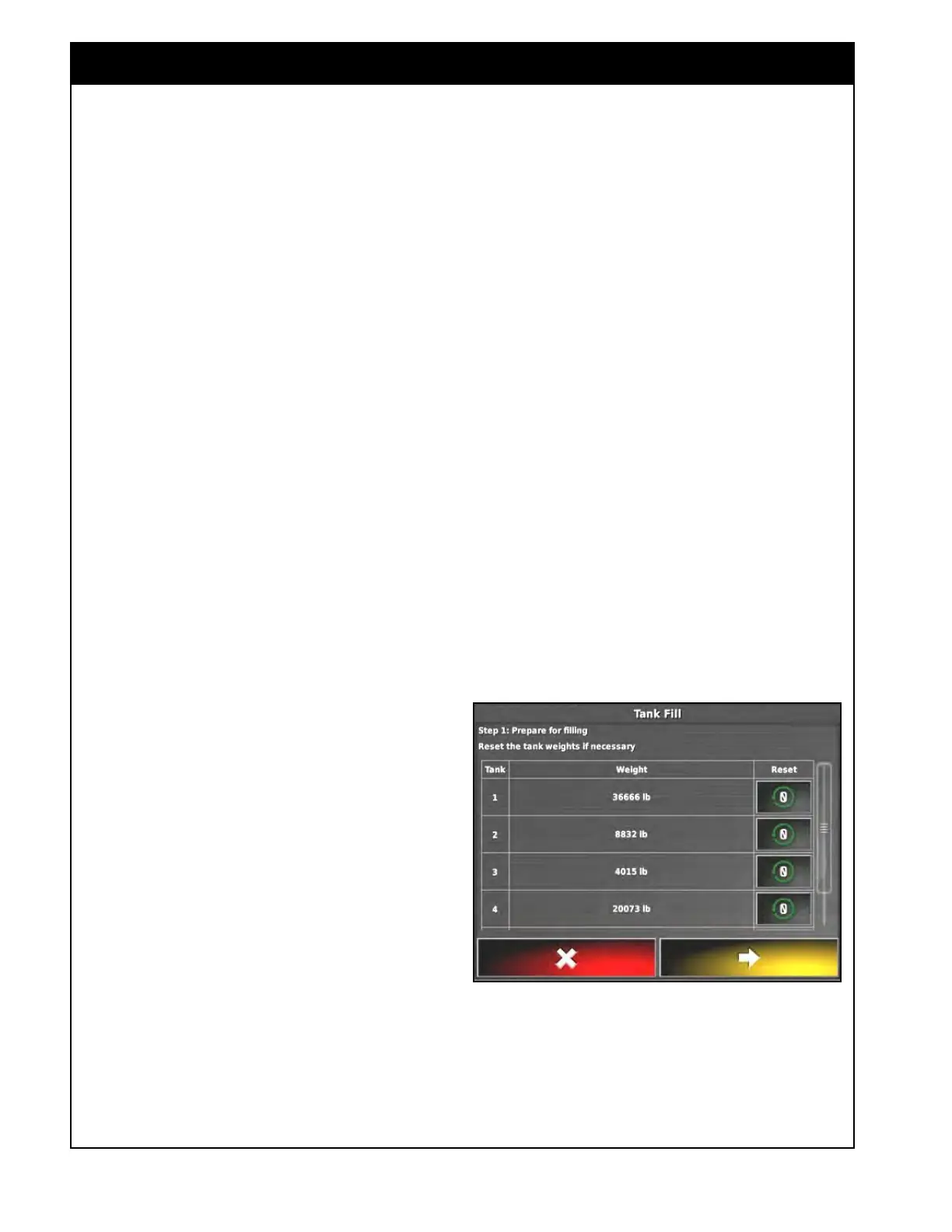
Open the Tank Fill wizard.
a. Step 1 - Prepare for filling, refer to Figure
8.8:
i. Reset any tanks to zero weight if
they
are actually empty.
ii. Select next button to go to the next
step.
b.
Step 2 - Filling in progress:
i. Activate the tank that is being filled
by pressing the scale icon.
ii. The icon will be green when
activated.
iii.
Press the scale icon again to
deactivate the tank when it is full.
iv. Repeat for all tanks that are being
filled.
v
. Any added weight will be stored in
the activated tank.
Figure 8.8 - Tank Fill Screen



 To Next Page