X35 ConsoleField / Job
9.20
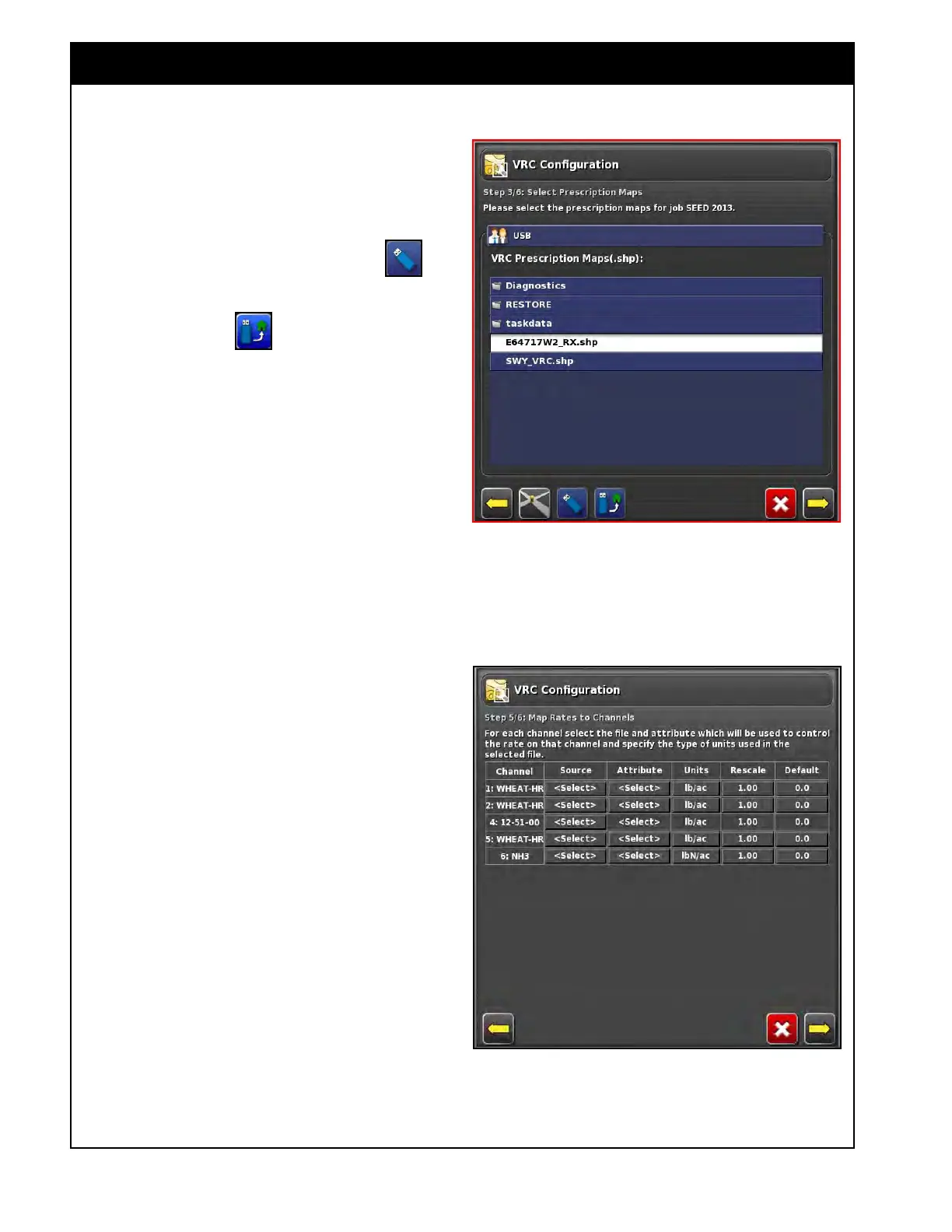
2. Select a Prescription map.
a. A Prescription map can be loaded from the
X35 console or directly from a USB.
b. To switch between the X35 internal
memory and a USB device select
.
c. When loading from a USB device,
selecting the
icon can switch the
display format between Client/Farm/Field
and USB Home format (Figure 9.30).
Figure 9.30 - VRC Wizard - Step 3
3. Refer to Figure 9.31. When the Prescription
Map is loaded, assign a file to each tank that
will be using the VRC application.
a. Pick the Attribute/Layer for each tank.
i. This should be Clear, if the creator
of the prescription file named the
layers appropriately.
b. Select NO VRC for non-VRC tanks.
4. If necessary, change the units and also rescale
the rates if something changed since the map
was created.
a. This will rescale all zones for that product.
i. For example: if you want 20% extra
enter 1.20, if you want 20% less
enter 0.80.
b. Enter a Default Rate for each tank for Out
of Zone (areas that might not be included
on prescription map) or loss of GPS signal.
Figure 9.31 - VRC Wizard - Step 5



 To Next Page