X35 Console Field / Job
9.21
5. The next step completes the VRC Wizard and
the Prescription Map is displayed on screen.
Important
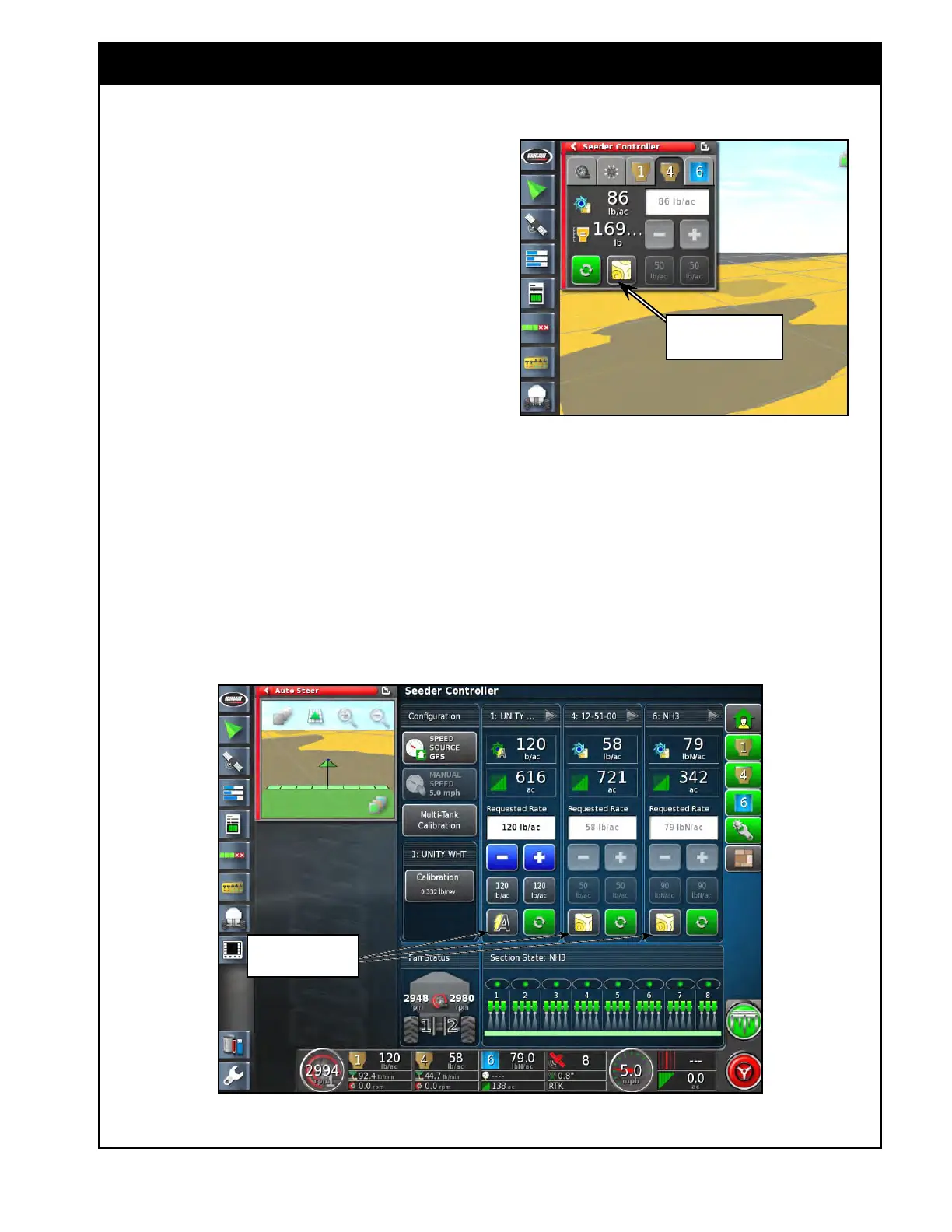
Before starting to apply product, you need to
switch the tank application mode from the default
“auto” to “VRC” for each tank controlled by VRC.
This can be done from the Seeder Controller mini-
view or expanded window (refer
to Figure 9.32
& Figure 9.33).
a.
You can change the mode for each tank
separately, or you can change them all at
once by pressing on the top tab that has
the product name.
b. This will change the tab to say All
Products and by selecting a mode it will
change them all.
Figure 9.32 - Seeder Controller (Mini-View)
Figure 9.33 - Seeder Controller (Main View)
Tank Application Mode
can be switched here
6. Refer to Figure 9.32 & Figure 9.33. During
application the Rate icon for the VRC tanks
changes in the main seeder view.
a. The requested rate area will also grey out
as the rate is being driven by the VRC
map.
b.
The displayed rates for those tanks will
change as you are moving in and out of
the different zones.
Tank Application Mode
can be switched here



 To Next Page