X35 ConsoleGeneral Operations
8.10
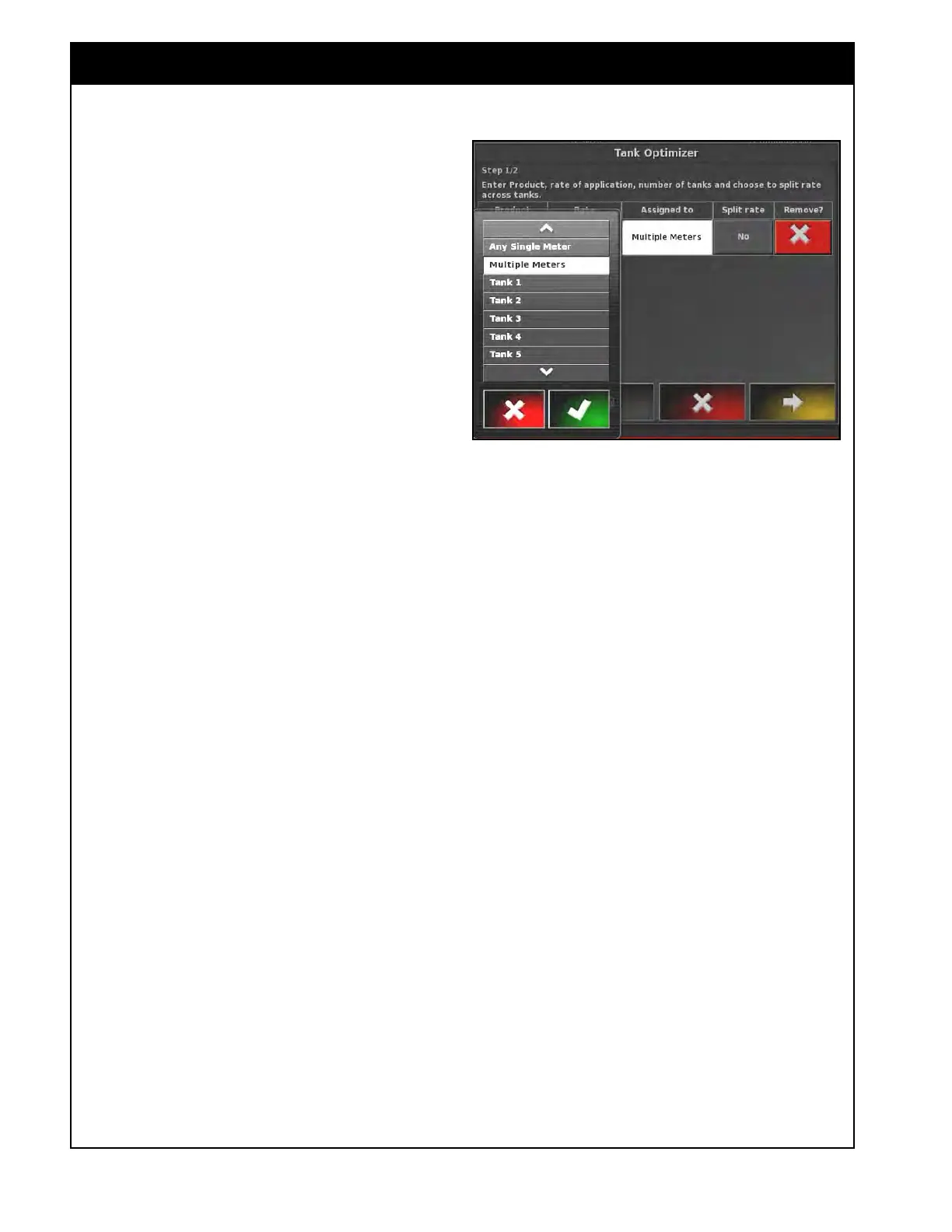
5. Refer to Figure 8.17. Assign tanks for this
product.
a. If you know the tank you will be putting
this product in, select that tank from the
scroll list.
b. If Any Single Meter is selected, the
optimizer will assign this product to one
single tank.
c. If Multiple Meters is selected, the
optimizer will assign this product to
several tanks (ex. if it has a much higher
rate than other products).
6. If one product will be placed in multiple tanks,
the optimizer will allow you to select the
option of splitting the rate between these tanks.
a. Under the Split Rate column for that
product select:
i. YES - to allow split rates. This will
set
the rates for each tank so they all
run out at the same time.
ii. NO - if you prefer not to use split
rates.
This will use the requested
application rate for that product,
for each tank and you will have to
manually switch tanks as they run
out.
7. Repeat the above steps if more products will
be applied. Refer to Figure 8.17.
a.
Press the Remove button to clear
any product from the list in the Tank
Optimizer.
b. When finished adding all products, select
the yellow arrow to proceed to the next
step.
Figure 8.17 - Assigning Tank(s)



 To Next Page