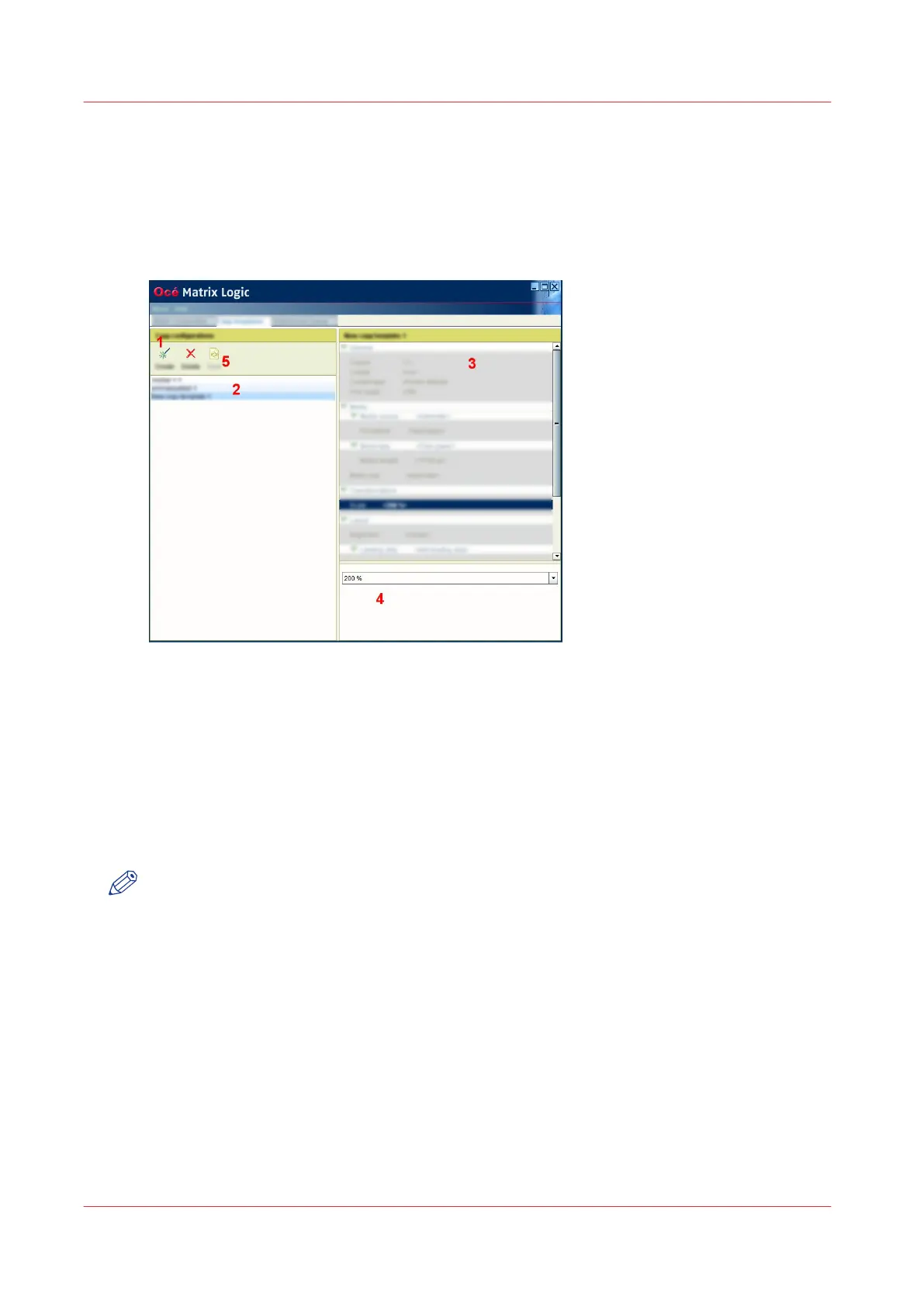
Create a new template
Introduction
In Océ Matrix Logic, first configure the templates to apply to the jobs.
You can configure up to 49 different templates in the 'Copy templates' tab:
Procedure
1.
Click 'Create'
A new template is created in the 'Copy configurations' section (left side)
2.
Select and rename the template
3.
In the right section ('template name'), select a setting to configure
4.
Set the value of the setting in the bottom right section
Repeat the operation for every setting to configure
5.
Click 'Save'
NOTE
If you exit the tab without saving the changes in the template, a message asks you whether you
want to save, discard or cancel the template.
Edit a template
Procedure
1.
Select a template in the list (2)
2.
Select the setting to define or modify (3)
3.
Select the value to apply in the bottom section (4)
4.
Repeat steps 2 & 3 with all the settings to edit
5.
Click 'Save' (5)
Create a new template
278
Chapter 6 - Use the Océ TDS600 scanner for copy and scan-to-file jobs



 To Next Page