Use the Océ PostScript
®
3 Driver to send a print job
Introduction
Océ provides the Océ PostScript
®
3 Driver that allows you to send print jobs to your Océ
PlotWave 750.
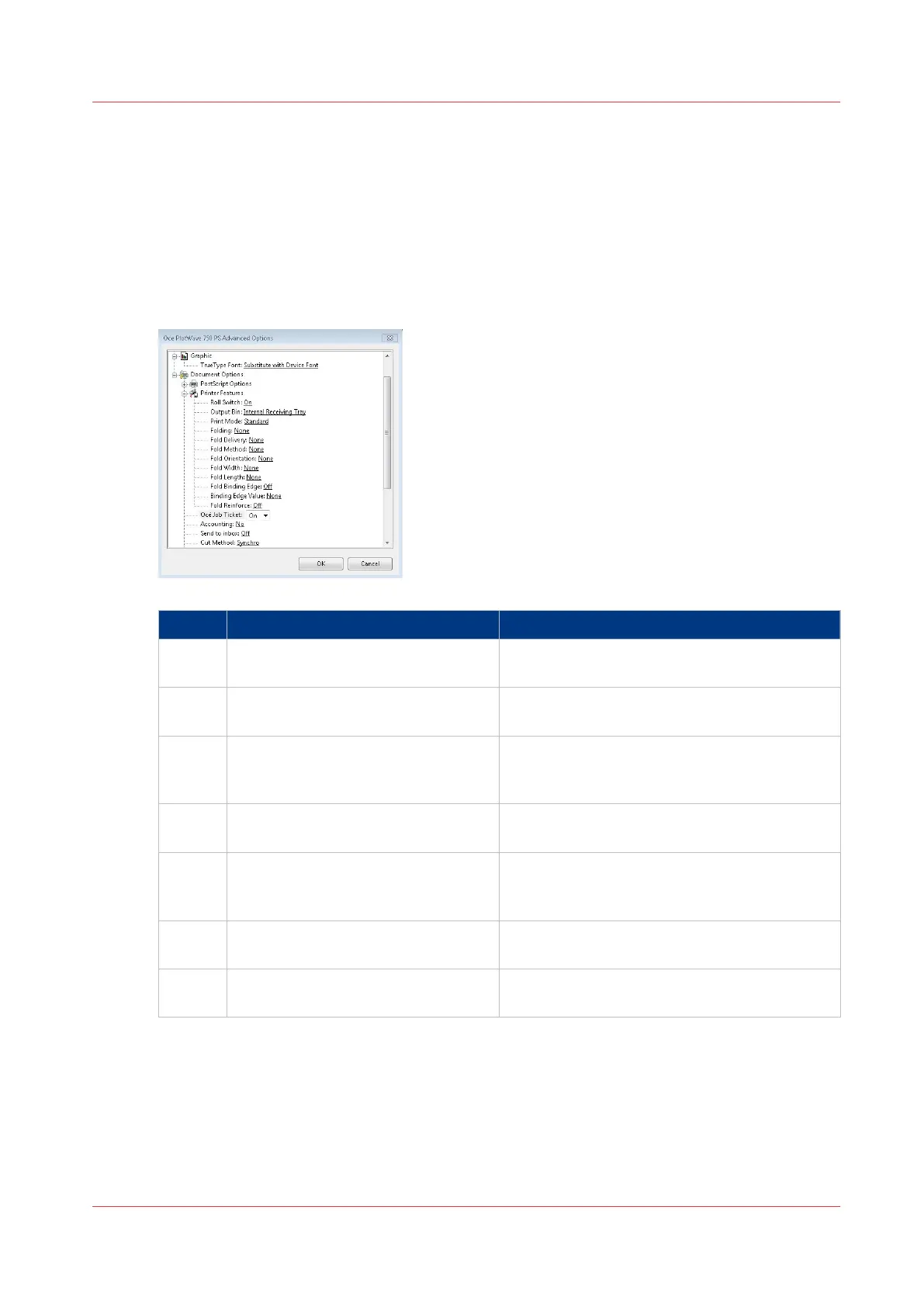
Illustration
Step Action Remarks
1 Open the file that you want to print
in the source application.
2 From the [File] menu of the applica-
tion, click [Print].
3 Select the Océ PlotWave 750 in the
[Printer] area of the [Print] dialog
box.
4 Click [Properties] and [Advanced]. When you select [Properties], you can make
settings for the print job.
5 Activate the Océ Job Ticket to over-
rule the default values for the job set-
tings.
6 Check and change the Printer Fea-
tures settings if necessary.
7 Click [OK] to send the print job to the
Smart Inbox or the Jobs Queue.
Use the Océ PostScript® 3 Driver to send a print job
Chapter 4 - Use the Océ PlotWave 750 to print
157



 To Next Page