2.23
Date Code 20171006 Instruction Manual SEL-400 Series Relays
PC Software
Analyze Events
Get Event
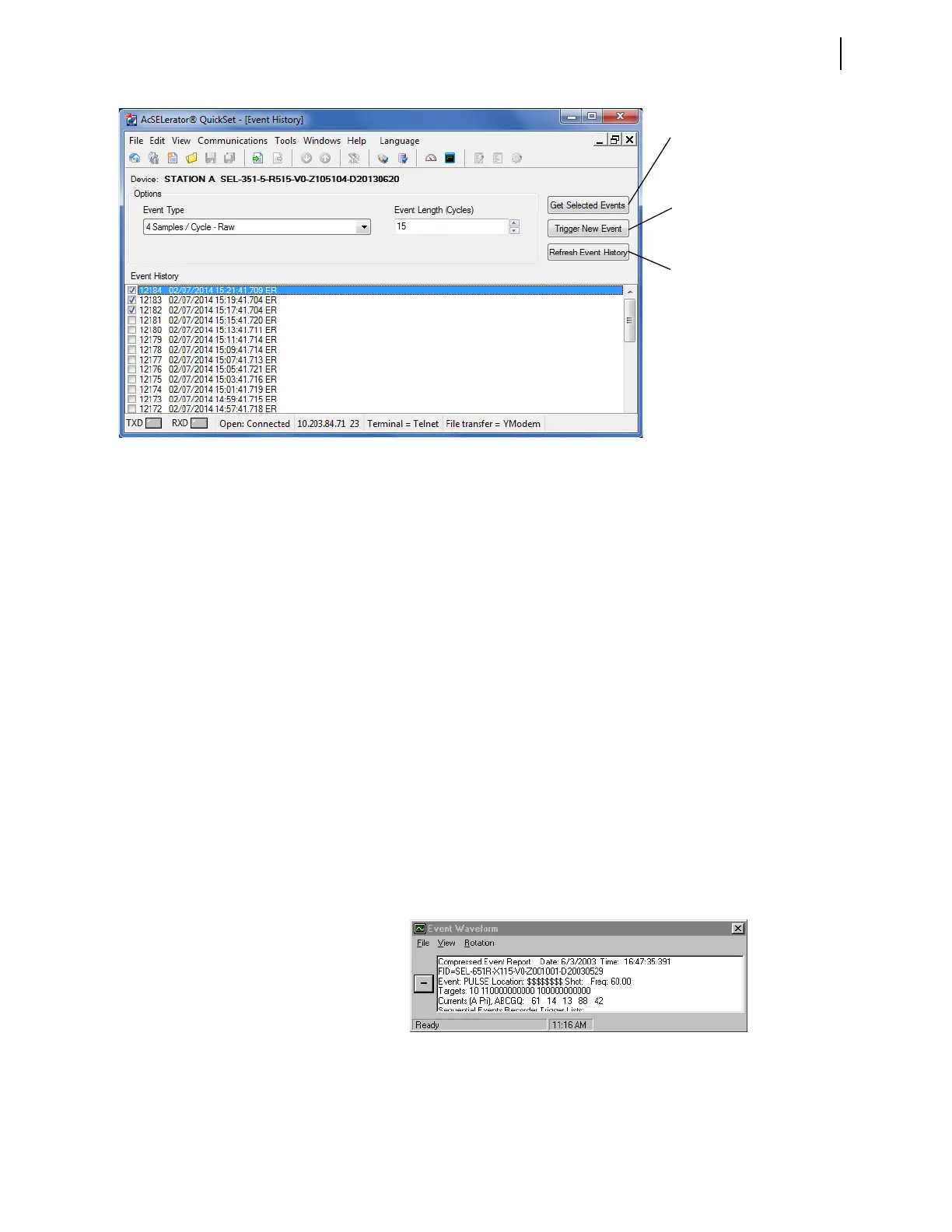
Highlight the event you want to view and click the Get Selected Event button.
The Event Options dialog box allows selection of Event Type and Event Length.
When downloading is complete, QuickSet asks for a location to save the file on
your computer. Select Tools > Events> View Event Files and select an event file
to view events saved on your computer. QuickSet displays the Event Waveform
dialog box and the event oscillogram (see Figure 2.21 and Figure 2.22).
When viewing the event oscillogram, use keyboard function keys to measure the
time of oscillogram occurrences. These function keys and related functions help
in event analysis.
➤ <F2>: go to trigger
➤ <F3>: Cursor 1
➤ <F4>: Cursor 2
The display shows the time difference between Cursor 1 and Cursor 2.
To see high-accuracy time-stamp information on the event oscillogram, click the
Pref button at the bottom of the oscillogram, select Time (under Time Units,
Starting/Ending Row), and click OK. Click on any point in a graph to observe
the Event Time in microseconds of that data point at the bottom of the oscillo-
gram.
Figure 2.20 Retrieving an Event History
Downloads selected events from
the relays and saves in the format
indicated in the Event Type
drop-down menu.
Sends a trigger command to the
connected relay and updates the
event history list.
Checks the connected relay for new
event records and updates the
event history list.
Figure 2.21 Event Waveform Window



 To Next Page