3.51
Date Code 20171006 Instruction Manual SEL-400 Series Relays
Basic Relay Operations
Reading Oscillograms, Event Reports, and SER
Changing the Default Passwords in the Terminal on page 3.10 to change the
default access level passwords). You should also be familiar with QuickSet (see
Checking Relay Status in QuickSet on page 3.12 and Section 2: PC Software).
Step 1. Start QuickSet and establish a connection with the relay. See Step 1
and Step 2 of Checking Relay Status in QuickSet on page 3.12 for
detailed steps.
Step 2. To view the event history report, open the QuickSet Tools menu and
click Events > Get Event Files.
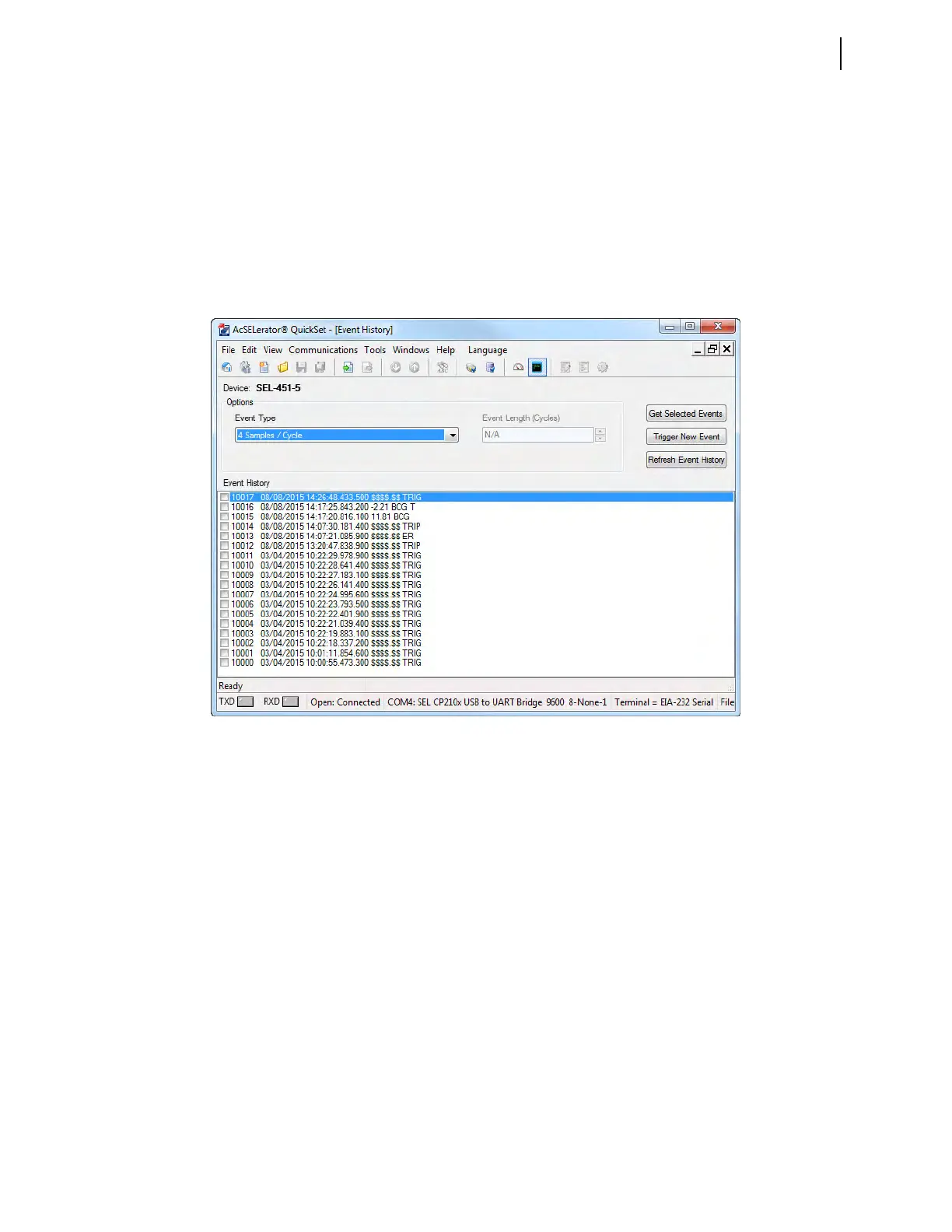
You will see the Relay Event History dialog box similar to that
shown in Figure 3.42.
Reading the Event History in the Terminal
The procedure in the following steps shows how to use the relay HIS command
to confirm that you captured power system data with an event trigger. This exam-
ple assumes that you have successfully established communication with the relay
(see Making an EIA-232 Serial Port Connection on page 3.4). In addition, you
must be familiar with relay access levels and passwords (see Changing the
Default Passwords in the Terminal on page 3.10 to change the default access
level passwords).
Step 1. Prepare to monitor the relay at Access Level 1.
a. Using a communications terminal, type ACC <Enter>.
b. Type the Access Level 1 password and press <Enter>.
You will see the Access Level 1 => prompt.
Step 2. Type HIS <Enter> to examine the event history
You will see a screen display similar to Figure 3.43.
Figure 3.42 Relay Event History Dialog Box



 To Next Page