3.
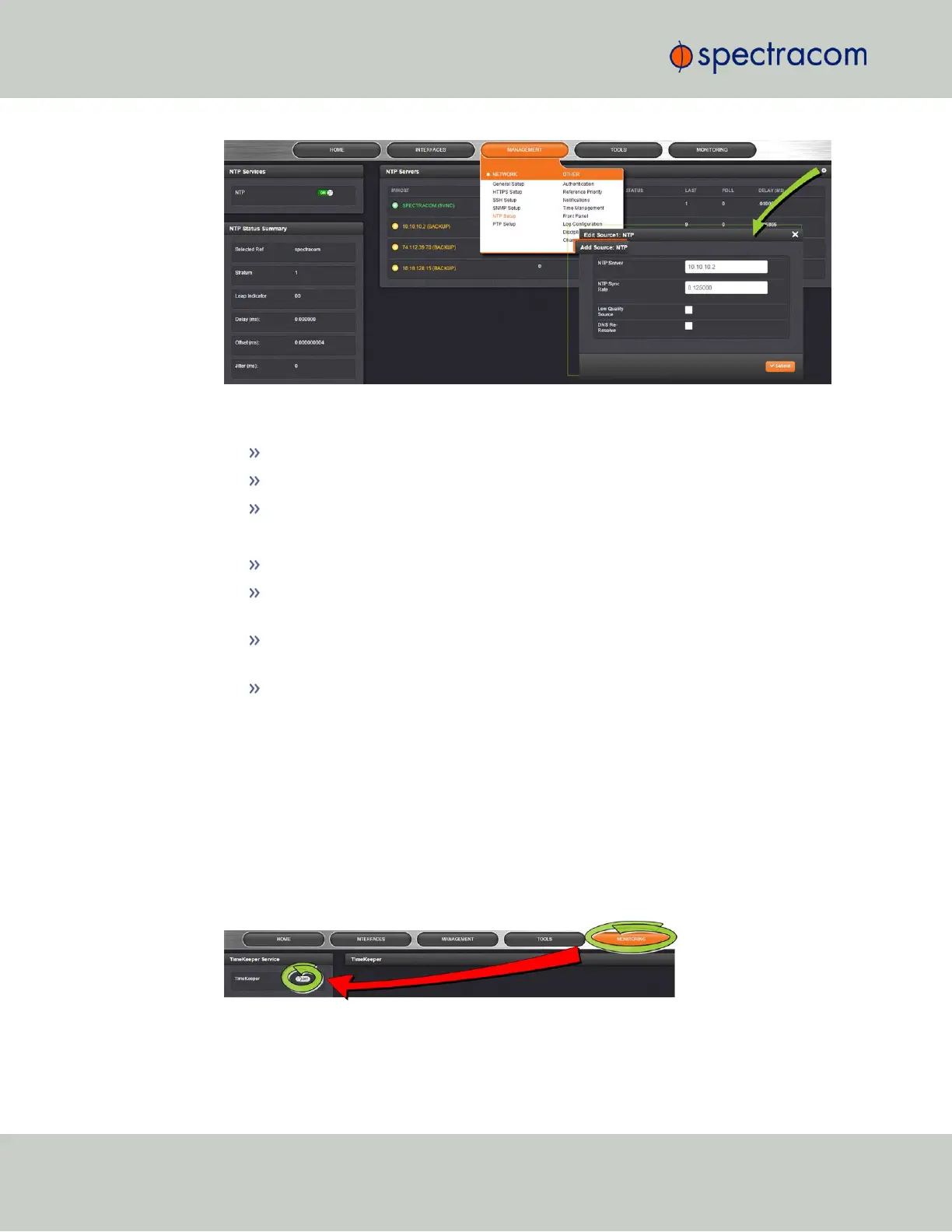
If requested (depending on your current NTP configuration), in the newly opened win-
dow click:
The PLUS icon to add a new server, or
The GEAR button next to an existing server, to edit it, or
The X-button to delete the server.
4.
Populate or edit the fields:
NTP Server: The IP address or DNS name of the NTP server.
NTP Sync Rate: The rate at which to make NTP requests; a syncrate of 0.5 causes
TimeKeeper to query the NTP server every 2seconds.
Low-Quality Source: Check this box to improve tracking of a low-quality source,
such as NTPd.
DNS Re-Resolve: If checked, the source will periodically re-resolve the DNS name
specified for the NTP source.
3.6.6 En-/Disabling TimeKeeper
There are two ways to enable/disable TimeKeeper:
METHOD A:
1.
In the Primary Navigation menu, click on MONITORING.
2.
In the panel TimeKeeper Service, select ON (or OFF, respectively).
3.
A pop-up message will briefly appear, indicating that TimeKeeper has been enabled or
disabled.
230
CHAPTER 3 • SecureSync User Reference Guide Rev. 26
3.6 Managing TimeKeeper


 To Next Page