Printing Vertical or Horizontal Banners (Large-Format Printing; Windows)
This topic describes how to print a banner about five times as long as the roll width based on the following example.
• Document: A horizontal banner created in Microsoft Word
• Page size: Non-standard (100×500 mm [3.9×19.7 in])
• Paper: Roll
• Paper type: Plain Paper
• Roll paper width: 16 in (406.4 mm)
Follow the steps below to print a banner in either horizontal or vertical format.
1. Register a Custom Paper Size.
Banners
tend to be in non-standard sizes, so register a Custom Paper Size. In this example, 100×500 mm (3.9×19.7
in) is registered.
2. In the application, create an original in the size you registered.
3. Print the banner, using the settings that correspond to banners.
Registering a Custom Paper Size
This example describes how to register a paper size that is horizontally elongated and suitable for banners in either hori-
zontal or vertical format.
1. Display
the printer driver dialog box.(See "Accessing the Printer Driver Dialog Box from the Operating Sys-
tem Menu (Windows)
→P.202 ")
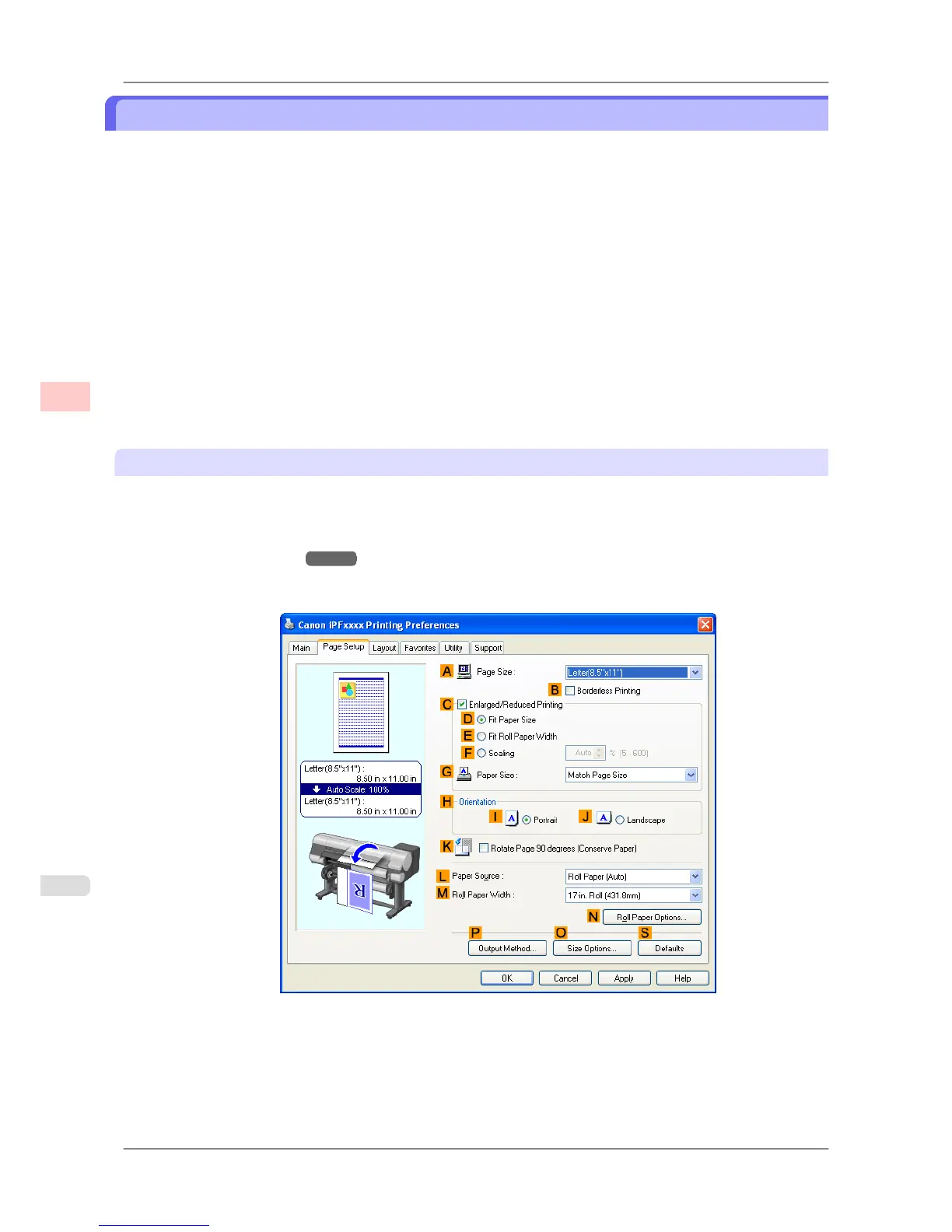
2. Click the Page Setup tab to display the Page Setup sheet.
3. Select and click a roll paper in the LPaper Source list.
4. Click OSize Options to display the Paper Size Options dialog box.
5. Enter a desired paper name in Custom Paper Size Name. My Horizontal Banner is used in this example.
Enhanced Printing Options
>
Printing banners or at other non-standard sizes
>
Printing Vertical or Horizontal Banners (Large-Format Printing; Windows) iPF825
3
110














 To Next Page