11. Press ▲ or ▼ to enable or disable spanning tree support, and then press the OK button.
Return to the Ethernet Driver menu.
12. Press the Online button.
After the confirmation message is displayed, press OK.
The new settings will take effect after the printer restarts.
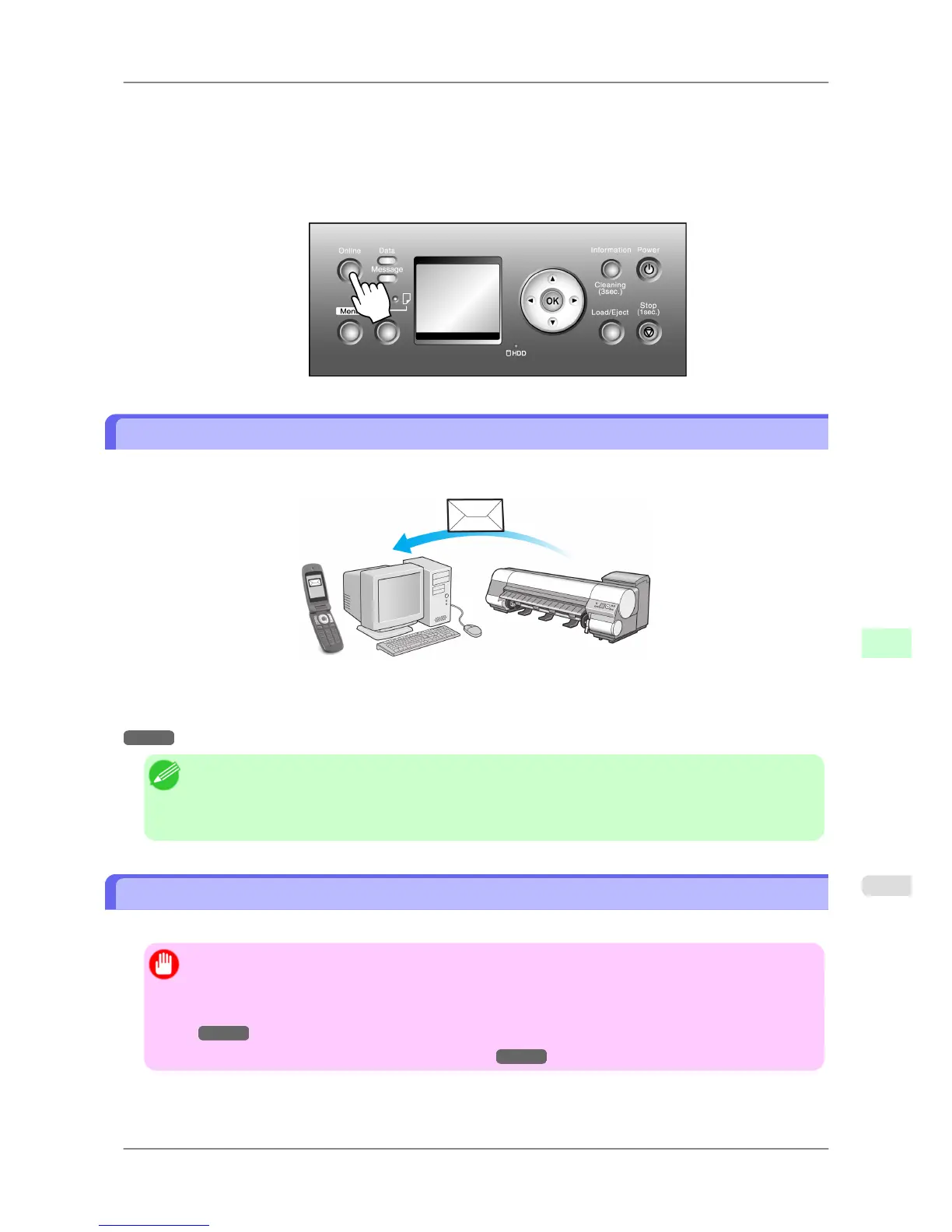
Email Notification When Printing is Finished or Errors Occur
The printer can notify you of the printer status by email. Even when you are away from the printer, you can know when
printing is finished or if errors occur. Receive notification via email on your mobile phone or at your computer.
Use the imagePROGRAF Status Monitor (Windows) function to set up email recipients and message timing. Besides
being informed of finished print jobs or errors, you can also complete settings for email notification when service is
needed or it's time to replace consumables. For detailed instructions,see "Specifying Printer-Related Information."
→P.719
Note
• For
details on email notification using imagePROGRAF Status Monitor (in Windows), refer to the im-
agePROGRAF Status Monitor help.
• Mail server authentication is only supported with imagePROGRAF Status Monitor.
Initializing the Network Settings
Use RemoteUI to restore the network settings to the default values as follows.
Important
• Initializing
the network settings will also restore the default value of the printer's IP address. As a result,
the RemoteUI page cannot be displayed in the web browser after this procedure.
• For instructions on reconfiguring the IP address, see "Configuring the IP Address on the Printer."
→P.714
• For details on RemoteUI, see "Using RemoteUI." →P.717
Network Setting
>
Network Setting
>
iPF825 Email Notification When Printing is Finished or Errors Occur
10
721














 To Next Page