Loading Rolls in the Printer
Follow these steps to load rolls in the printer.
You can load rolls in two positions, in the Roll 1 (Upper) and Roll 2 (Lower) holders.
Note
• Remove any loaded paper that will not be used.
• Rolls (See "Removing the Roll from the Printer.")
→P.597
• Sheets (See "Removing Sheets.") →P.621
• If
the Wheeled Output Stacker is installed, remove it in advance. (See "Using the Wheeled Output
Stacker.")
→P.623
• If the Platen is dirty, clean inside the Top Cover. (See "Cleaning Inside the Top Cover.") →P.772
• After
pressing the Load/Eject button, you can refer to instructions on the Display Screen as you load the
paper. (See "Checking Instructions During Printer Operations.")
→P.698
Loading rolls in the Roll 1 (Upper) holder
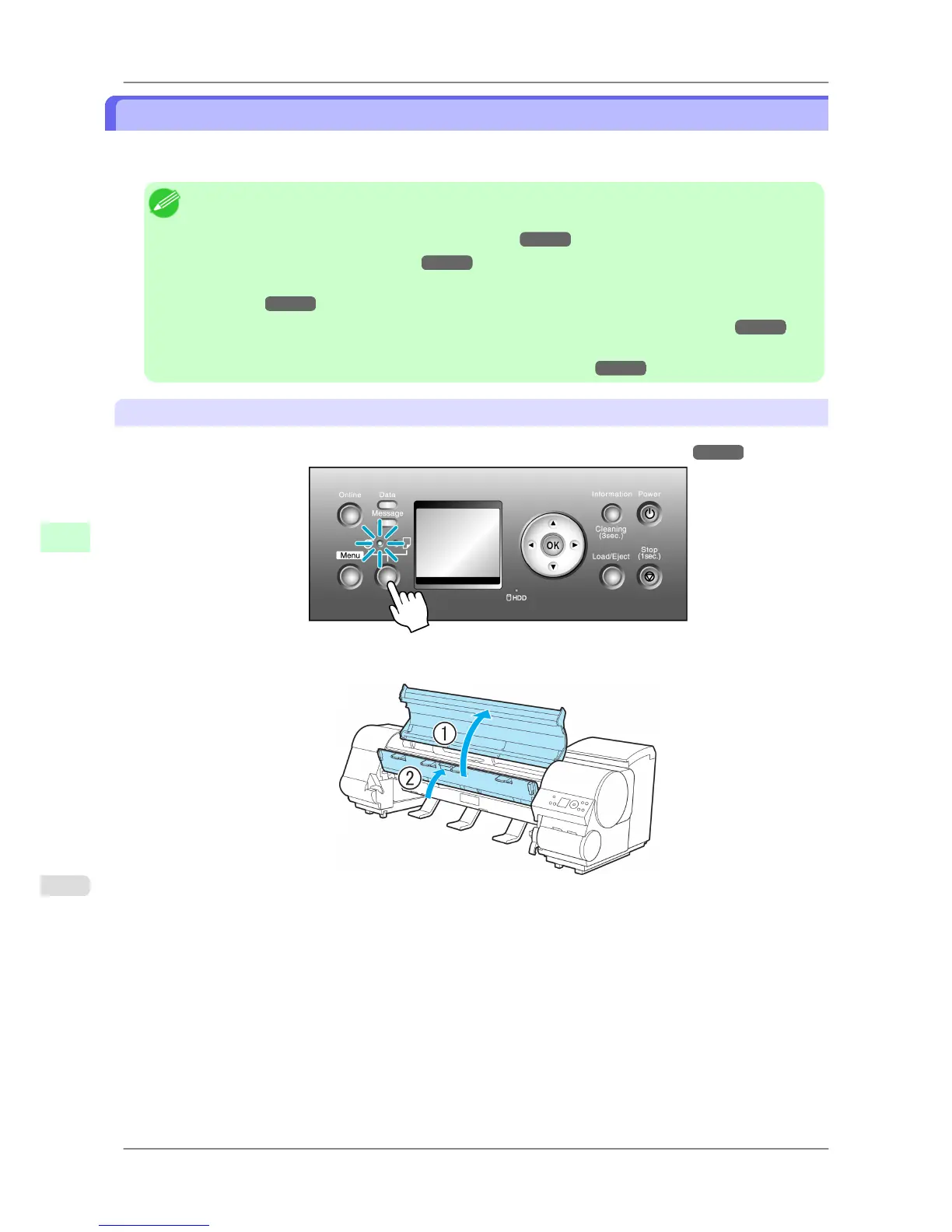
1. Confirm that a roll is selected as the paper source. (See "Selecting the Paper Source.")
→P.594
2. Open the Top Cover and lift the Ejection Guide.
Handling Paper
>
Handling rolls
>
Loading Rolls in the Printer iPF825
7
588














 To Next Page