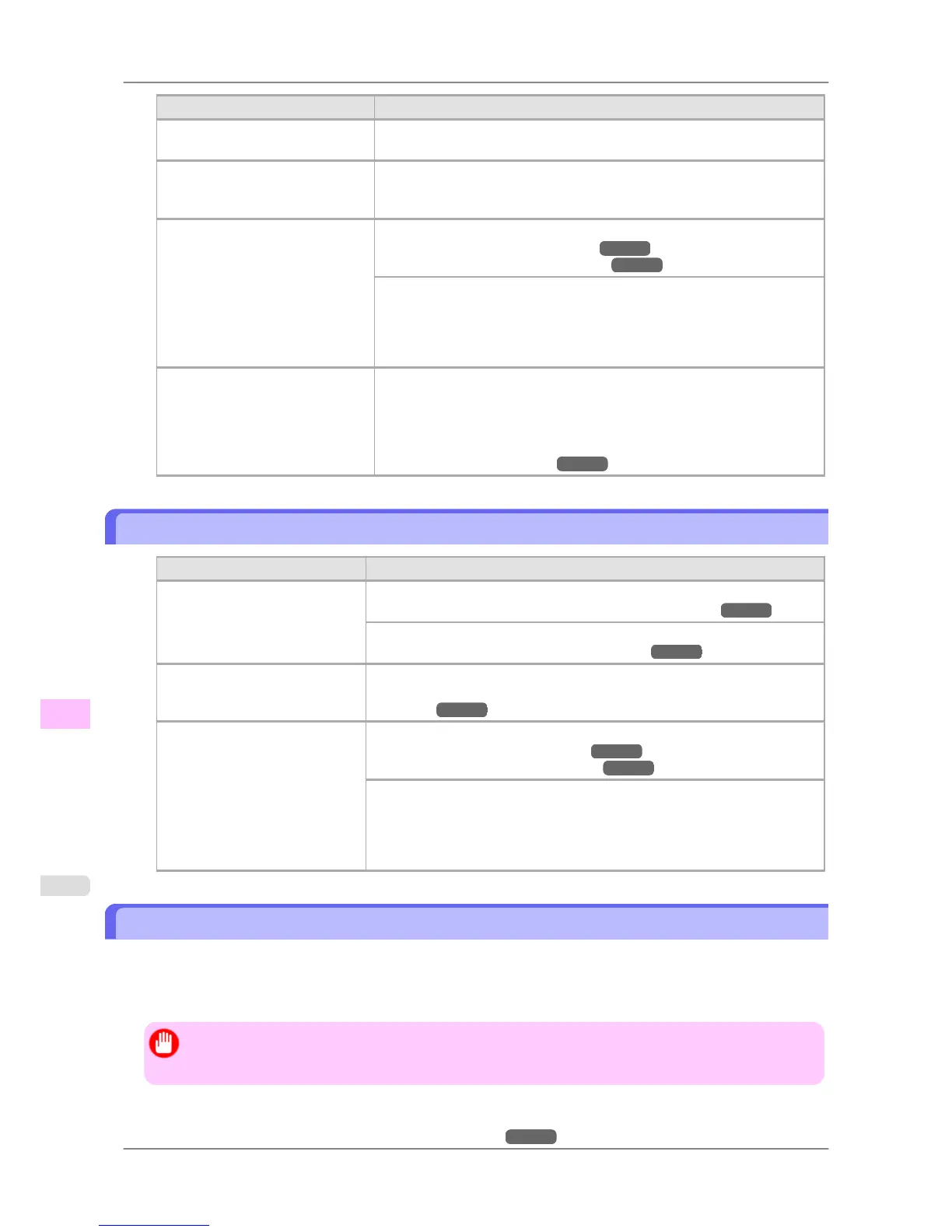
Cause Corrective Action
Drying documents stacked on each
other may cause uneven colors.
To avoid uneven colors, we recommend drying each sheet separately.
Color density may be uneven if you
use Glossy Paper, art paper, or
Coated Paper.
In Advanced Settings of the printer driver, choose Highest or High in Print
Quality.
The type of paper specified in the
printer driver does not match the
type loaded in the printer.
Load paper of the same type as you have specified in the printer driver.
(See "Loading Rolls in the Printer.") →P.588
(See "Loading Sheets in the Printer.") →P.616
Make sure the same type of paper is specified in the printer driver as you
have loaded in the printer.
1. Hold down the Stop button for a second or more to cancel printing.
2. Change the type of paper in the printer driver and try printing again.
Scan Wait Time > Area in the
Control Panel menu is set to Lead-
ing edge.
When Scan Wait Time > Area is set to Leading edge, colors may be un-
even 110–160 mm from the leading edge. (The position varies depending on
the Print Quality setting.)
In this case, select Scan Wait Time > Area > Entire area.
However, note that printing will now take longer.
(See "Main Menu Settings.") →P.679
Image Edges are Blurred or White Banding Occurs
Cause Corrective Action
The Platen suction is too strong. Set VacuumStrngth to Weakest.
(See "Adjusting the Vacuum Strength (VacuumStrngth).") →P.642
Close the blue Switch on the platen so that it matches the paper size.
(See "Setting the Blue Switch on the Platen.") →P.804
The Printhead is set too high. Lower the Printhead.
(See "Troubleshooting Paper Abrasion and Blurry Images (Head
Height).") →P.633
The type of paper specified in the
printer driver does not match the
type loaded in the printer.
Load paper of the same type as you have specified in the printer driver.
(See "Loading Rolls in the Printer.") →P.588
(See "Loading Sheets in the Printer.") →P.616
Make sure the same type of paper is specified in the printer driver as you have
loaded in the printer.
1. Hold down the Stop button for a second or more to cancel printing.
2. Change the type of paper in the printer driver and try printing again.
Setting the Blue Switch on the Platen
If printed documents exhibit the following symptoms, adjust the setting of the blue Switch on the Platen.
• Image edges are blurred
• Image edges are affected by white banding
Important
• Always
set the blue Switch on the Platen to the ● side for borderless printing. Printing quality may be
affected if the Switch is incorrectly set.
1. Remove any loaded paper that will not be used.
• Rolls (See "Removing the Roll from the Printer.")
→P.597
Troubleshooting
>
Problems with the printing quality
>
Image Edges are Blurred or White Banding Occurs iPF825
12
804














 To Next Page