Handling sheets
Selecting the Paper Type (Sheet) ............................................................................................................. 615
Loading Sheets in the Printer .................................................................................................................... 616
Manually Loading Paper to the Position for Printing ................................................................................. 619
Removing Sheets ...................................................................................................................................... 621
Selecting the Paper Type (Sheet)
When changing the type of paper after the paper has been advanced, specify the type of paper as follows.
Note
• After you load the sheet, the printer automatically shows a menu for selection of the paper type on the
Display Screen. In this case, select the paper type, and then press the OK button. The printer will auto-
matically go online.
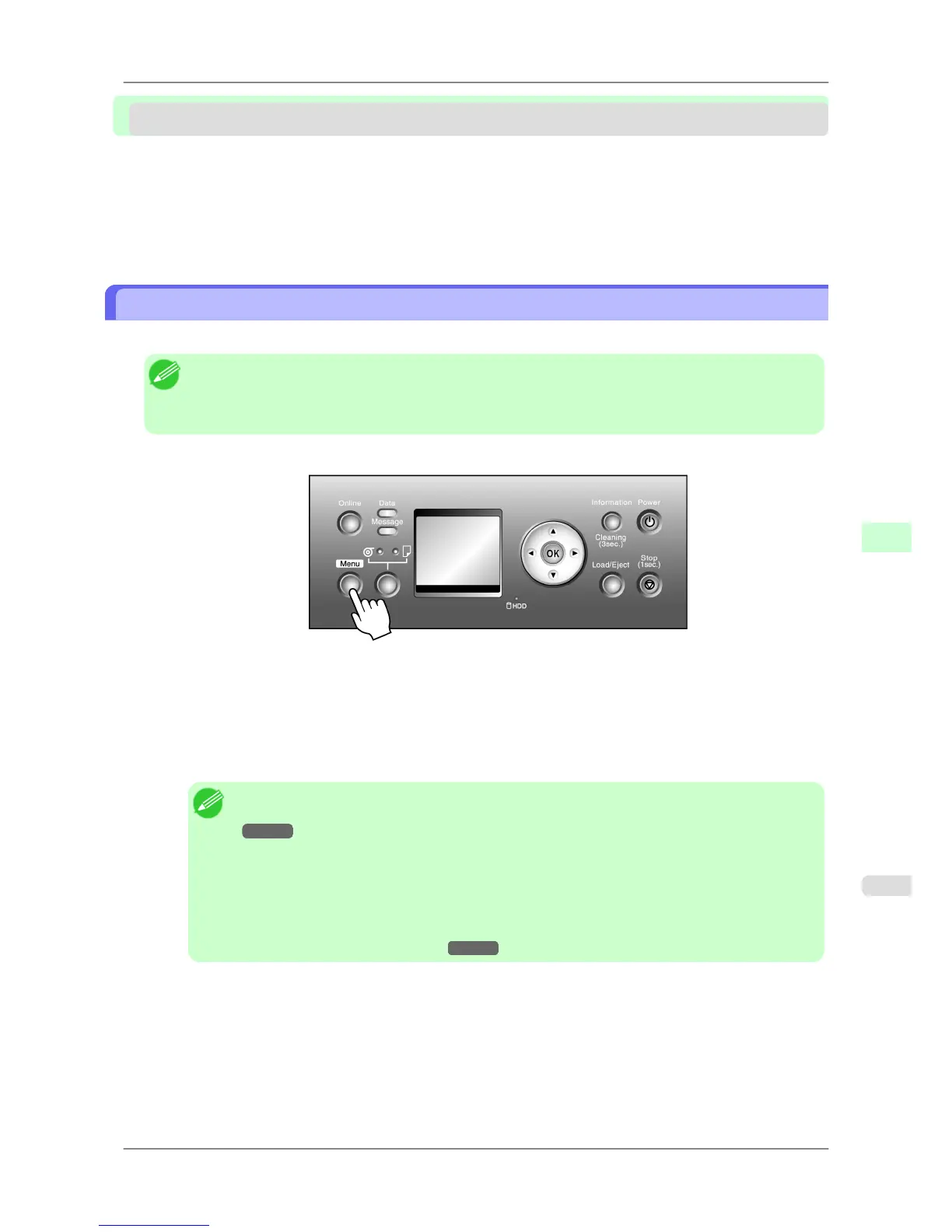
1. Press the Menu button to display MAIN MENU.
2. Press ▲ or ▼ to select Media Menu, and then press the ▶ button.
3. Press ▲ or ▼ to select Cut Sheet Type, and then press the ▶ button.
4. Press ▲ or ▼ to select the type of paper loaded in the printer, and then press the OK button.
Note
• For
details on paper types, see the Paper Reference Guide. (See "Types of Paper.")
→P.578 Plain Paper is selected by factory default.
If you move the Release Lever, the setting automatically reverts to Plain Paper.
• Be
sure to select the correct paper type. If this setting does not match the loaded paper, it may
cause feed errors and affect the printing quality.
• If you select a type of paper for which Media Width Detection is deactivated ( Off is selected),
you must advance the paper manually to the position for printing. (See "Manually Loading Pa-
per to the Position for Printing.")
→P.619
Handling Paper
>
Handling sheets
>
iPF825 Selecting the Paper Type (Sheet)
7
615














 To Next Page