Note
• To select an object, click that object.
• To select multiple successive objects, click them while holding down the Shift key.
• To select multiple arbitrary objects, click them while holding down the Ctrl key.
• To select all objects, select Select All from the Edit menu.
• When you specify the area with dragging the mouse, the object in the area is selected.
Changing the Object Size
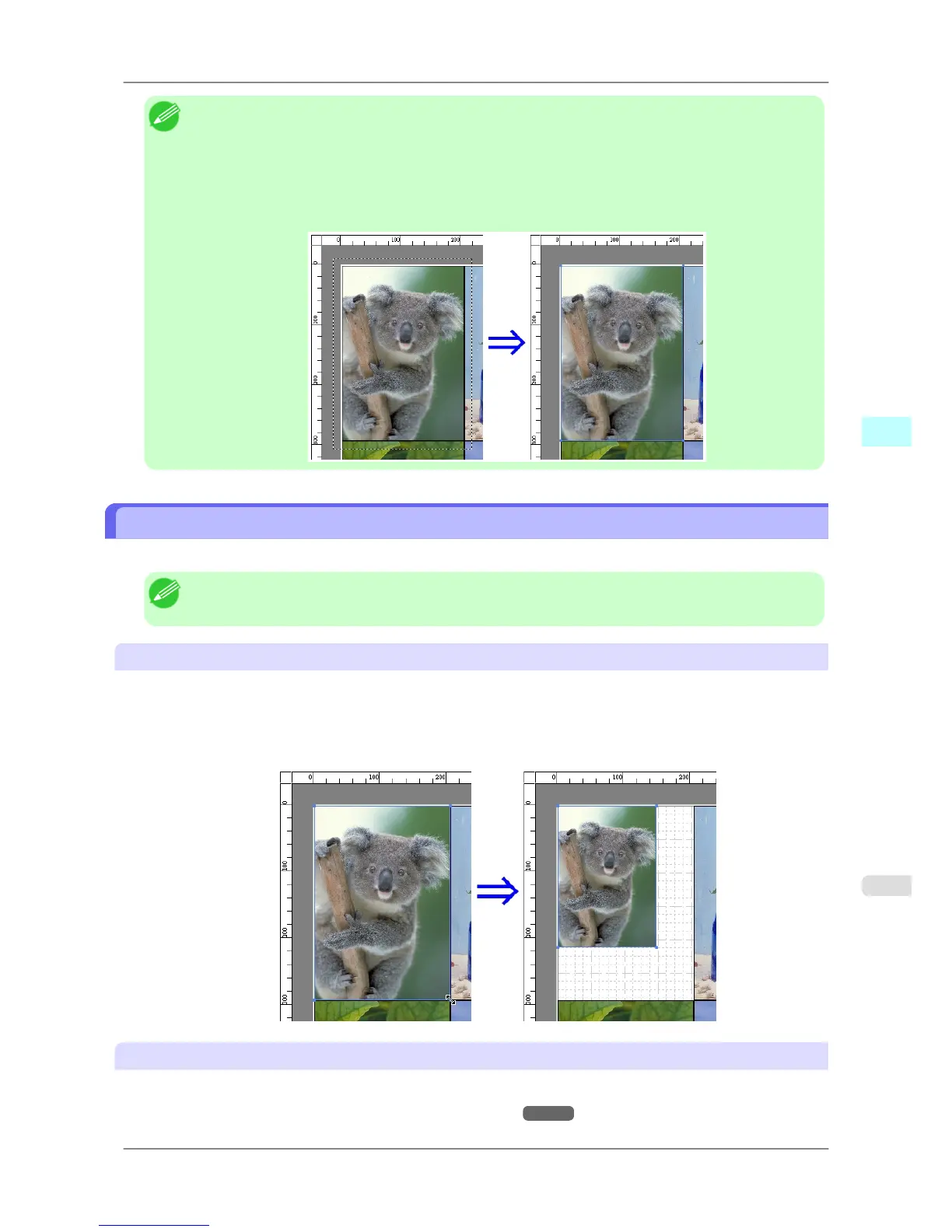
You can change the object size by means of mouse operation or by specifying a scaling value.
Note
• The vertical-to-horizontal ratio remains unchanged when the object is enlarged or reduced.
Resizing by means of mouse operation
1. Select an object.
2. Place
the pointer at a corner of the selection box around the object to show the arrow handle, and drag this han-
dle to change the object size.
Resizing by specifying a scaling value
1. Select an object.
Click on the Enl./Red. checkbox in the Format Dialog Box
→P.253 and select Scaling.
Windows Software
>
Free Layout
>
iPF825 Changing the Object Size
4
261














 To Next Page