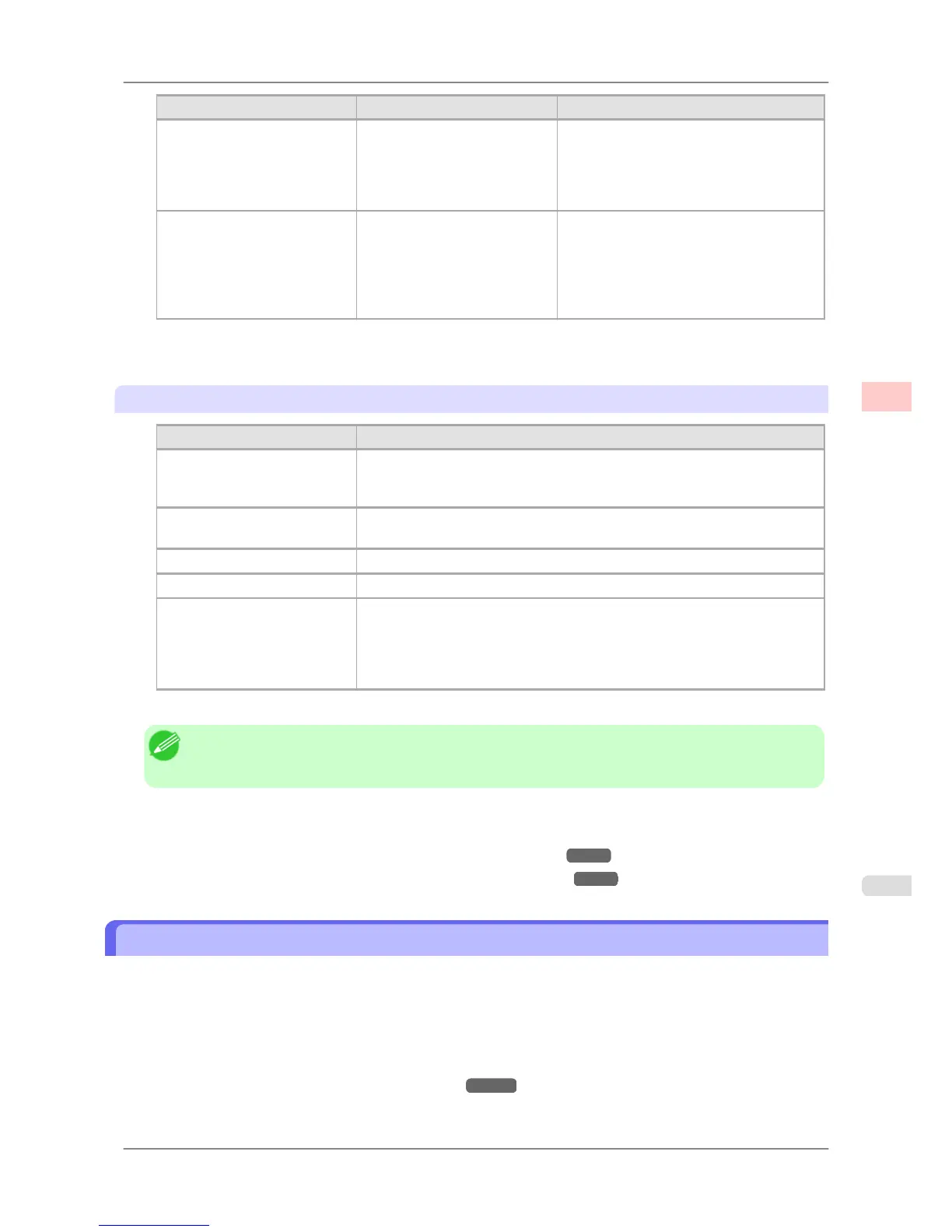
Setting Item Options Description
Color-Matching Modes Driver Matching Mode
ICC Matching Mode
Driver ICM Mode (Windows)
Host ICM Mode (Windows)
ColorSync (Mac OS X)
Choose the color-matching mode.
Color-Matching Method (*2) Auto
Perceptual
Colorimetric
Colorimetric (No Wht-pnt
Corr)
Saturation
Choose the color-matching method. The
available options vary depending on your
selection in Color-Matching Mode.
*1: Options suitable for the selected Print Priority are listed under Color Mode.
*2: The order of options displayed varies depending on the operating system.
Enhancing printing quality
Setting Item Description
Unidirectional Printing Choosing unidirectional printing can improve printing results if lines are printed
crooked or images are uneven. However, this takes more time than regular print-
ing.
Thicken Fine Lines Choose this option to make fine lines clearer in CAD drawings or similar docu-
ments.
Sharpen Text Choose this option to print intricate text more distinctly.
Reduce Print Unevenness (*1) Choose this option to counteract uneven printing.
Economy Printing When this mode is selected, less ink is consumed than in regular printing, but
the quality is diminished.
Select this mode if you want to conserve ink when checking drawings, for ex-
ample. Depending on the Media Type and Print Quality settings, this mode
may not be available.
*1: Displayed in Mac OS X.
Note
• To
print at a higher level of quality, in the printer driver, choose High or Highest in Print Quality, and
choose Unidirectional Printing as the direction of printing.
For instructions on specifying the print quality and color settings before printing, refer to the following topics, as appro-
priate for your computer and operating system.
• Choosing the Document Type and Printing Conditions (Windows)
→P.55
• Choosing the Document Type and Printing Conditions (Mac OS X) →P.58
Choosing the Document Type and Printing Conditions (Windows)
You can specify your own print settings instead of using the Print Target presets. As an example, this topic describes
how to print CAD drawings as clearly as possible, with sharp lines and text.
1. Choose Print in the application menu.
2. Select
the printer in the dialog box, and then display the printer driver dialog box.(See "Accessing the Printer
Driver Dialog Box from Applications (Windows)
→P.200 ")
Enhanced Printing Options
>
Adjusting Images
>
iPF825 Choosing the Document Type and Printing Conditions (Windows)
3
55














 To Next Page