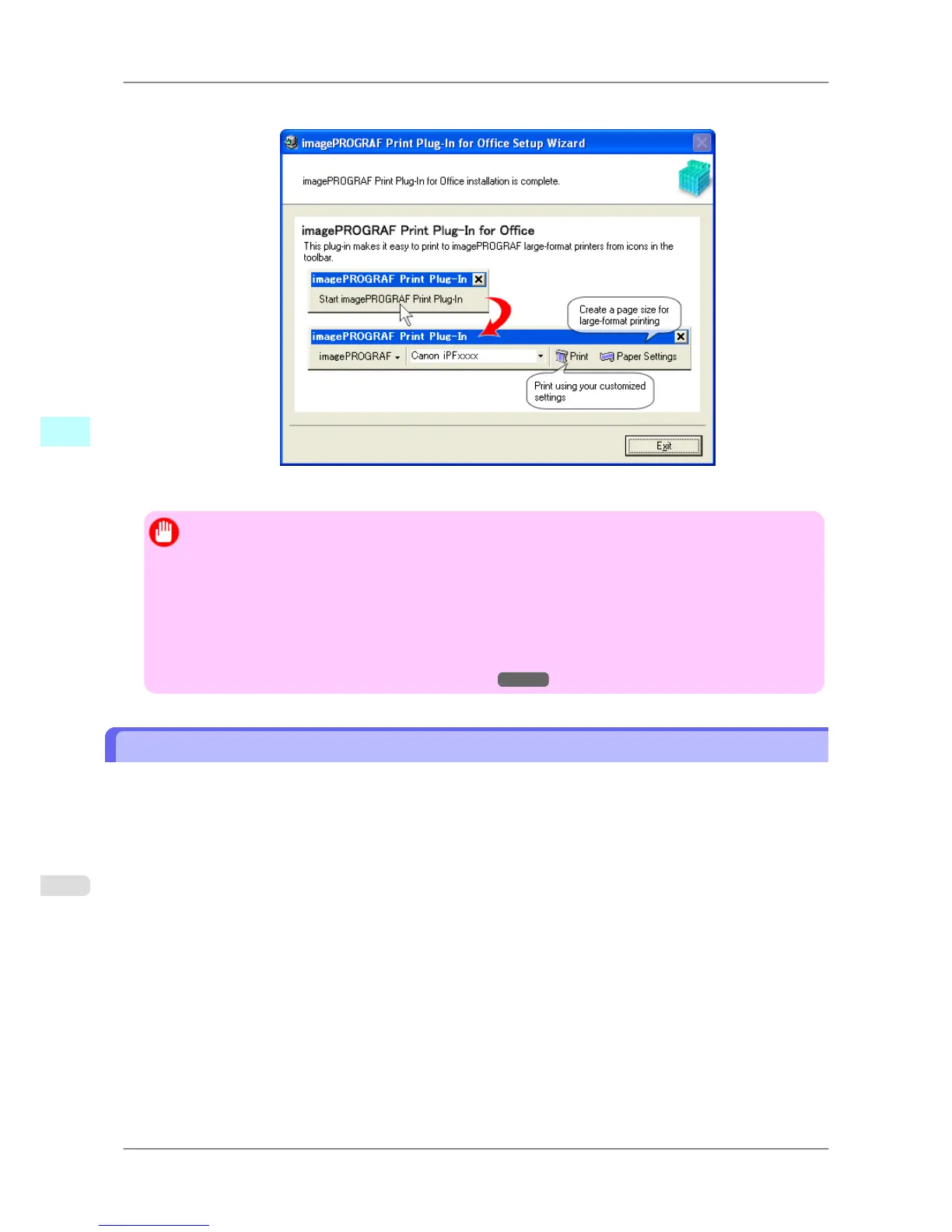
8. Click the Exit button.
The installation for Print Plug-In for Office is complete.
Important
• When
you install this software, the virtual printer Canon imagePROGRAF PrintPlugIn may be instal-
led. If you want to use this software, do not uninstall the virtual printer Canon imagePROGRAF Print-
PlugIn.
• The Print Plug-In for Office toolbar/ribbon might not be displayed in Microsoft Office after installing
imagePROGRAF Print Plug-In for Office.
Refer to the following topic for details on how to display the imagePROGRAF Print Plug-In for Of-
fice toolbar/ribbon.
• When Print Plug-In for Office is not displayed
→P.291
Steps to uninstall
Below are the steps to uninstall Print Plug-In for Office.
1. If Microsoft Office is open, close it.
2. Select Control Panel from the start menu.
3. Open Add or Remove Programs.
4. Select imagePROGRAF Print Plug-In, and click the Remove button.
Windows Software
>
Print Plug-In for Office
>
Steps to uninstall iPF825
4
290














 To Next Page