5. Make your selection in the EPrint Target list.
6. Make your selection in the FPrint Quality list.
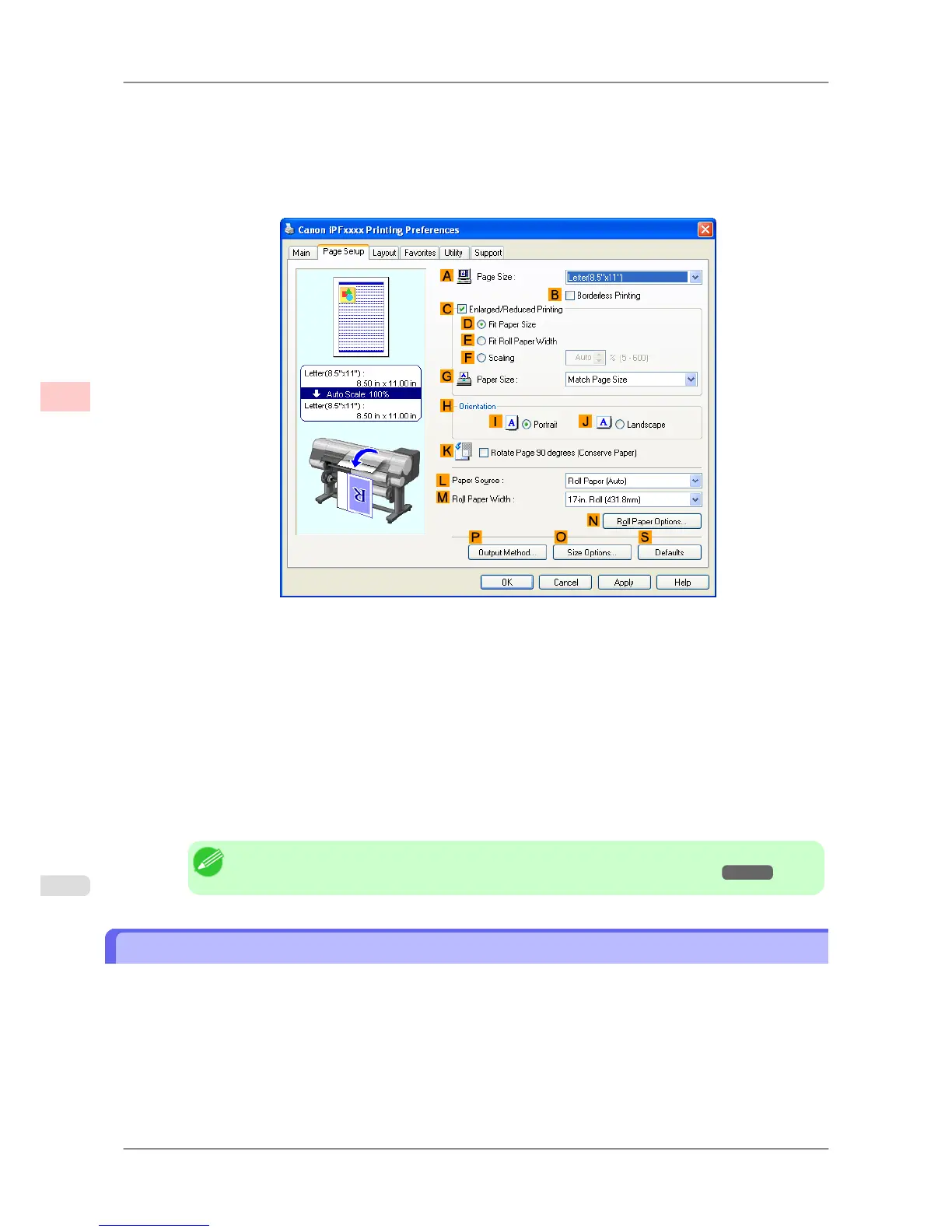
7. Click the Page Setup tab to display the Page Setup sheet.
8. In the A Page Size list,
click the size of the original as specified in the application. In this case, click ISO A4 or
Letter (8.5"x11").
9. In HOrientation, click J Landscape.
10. Select and click a roll paper in the LPaper Source list.
11. Select the width of the loaded roll in the MRoll Paper Width list—in this case, ISO A2/A3 Roll (420.0mm).
12. Confirm the print settings and print as desired.
Note
• For tips on confirming print settings, see "Confirming Print Settings (Windows) →P.196 "
Making the Original Orientation Match the Paper Orientation (Mac OS X)
This topic describes how to print an original in landscape orientation after matching the paper orientation, based on the
following example.
• Document: An original in landscape orientation
• Page size: A4 (210.0 × 297.0 mm [8.3 × 11.7 in])
• Paper: Roll paper
• Paper type: Plain Paper
• Roll paper width: A2/A3 roll (420.0 mm [16.5 in])
Enhanced Printing Options
>
Other useful settings
>
Making the Original Orientation Match the Paper Orientation (Mac OS X) iPF825
3
180














 To Next Page