Cause Corrective Action
Head Cleaning B is used
often.
Head Cleaning B consumes a lot of ink. This does not indicate a problem with the
printer. Unless the printer has been moved or stored for a long period or you are trou-
bleshooting Printhead problems, we recommend not performing Head Cleaning B,
to the extent possible.
You have just finished ini-
tial installation, when more
ink is consumed to fill the
system.
After initial installation or at the first-time use after transfer, ink flows into the sys-
tem between the Ink Tank and Printhead, which may cause the ink level indicators to
drop to 80%. This does not indicate a problem with the printer.
The printhead nozzles are
clogged.
Check for nozzle clogging.
(See "Checking for Nozzle Clogging.") →P.754
Ink level detection
Ink level detection
will be deactivated if you load ink tanks once emptied.
Ink level detection
Ink tanks specified for this printer feature an ink level detection function to prevent the ink from running out during
printing, which prevents printer damage. (See "Ink Tanks.") →P.741
This function will not work correctly if you use refill ink tanks. As a result, printing stops. Thus, before using refill ink
tanks, you must cancel the ink level detection.
Printing with the ink level detection canceled may lead to printer damage and printing problems. Canon Inc. is not liable
for any damage that may occur as a result of refilling ink.
Caution
• After
ink level detection has been disabled, this function cannot be reactivated for the currently loaded
Ink Tank. To use ink level detection again, replace the Ink Tank with a new ink tank specified for use
with the printer.
• Repeatedly removing and inserting an Ink Tank may damage the connection between the Ink Tank and
the printer, which may cause ink leakage from the Ink Tank and damage the printer.
Disabling ink level detection
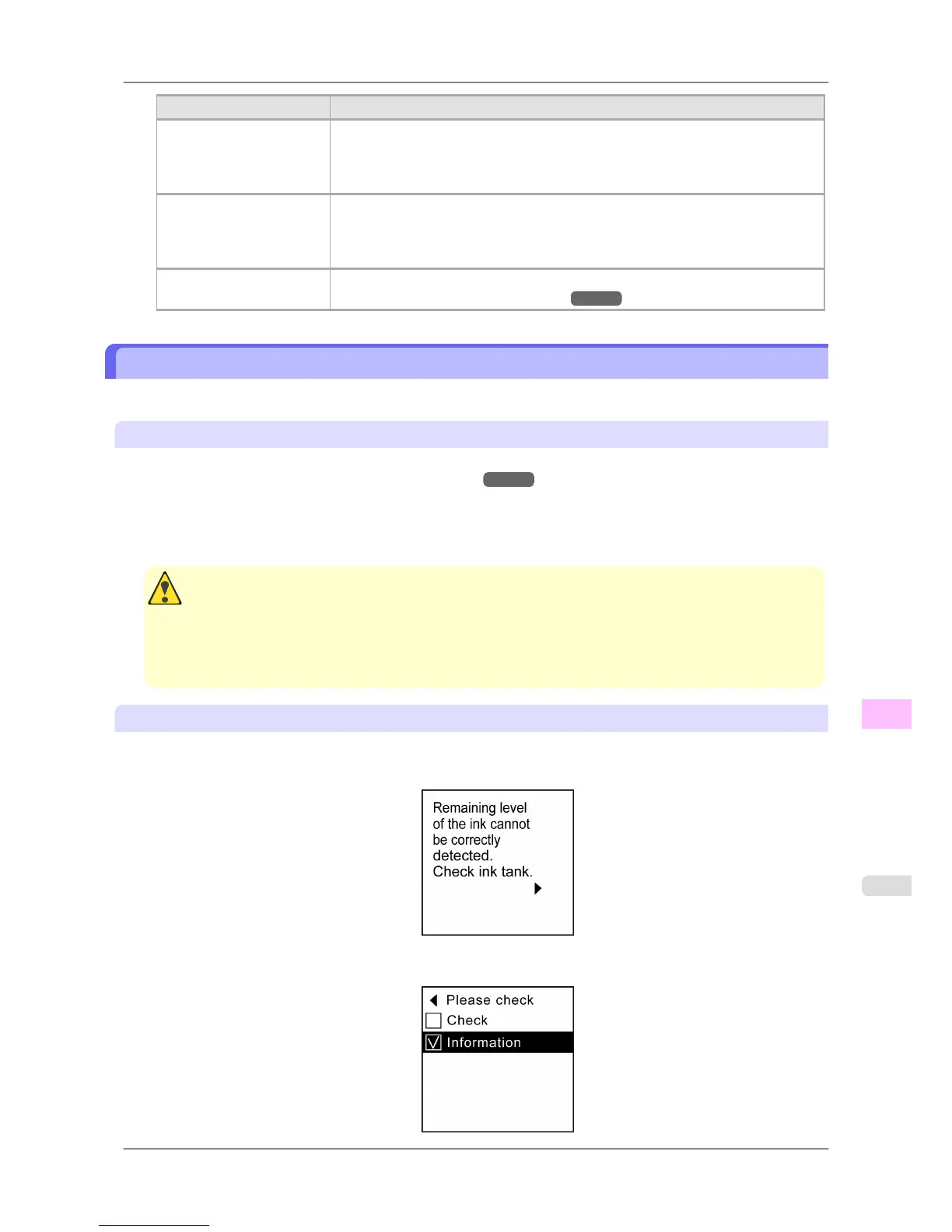
1. On
the Display Screen, a message indicates that the ink level cannot be detected. After checking the message,
press the ▶ button.
2. Press ▲ or ▼ to select Information, and then press the OK button.
Troubleshooting
>
Other problems
>
iPF825 Ink level detection
12
817














 To Next Page