Security Settings
Item Details Default Setting
Old Password Enter the current device password.
(0–14 characters)
blank
New Password Enter the new password.
(0–14 characters)
blank
Confirm Enter the new password again to confirm it.
(0–14 characters)
blank
Besides entering a password, you can specify other security-related information, such as IP address-based SNMP
or TCP usage restrictions, MAC address-based access restrictions, or IPP and FTP authentication settings.
7. Click OK to activate the settings.
Configuring the Communication Mode Manually
This topic gives instructions for configuring the communication mode manually.
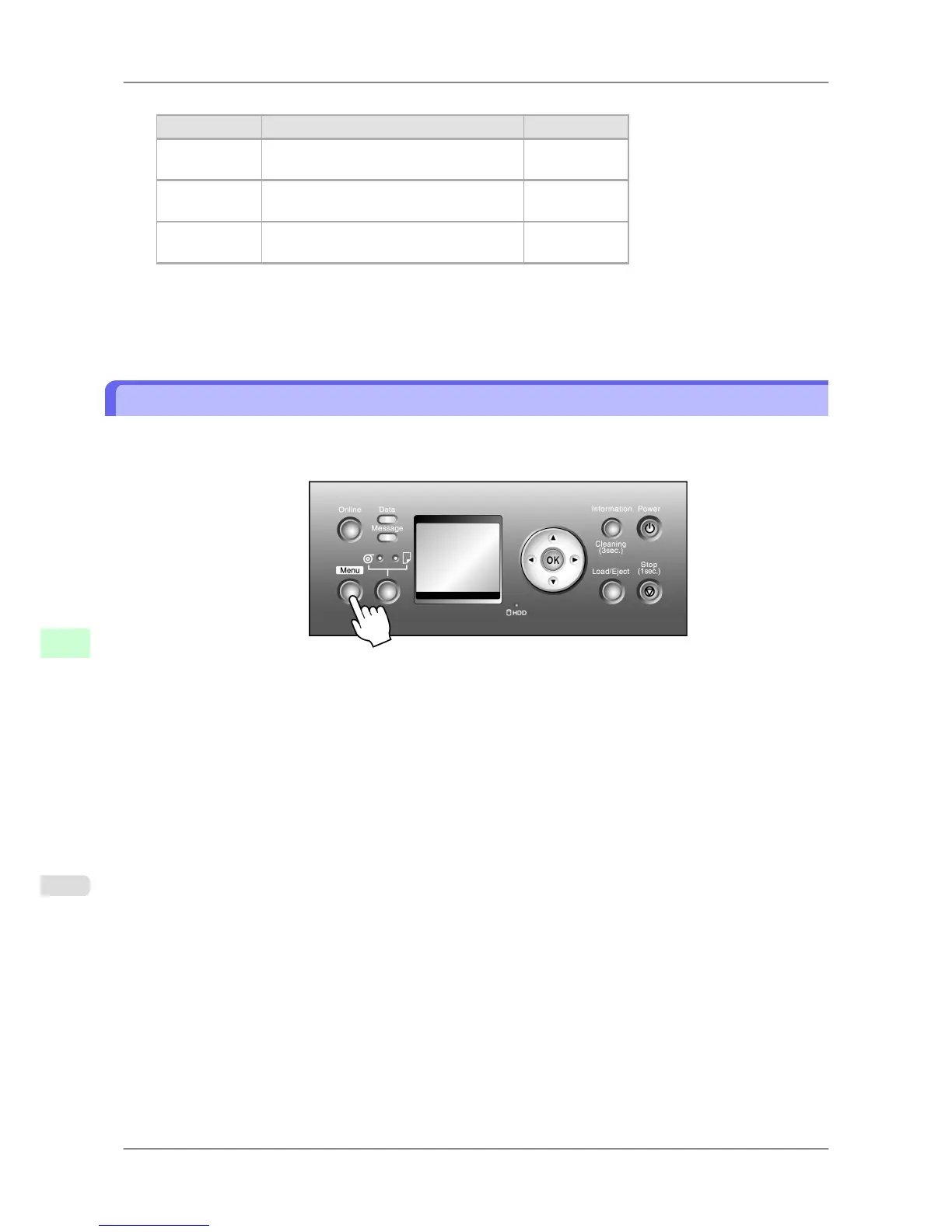
1. Press the Menu button to display MAIN MENU.
2. Press ▲ or ▼ to select Interface Setup, and then press the ▶ button.
3. Press ▲ or ▼ to select Ethernet Driver, and then press the ▶ button.
4. Press ▲ or ▼ to select Auto Detect, and then press the ▶ button.
5. Press ▲ or ▼ to select Off, and then press the OK button.
Return to the Ethernet Driver menu.
6. Press ▲ or ▼ to select Comm.Mode, and then press the ▶ button.
7. Press ▲ or ▼ to select the communication mode, and then press the OK button.
Return to the Ethernet Driver menu.
8. Press ▲ or ▼ to select Ethernet Type, and then press the ▶ button.
9. Press ▲ or ▼ to select the Ethernet type, and then press the OK button.
Return to the Ethernet Driver menu.
10. Press ▲ or ▼ to select Spanning Tree, and then press the ▶ button.
Network Setting
>
Network Setting
>
Configuring the Communication Mode Manually iPF825
10
720














 To Next Page