n.
OK Button
In Menu mode, press this button to confirm or execute the selected item or setting. Also press this button if the
Display Screen indicates to press the OK button.
o.
Information
Button
Displays printer submenus. Press this button to display information about ink, paper, and so on. (See "Submenu
Display.")
→P.690
You can also hold down this button for three seconds to clean the Printhead ( Head Cleaning A ).
p.
Power Button
Turns the printer on and off. (See "Turning the Printer On and Off.") →P.652
q.
Load/Eject
Button
By pressing this button, you can check instructions on loading and removing paper. Instructions for loading paper
are
shown on the Display Screen if pressed when no paper is loaded, and instructions for removing paper are
shown if paper is loaded.
r.
Stop Button
Hold down for at least a second to cancel print jobs in progress or end the ink drying period.
Note
• In Sleep mode, you can press any button except the Power button to bring the printer online again.
Turning the Printer On and Off
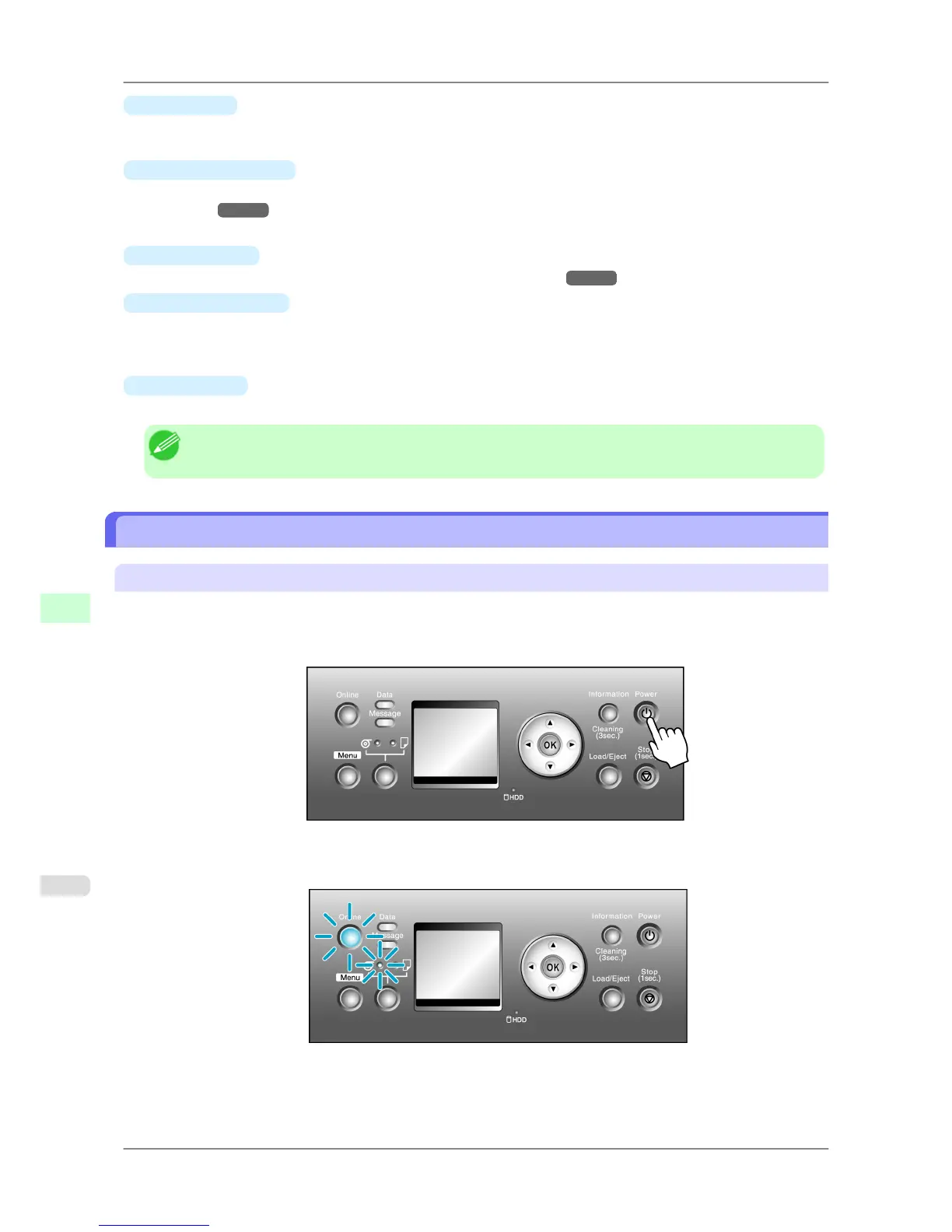
Turning the printer on
1. Press the Power button to turn on the printer.
The printer will now start up.
After the Display Screen shows the Canon logo, "Starting up... Please wait." is displayed.
2. The
printer goes online in preparation for printing after startup, and the Online lamp and paper source section
lamp remain lit.
Printer Parts
>
Control Panel
>
Turning the Printer On and Off iPF825
9
652














 To Next Page