3. Press ▲ or ▼ to select the type of paper, and then press the ▶ button.
4. Press ▲ or ▼ to select Trim Edge First, and then press the ▶ button.
5. Press ▲ or ▼ to select the desired setting option, and then press the OK button.
This setting takes effect the next time you load a roll.
Reducing Dust from Cutting Rolls
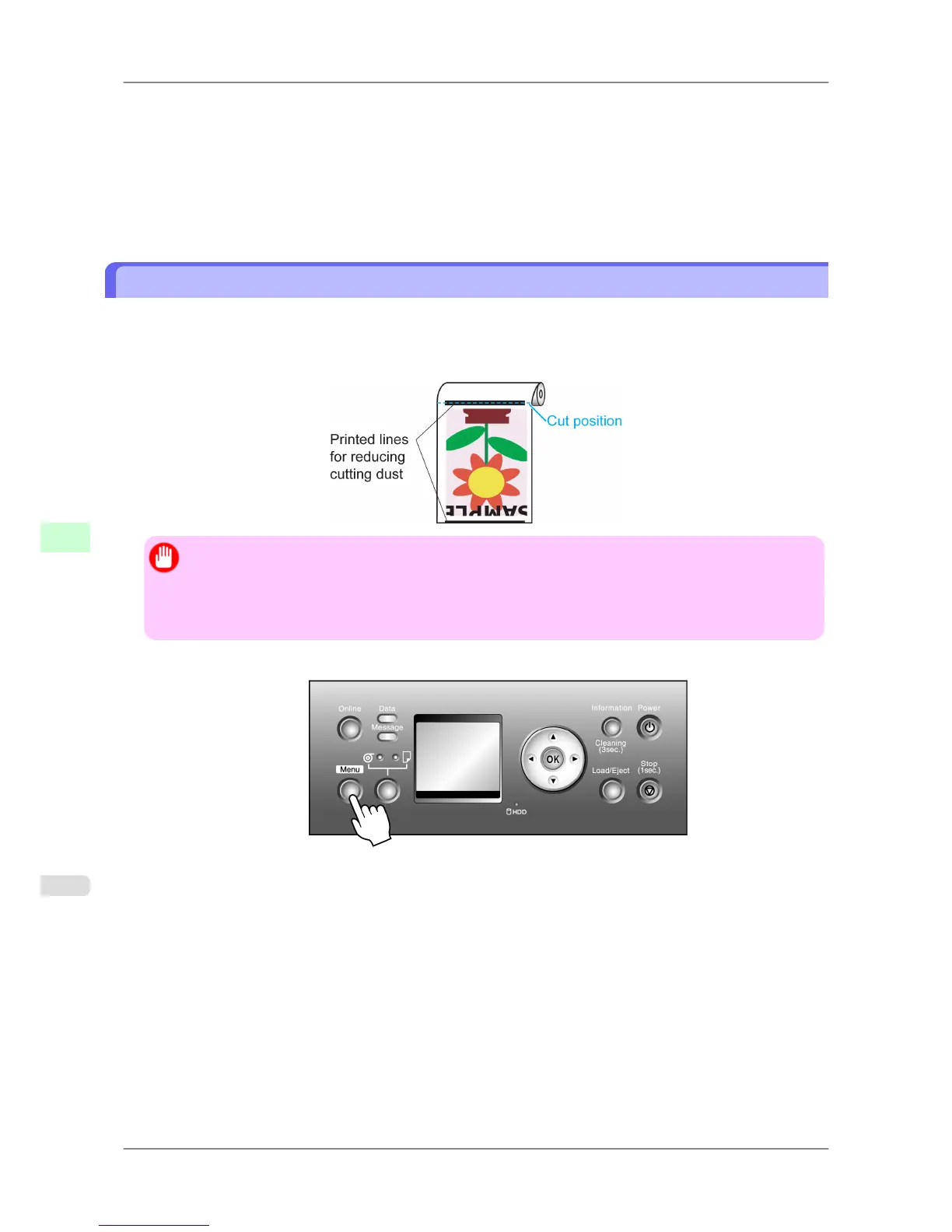
The printer is equipped with a function to
reduce cutting dust for media such as Backlit Film that are more likely to
generate debris when cut. This may improve printing quality and help prevent Printhead damage. You can set up this
function to be activated for some types of paper.
When this function is activated, black lines are printed at the leading and trailing edges of documents.
Important
• Do
not activate the function to reduce cutting dust for paper that wrinkles easily, such as Plain Paper or
lightweight paper. This may impair cutting and cause paper jams.
• Borderless printing is not available when this function is activated. Deactivate this function before bor-
derless printing.
1. Press the Menu button to display MAIN MENU.
2. Press ▲ or ▼ to select Paper Details, and then press the ▶ button.
3. Press ▲ or ▼ to select the type of paper loaded in the printer, and then press the ▶ button.
4. Press ▲ or ▼ to select CutDustReduct., and then press the ▶ button.
5. Press ▲ or ▼ to select On, and then press the OK button.
The function to reduce cutting dust is now activated.
Handling Paper
>
Handling rolls
>
Reducing Dust from Cutting Rolls iPF825
7
612














 To Next Page