J Saturation
Adjust the color intensity as desired. Increasing the Saturation setting makes colors more vivid, and reducing the Satu-
ration makes colors more subdued.
K Object Adjustment
Select this option to display the Object Adjustment dialog box, in which you can specify objects subject to color ad-
justment.
• Object Adjustment dialog box: Color →P.211
S Defaults
Click to restore all settings on the sheet to the default values.
Note
• For details on settings items, see "Adjusting the Color in the Printer Driver
→P.44 "
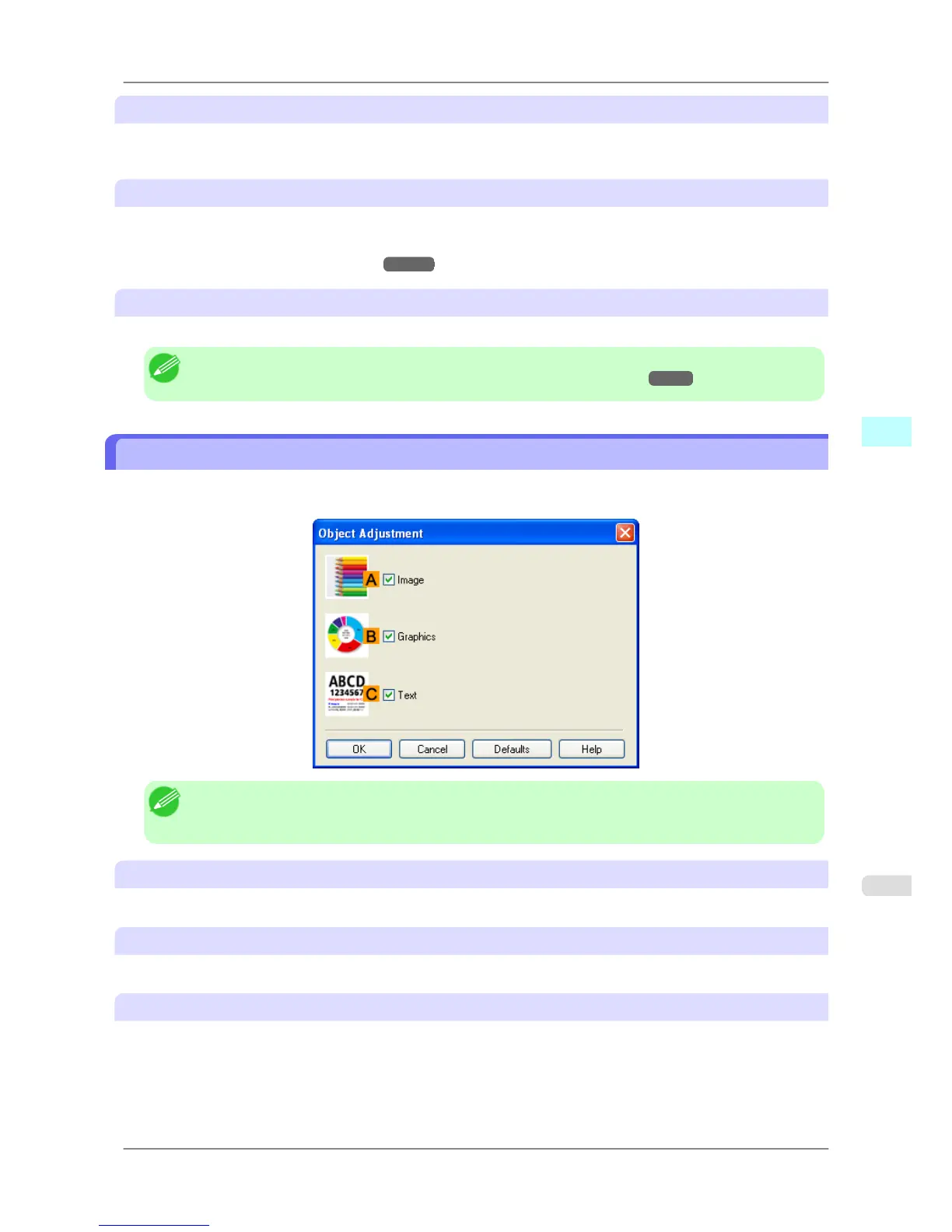
Object Adjustment dialog box: Color
In the Object Adjustment dialog box, you can specify what type of print jobs to apply color adjustment to. If an origi-
nal comprises images, graphics, and text, you can specify which portion to apply color adjustment to.
Note
• To
display the Object Adjustment dialog box, click Object Adjustment on the Color Adjustment
sheet.
A Image
Select this option to apply color adjustment to image areas, such as photos.
B Graphics
Select this option to apply color adjustment to graphics, such as lines and circles.
C Text
Select this option to apply color adjustment to text.
Windows Software
>
Printer Driver
>
iPF825 Object Adjustment dialog box: Color
4
211














 To Next Page