7. Print from the Canon imagePROGRAF Free Layout menu.
Note
• For
details on Canon imagePROGRAF Free Layout functions, refer to Free Lay-
out
→P.454 .
Printing Multiple Pages Continuously
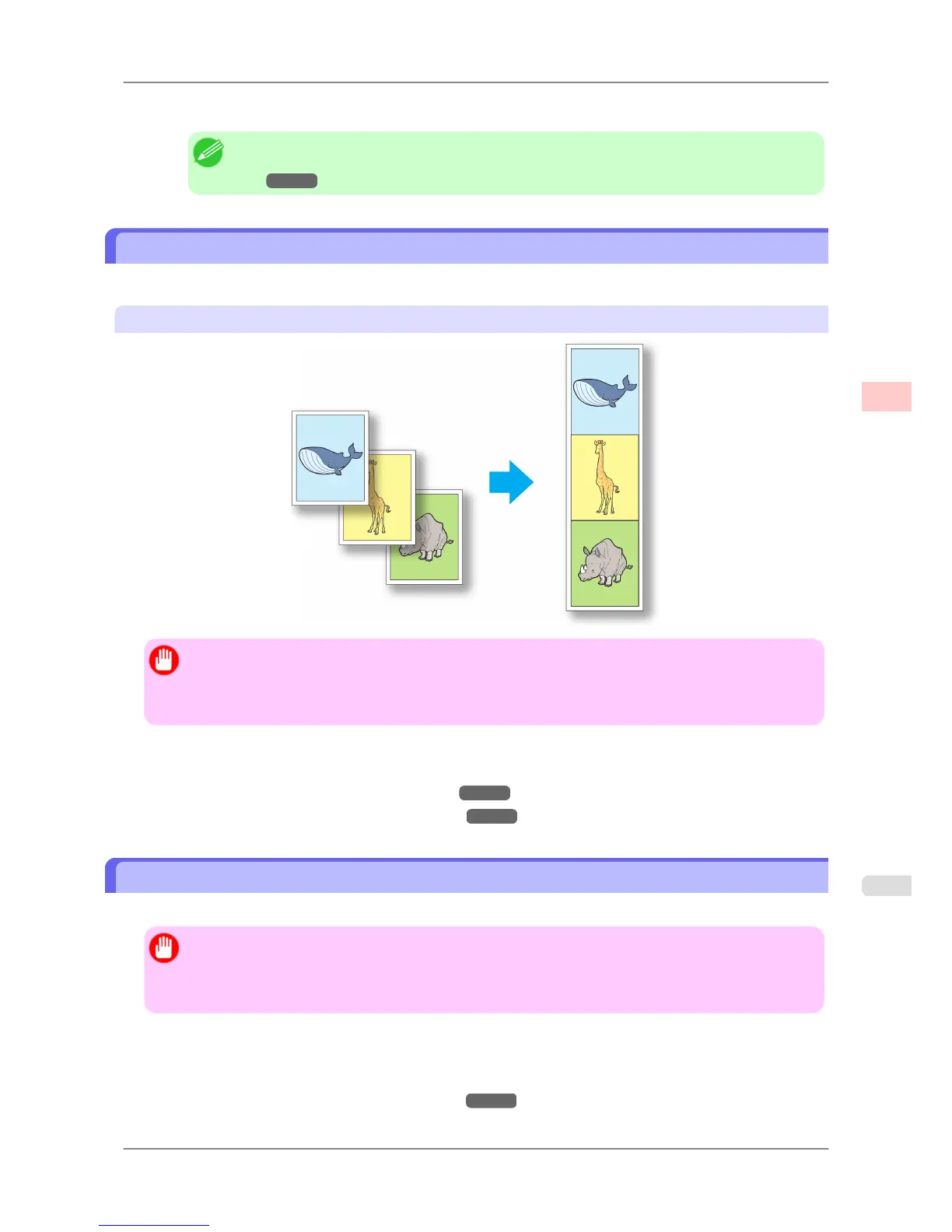
You can print multiple pages as a single continuous image, without margins between pages.
Roll paper (banner)
Important
• This feature is only available with rolls. It cannot be used when printing on sheets.
• During banner printing, settings for conserving paper, number of copies, borderless printing, enlargement
or reduction, and other layout-related settings are disregarded.
For instructions on borderless printing of photos and images at actual size, refer to the following topics, as appropriate
for your computer and operating system.
• Printing Multiple Pages Continuously (Windows)
→P.131
• Printing Multiple Pages Continuously (Mac OS X) →P.133
Printing Multiple Pages Continuously (Windows)
This topic describes how to print multiple pages as a single continuous image, without margins between pages.
Important
• This feature is only available with rolls. It cannot be used when printing on sheets.
• During banner printing, settings for conserving paper, number of copies, borderless printing, enlargement
or reduction, and other layout-related settings are disregarded.
1. Choose Print in the application menu.
2. Select
the printer in the dialog box, and then display the printer driver dialog box.(See "Accessing the Printer
Driver Dialog Box from Applications (Windows)
→P.200 ")
Enhanced Printing Options
>
Tiling and multiple pages per sheet
>
iPF825 Printing Multiple Pages Continuously
3
131














 To Next Page