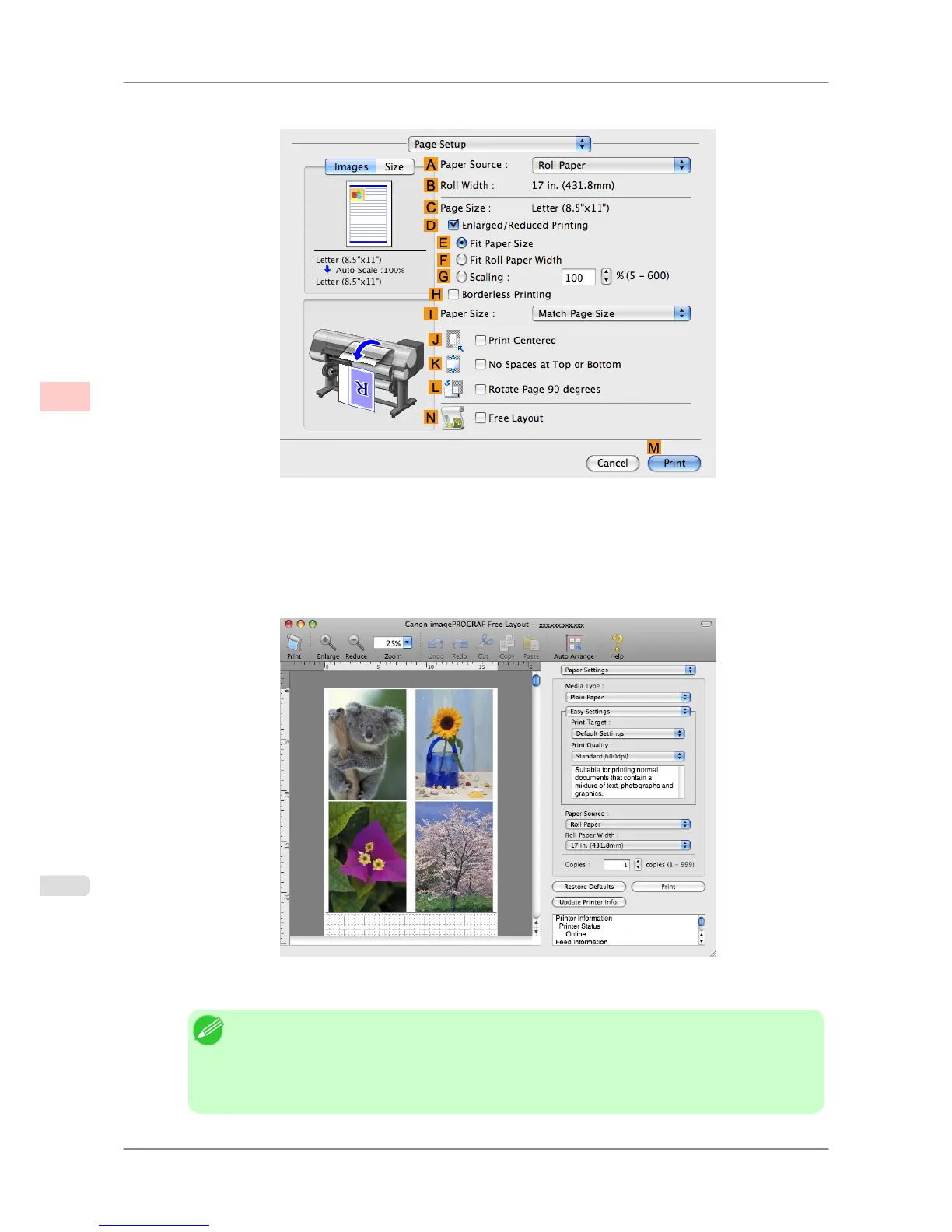
2. Access the Page Setup pane.
3. Select the NFree Layout check box.
4. Click MPrint.
5. The Canon imagePROGRAF Free Layout window is displayed.
6. Edit and rearrange the image in the Canon imagePROGRAF Free Layout window as desired.
Note
• Without
closing the Canon imagePROGRAF Free Layout window, repeat steps 1 to 4 to ar-
range originals from multiple applications on the same page.
• For instructions on editing and rearranging images, refer to the Canon imagePROGRAF Free
Layout help topic.
Enhanced Printing Options
>
Tiling and multiple pages per sheet
>
Printing Multiple Originals Next to Each Other (Mac OS X) iPF825
3
130














 To Next Page