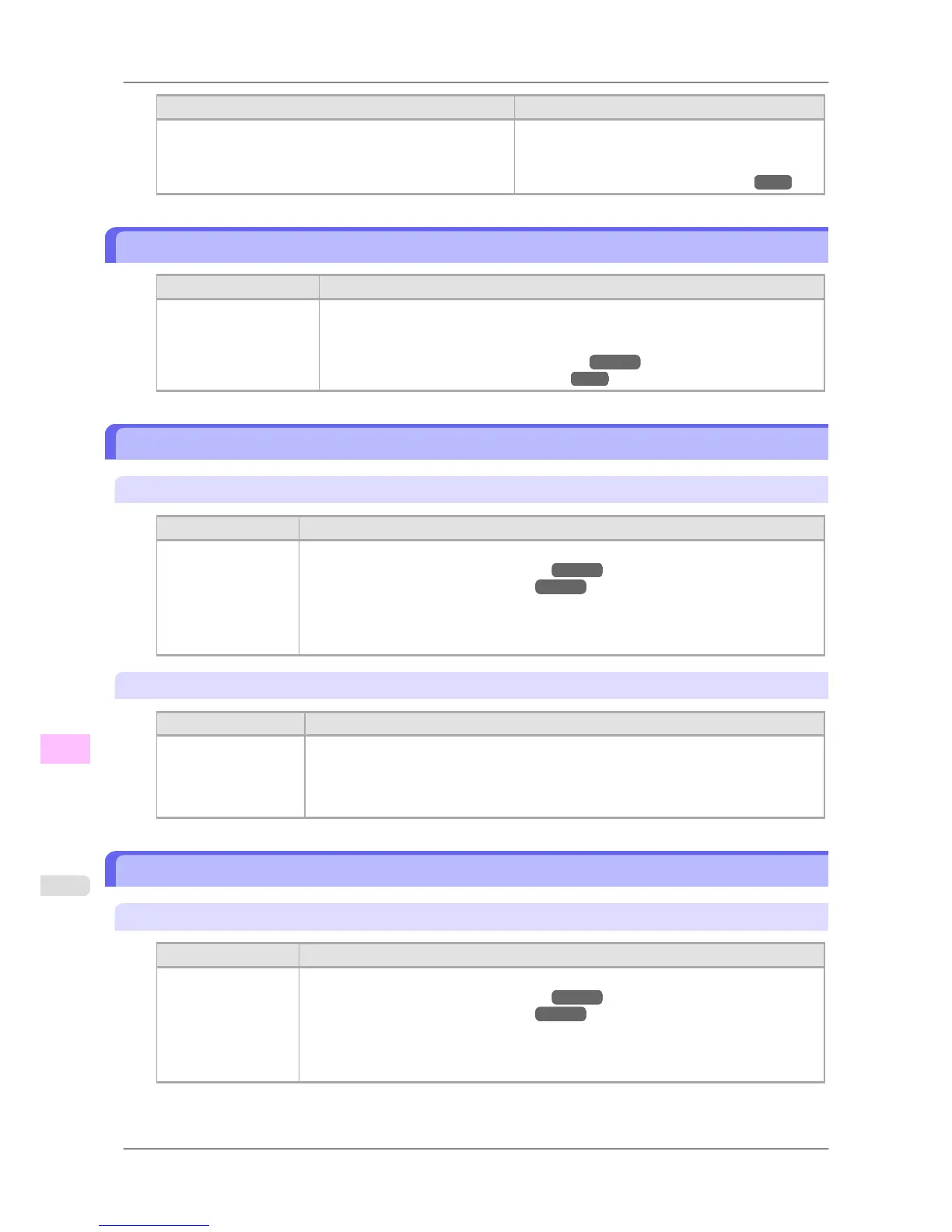
Cause Corrective Action
You have attempted to print a test print sheet or other printer
status information on a sheet, but no sheet is loaded.
To print on a roll instead, hold down the Stop but-
ton for more than a second to cancel printing, load a
roll, and then print.
(See "Loading and Printing on Rolls.") →P.3
Regular printing is selected, but a roll is loaded.
Cause Corrective Action
A print job for printing
on sheets was sent when
a roll is loaded.
Hold down the Stop button for a second or more to cancel printing.
Remove the roll and load a sheet of the type and size of paper you have specified in the
printer driver.
(See "Removing the Roll from the Printer.")
→P.597
(See "Loading and Printing on Sheets.") →P.8
Paper jam.
"Lift the release lever."
Cause Corrective Action
A paper jam occurred
in the printer during
printing.
1. Lift the Release Lever and remove the jammed paper.
(See "Clearing Jammed Roll Paper.")
→P.786
(See "Clearing a Jammed Sheet.") →P.790
2. If
"Not finished printing. Finish printing remaining jobs?" is shown on the Display
Screen, press the OK button.
Printing will resume, starting from the page on which the error occurred.
"Manually rewind the roll all the way and press OK."
Cause Corrective Action
A paper jam occurred
when advancing the
paper.
1. Rewind paper on the Roll Holder manually, all the way, and then press the OK button.
2. If "Not
finished printing. Finish printing remaining jobs?" is shown on the Display
Screen, press the OK button.
Printing will resume, starting from the page on which the error occurred.
Roll x jam (x is 1 (Upper) or 2 (Lower))
"Lift the release lever."
Cause Corrective Action
A paper jam occurred
in the printer during
printing.
1. Lift the Release Lever and remove the jammed paper.
(See "Clearing Jammed Roll Paper.") →P.786
(See "Clearing a Jammed Sheet.") →P.790
2. If
"Not finished printing. Finish printing remaining jobs?" is shown on the Display
Screen, press the OK button.
Printing will resume, starting from the page on which the error occurred.
Error Message
>
Messages regarding paper
>
Regular printing is selected, but a roll is loaded. iPF825
13
830














 To Next Page