9. Select Print Range from All Slides, Current Slide, and Slides.
If Slides is selected, enter the slide number.
10. Enter Copies.
Note
• When Print in Draft mode is selected, printing is fast but the print quality is poor.
• The
settings are registered when the One-Touch Registration is pressed. This is convenient if
you to need print multiple times using the same setting.
• Press the Print Preview button to display the preview screen. You can check and make changes
to the layout in the preview screen.
• The maximum length for Multi-Page Printing is the lesser of 14.22 times the roll paper width, or
18.0m.
11. Press Print to start printing.
Register the settings(PowerPoint)
If you are going to print multiple times using the same setting, you can select One-Touch Registration. Registered
settings can be recalled from Print Using Registered Settings.
1. Set
up to the Print screen from Print Matching Roll Width, Borderless Printing or Multi-Page Printing of
Printing Menu.
Note
• Up to 20 items can be registered.
• The available settings are as follows.
• Print Matching Roll Width (PowerPoint)
→P.311
• Borderless Printing (PowerPoint) →P.313
• Multi-Page Printing (PowerPoint) →P.316
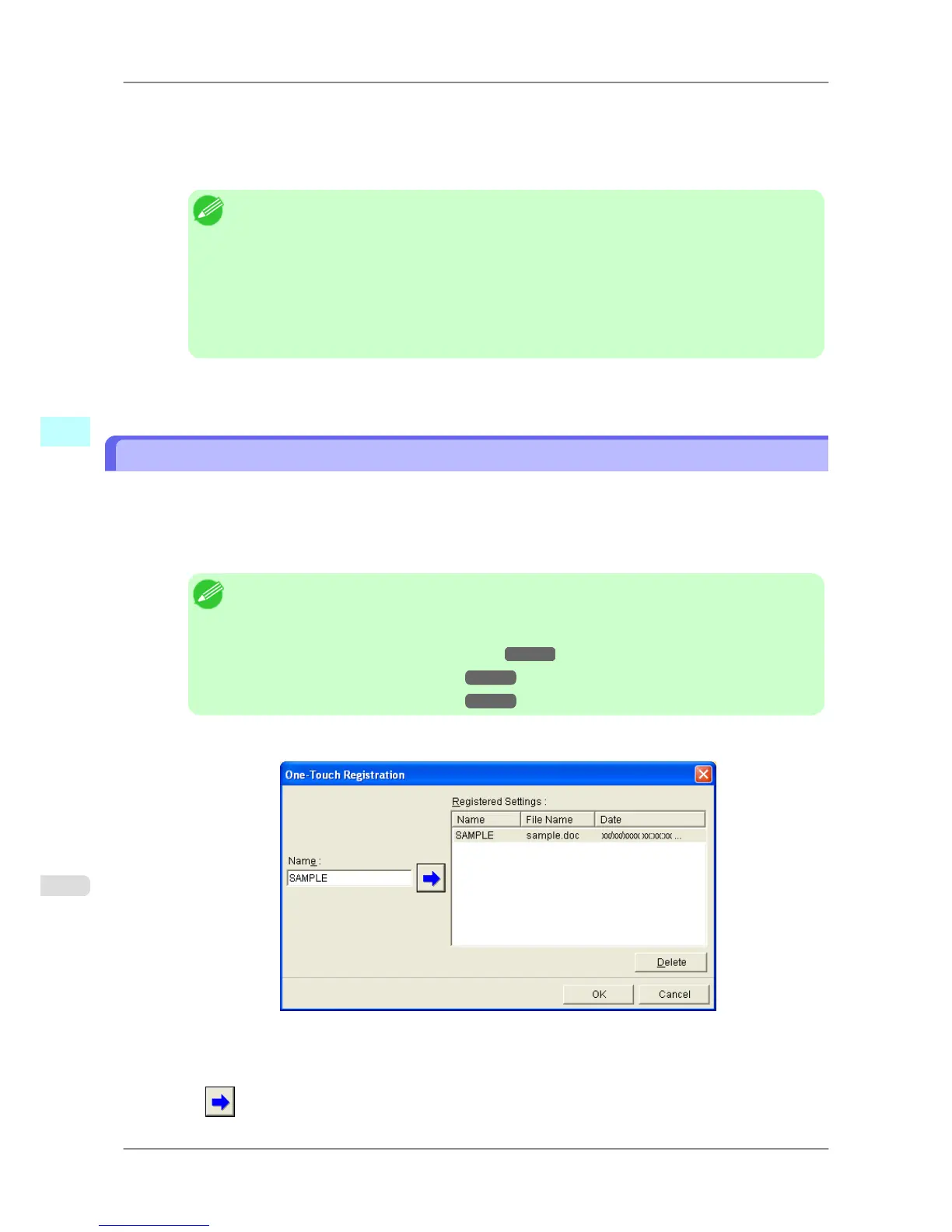
2. Click the One-Touch Registration button.
3. Enter name in Name.
Up to 31 characters can be entered.
4. Click . The name you entered is displayed in Registered Settings.
Windows Software
>
Print Plug-In for Office
>
Register the settings(PowerPoint) iPF825
4
318














 To Next Page