•
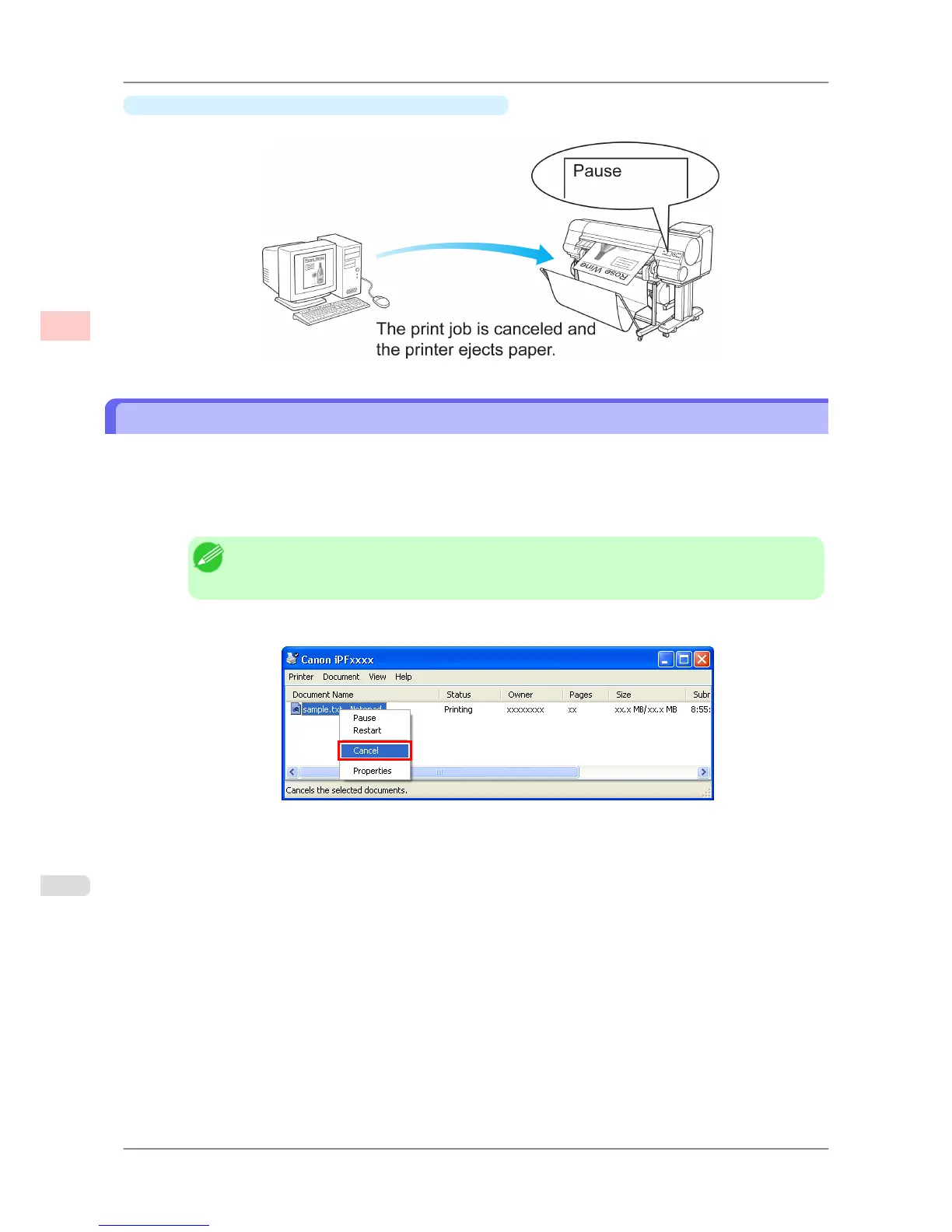
If you press the Stop button when printing is paused
Holding down the Stop button for a second or more when printing is paused cancels the print job.
Canceling Print Jobs from Windows
In the printer window, you can cancel jobs that are being sent to the printer.
Using imagePROGRAF Status Monitor, you can cancel print jobs that have already been received by the printer or that
are currently being printed.
1. Click the printer icon in the taskbar to display the printer window.
Note
• You
can also display this window by double-clicking the printer icon in the Printers and Faxes
(or Printers ) folder, accessible through the Windows start menu.
2. Right-click the job to cancel and select Cancel.
3. If
the job to cancel is not shown in the printer window (that is, if the print data has already been received by the
printer), double-click the taskbar icon to display imagePROGRAF Status Monitor.
Basic Printing Workflow
>
Canceling print jobs
>
Canceling Print Jobs from Windows iPF825
1
14














 To Next Page