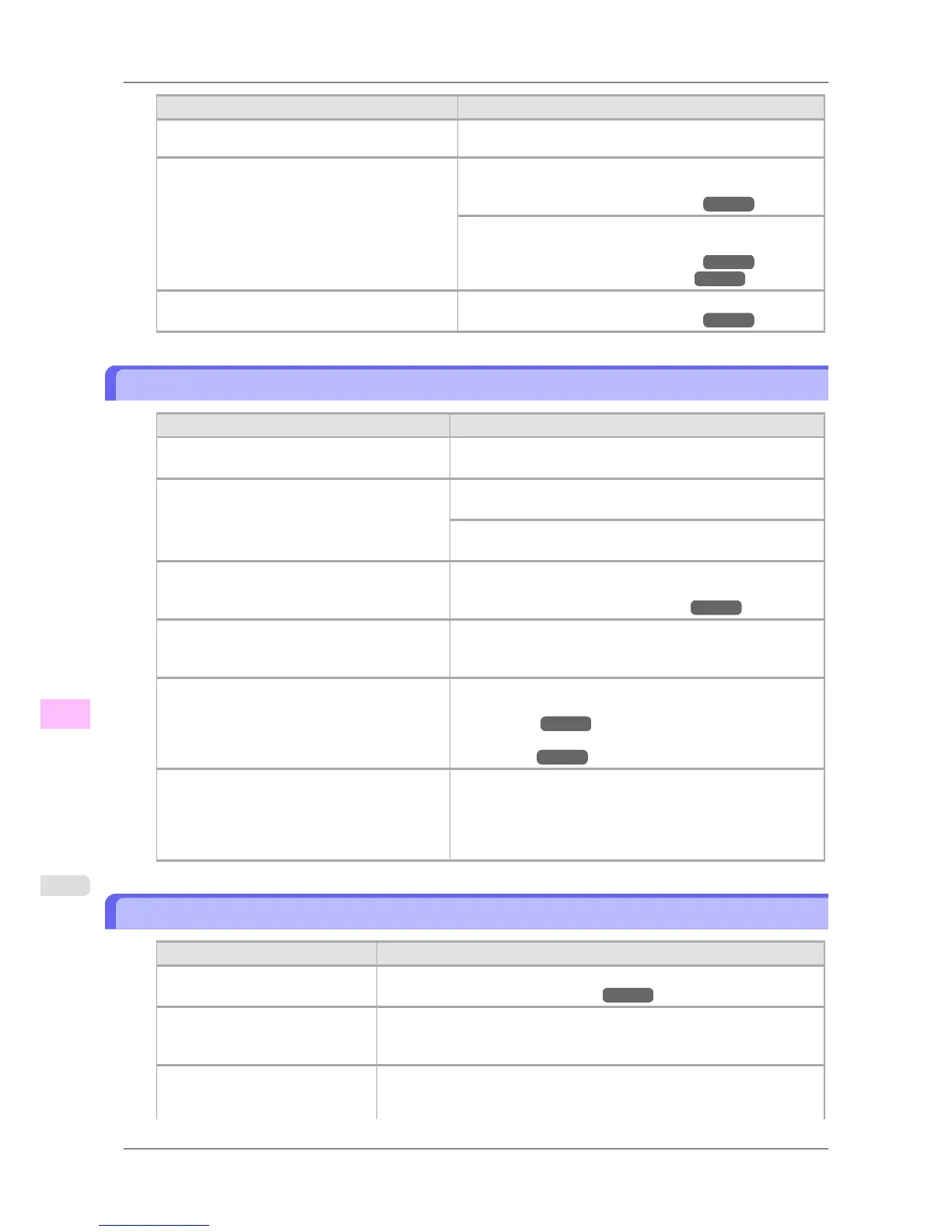
Cause Corrective Action
The Platen has become dirty after borderless print-
ing or printing on small paper.
Set CarriageScanWdth to Fixed.
The Platen has become soiled due to printing on
the Platen because width detection is deactivated.
Activate width detection, and open the Top Cover and clean
the Platen.
(See "Cleaning Inside the Top Cover.") →P.772
Open the Top Cover and clean the Platen. After this, manually
advance the roll onto the Platen before printing.
(See "Cleaning Inside the Top Cover.") →P.772
(See "Feeding Roll Paper Manually.") →P.603
The Paper Retainer is soiled. Clean the Paper Retainer.
(See "Cleaning Inside the Top Cover.") →P.772
Printed colors are inaccurate
Cause Corrective Action
Color adjustment has not been activated in the
Advanced Settings of the printer driver.
In the Advanced Settings of the printer driver, access Color
Settings in Color Mode to adjust colors.
Colors have not been adjusted on the computer
or monitor.
Refer to the computer and monitor documentation to adjust the
colors.
Adjust the settings of the color management software, referring
to the software documentation as needed.
The Printhead nozzles are clogged. Print a test pattern to check the nozzles and see if they are clog-
ged.
(See "Checking for Nozzle Clogging.") →P.754
In the Windows printer driver, Application Col-
or Matching Priority is not selected.
Click Special Settings on the Layout sheet of the printer driver
and select Application Color Matching Priority in the dialog
box.
Printhead characteristics gradually change
through repeated use, and colors may change.
Adjust the Printhead alignment.
(See "Automatic Straightening of Lines and Colors (Auto
Head Adj.).") →P.627
(See "Manual Straightening of Lines and Colors (Manual
Head Adj).") →P.629
Color may change slightly even on the same
model of printer if you use a different version of
the firmware or printer driver, or when you print
under different settings or in a different printing
environment.
Follow these steps to prepare the printing environment.
1. Use the same version of firmware or printer driver.
2. Specify the same value for all settings items.
Banding in different colors occurs
Cause Corrective Action
The paper feed amount is out of ad-
justment.
Adjust the feed amount.
(See "Adjusting the Feed Amount.") →P.635
Printing does not proceed smoothly
because print jobs are interrupted
during transmission.
Exit other applications and cancel other print jobs.
In the printer menu, Print Length
is specified in Feed Priority.
Selecting Band Joint may improve printing results.
Adjust the feed amount in the printer menu by specifying Band Joint in
Feed Priority and try printing again.
Troubleshooting
>
Problems with the printing quality
>
Printed colors are inaccurate iPF825
12
802














 To Next Page