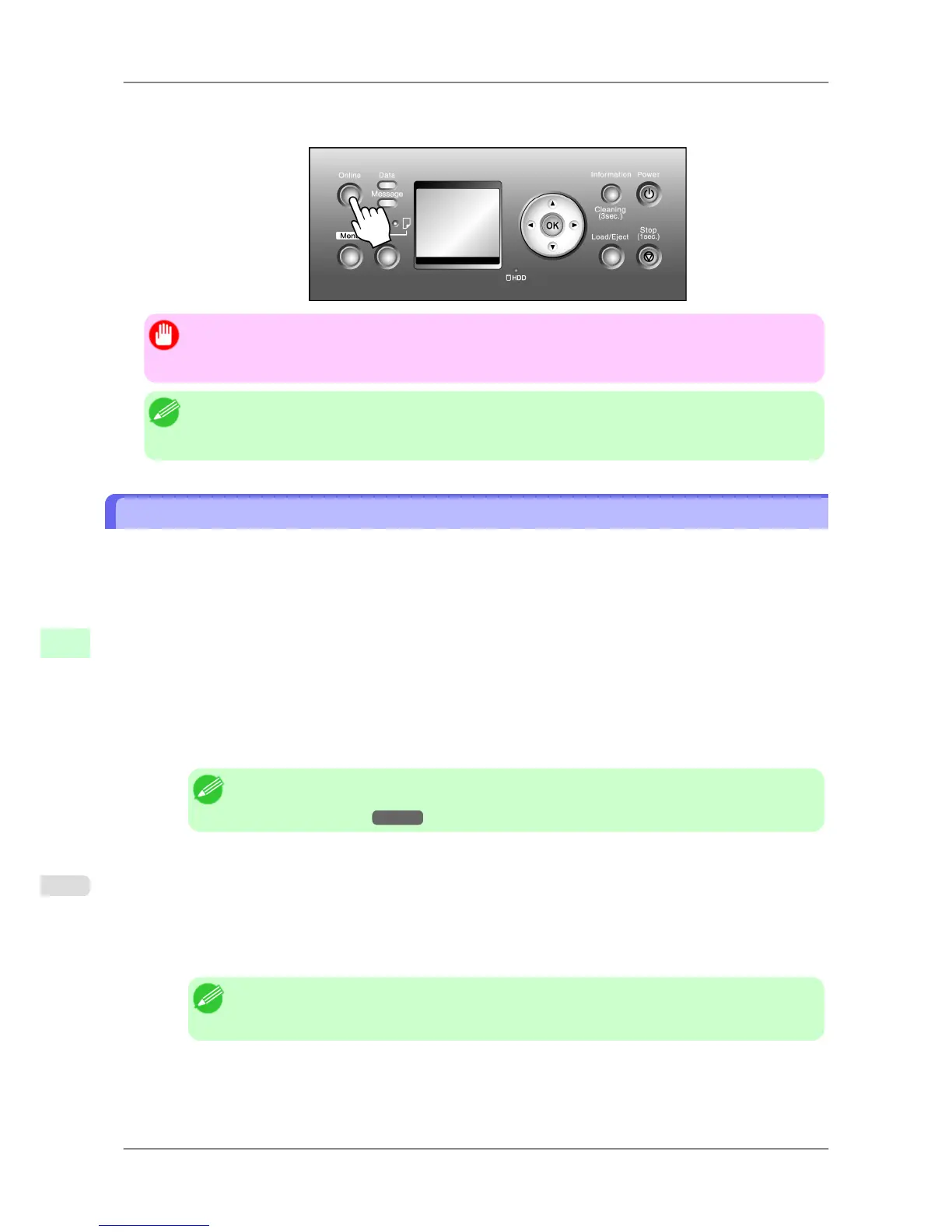
9. Press the Online button to bring the printer online.
If any settings are changed, a confirmation message is displayed. In this case, press the OK button.
Important
• Be sure to complete step 9. This will activate the values you have entered.
• You can also specify the subnet mask and default gateway on the Control Panel.
Note
• If an error message is displayed, check the settings and correct any invalid values.
• To cancel the setup process, hold down the Stop button for a second or more.
Configuring the IP Address Using ARP and PING Commands
This topic describes how to configure the IP address using ARP and PING commands.
To use the ARP and PING commands, you will need to know the printer's MAC address. You can confirm the MAC
address on the Control Panel.
1. Check the printer's MAC address.
You can confirm the MAC address on the Control Panel as follows:
1. Press the Menu button to display MAIN MENU.
2. Press ▲ or ▼ to select Interface Setup, and then press the ▶ button.
3. Press ▲ or ▼ to select Ethernet Driver, and then press the ▶ button.
4. Press ▲ or ▼ to select MAC Address, and then press the ▶ button.
Note
• You can investigate the MAC address by printing a Status Print report.
(See "Status Print.") →P.692
2. In Windows, open a command prompt, or in Mac OS X, start Terminal.
3. Execute
the following command to add entries to the ARP table for managing IP addresses and corresponding
MAC addresses.
arp -s [IP address] [the printer's MAC address you have verified]
Example: arp -s xxx.xxx.xxx.xxx 00-00-85-xx-xx-xx
Note
• In
Mac OS X when using Terminal, enter the arp command in the format arp -s xxx.xxx.xxx.xxx
00:00:85:xx:xx:xx. For details, refer to the help file for the command line.
Network Setting
>
Network Setting
>
Configuring the IP Address Using ARP and PING Commands iPF825
10
716














 To Next Page