10. Select Print Range from All Slides, Current Slide, and Slides.
If Slides is selected, enter the slide number.
11. Enter Copies.
Note
• When Print in Draft mode is selected, printing is fast but the print quality is poor.
• Press
the One-Touch Registration button to register the settings. This is useful for multiple
printing using the same settings.
• Press the Print Preview button to display the preview screen. You can confirm and make
changes to the layout in the preview screen.
• The maximum length for Borderless Printing is the lesser of 14.22 times the roll paper width, or
18.0m.
12. Press Print to start printing.
Multi-Page Printing (PowerPoint)
Prints multiple pages as one page. You can print handouts into a single page, or print matter with many pages.
1. Start Microsoft PowerPoint.
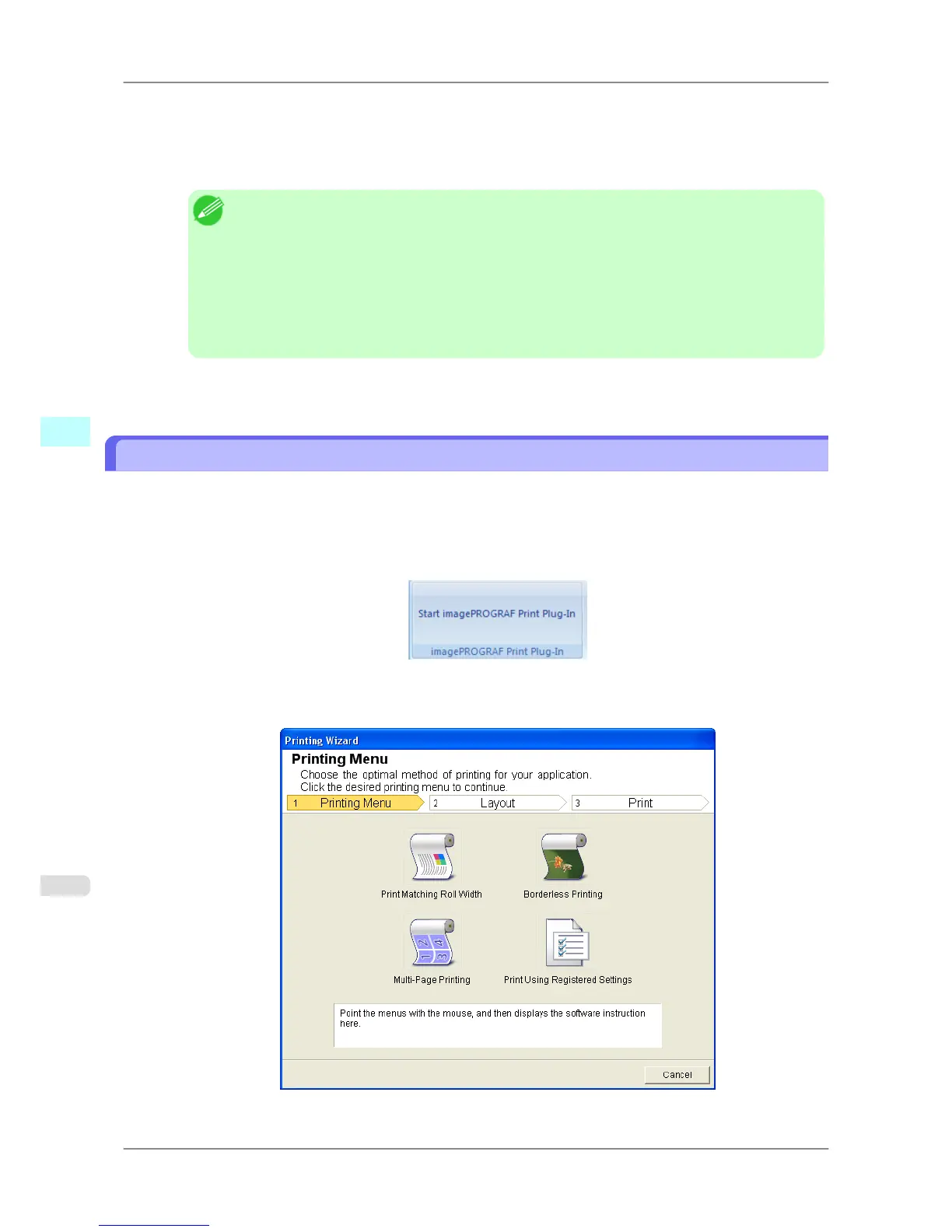
2. If Start imagePROGRAF Print Plug-In is displayed, click it.
3. Click Print from the imagePROGRAF Print Plug-In toolbar/ribbon.
The Printing Wizard dialog box is displayed.
Windows Software
>
Print Plug-In for Office
>
Multi-Page Printing (PowerPoint) iPF825
4
316














 To Next Page