• Printing Office Documents (Windows) →P.38
• Printing Office Documents (Mac OS X) →P.39
Printing Office Documents (Windows)
This topic describes how to print office documents based on the following example.
• Document: Office document created using word-processing or spreadsheet programs
• Page size: A4 (210.0 × 297.0 mm [8.3 × 11.7 in])
• Paper: Sheets
• Paper type: Plain Paper
• Paper size: A4 (210.0 × 297.0 mm [8.3 × 11.7 in])
1. Choose Print in the application menu.
2. Select
the printer in the dialog box, and then display the printer driver dialog box.(See "Accessing the Printer
Driver Dialog Box from Applications (Windows)
→P.200 ")
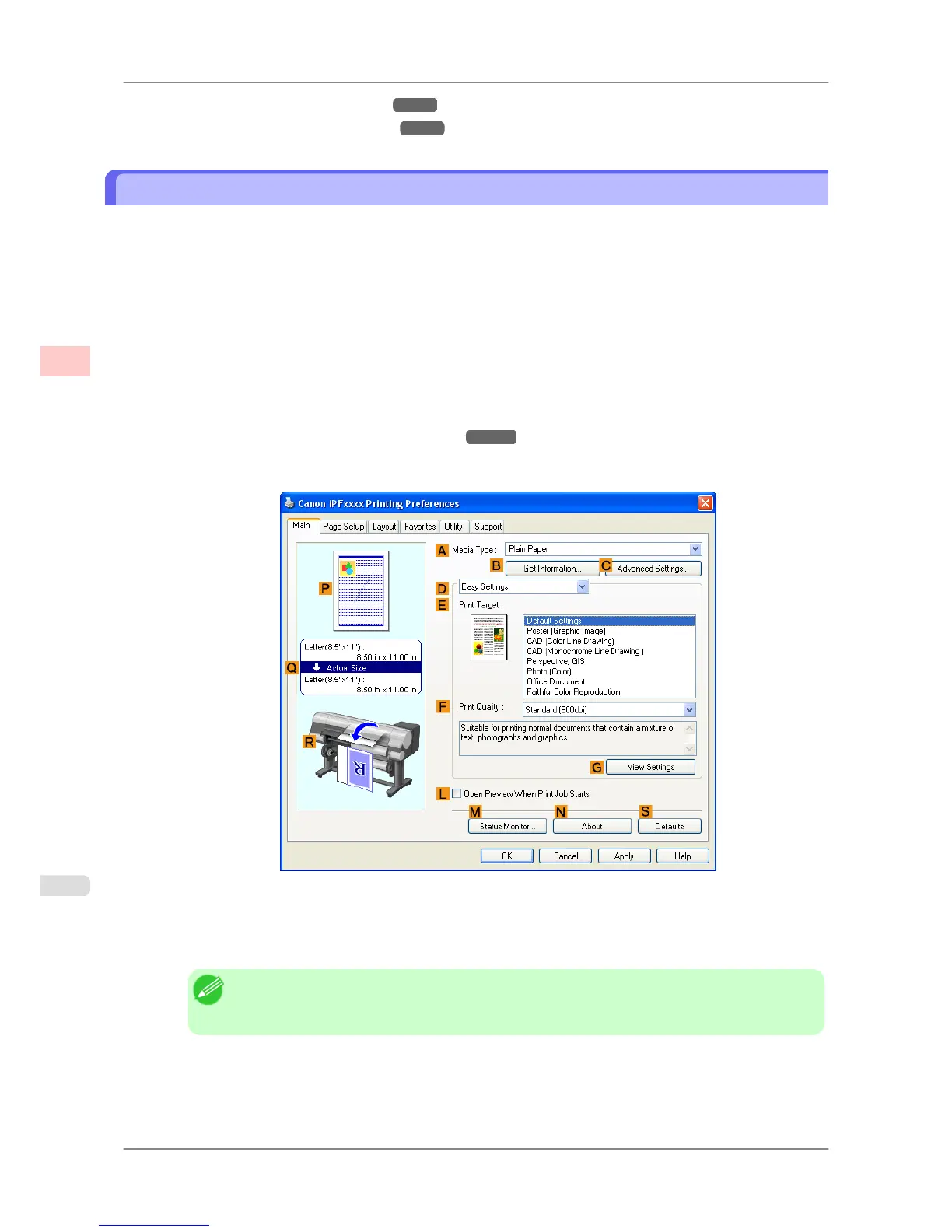
3. Make sure the Main sheet is displayed.
4. In the AMedia Type list, select the type of paper that is loaded. In this case, click Plain Paper.
5. After confirming that DEasy Settings is selected, click Office Document in the E Print Target list.
Note
• You
can check the settings values selected in the E Print Target list by clicking GView Set-
tings.
Working With Various Print Jobs
>
Printing Office Documents
>
Printing Office Documents (Windows) iPF825
2
38














 To Next Page