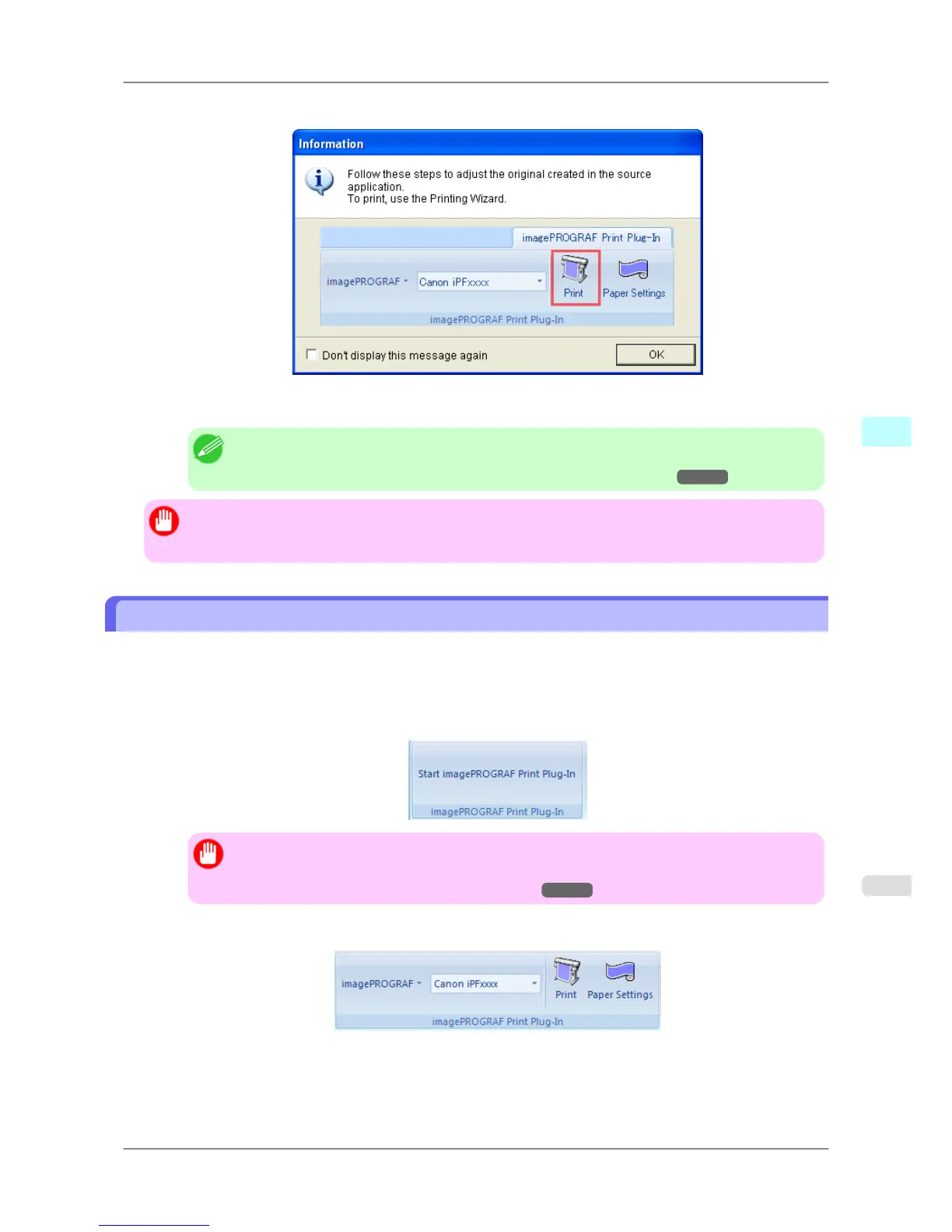
7. Click OK if the message is displayed.
8. Edit and create the document.
Note
• Printing is done in Print Matching Roll Width of the Printing Wizard. For details on Print
Matching Roll Width, refer to see "Print Matching Roll Width (Word)." →P.297 .
Important
• The
layout may collapse if you create a form using existing data. If that is the case, modify the data
again.
To start from Microsoft PowerPoint
Below are the steps to start Print Plug-In for Office from Microsoft PowerPoint.
1. Start Microsoft PowerPoint.
2. If Start imagePROGRAF Print Plug-In is displayed on the toolbar/ribbon, click it.
Important
• If the imagePROGRAF Print Plug-In toolbar/ribbon is not displayed, refer to the following.
• When Print Plug-In for Office is not displayed
→P.291
3. Check that the imagePROGRAF Print Plug-In toolbar/ribbon is displayed.
4. Click the buttons on the toolbar/ribbon according to the items you want to set.
Windows Software
>
Print Plug-In for Office
>
iPF825 To start from Microsoft PowerPoint
4
309














 To Next Page