2. Complete the scanning settings on the Color imageRUNNER.
Configure the Color imageRUNNER to send scanned originals to the hot folder.
After these settings are complete, you can print enlarged copies of scanned originals from the Color imageRUNNER.
Registering a hot folder on your computer
Folders used for Color imageRUNNER Enlargement Copy (iR enlargement copy) are called hot folders. Register a
hot folder on your computer for storing scanned originals from the Color imageRUNNER. You can specify printing
conditions (such as the image quality and paper size), based on which originals transferred to the hot folder will be
printed. Follow these steps to register and modify hot folders.
1. To
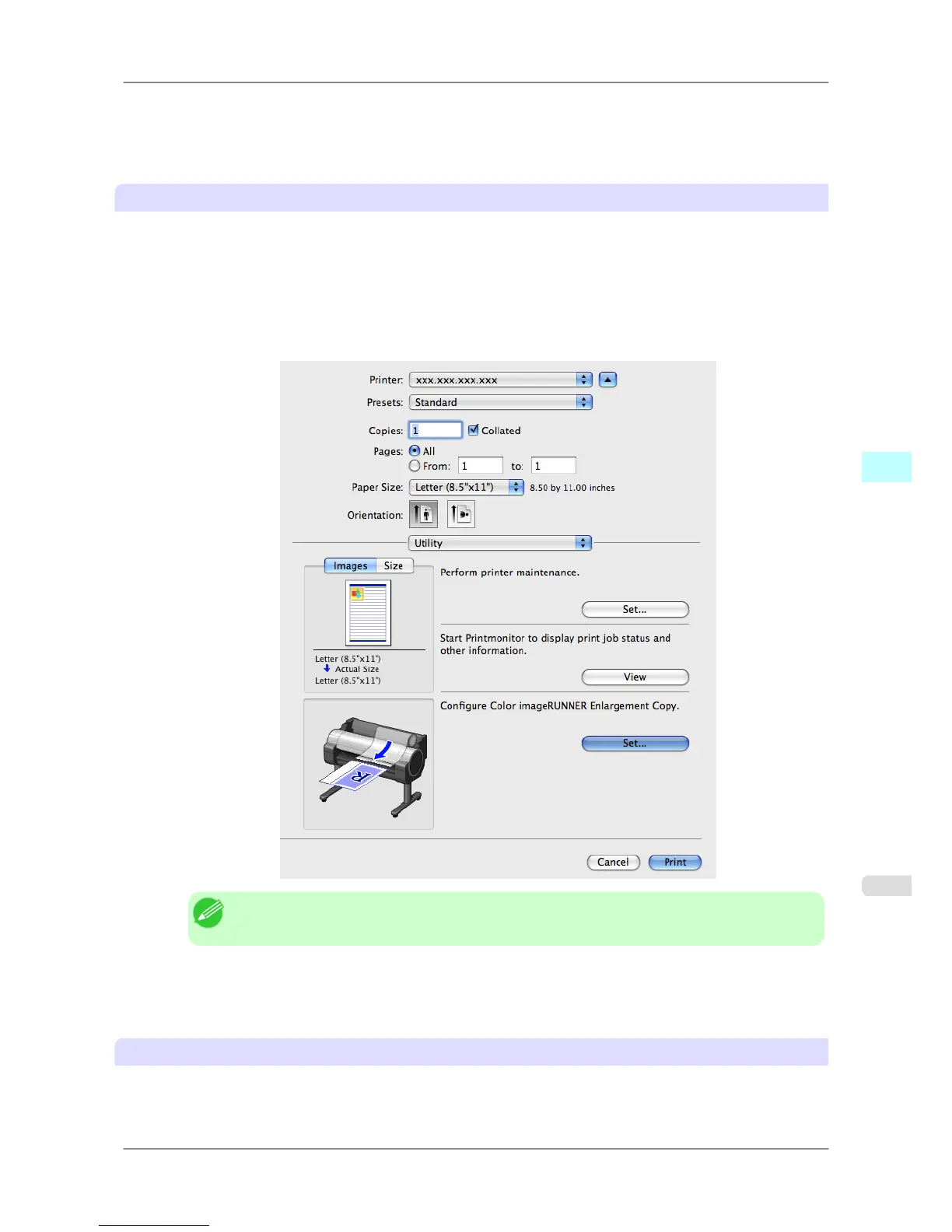
display the Color imageRUNNER Enlargement Copy dialog box, either double-click the Color image-
RUNNER Enlargement Copy.app icon after navigating to Canon Utilities — iR Enlargement Copy in the
Applications folder or click Set in the Utility pane
Note
• Your printer is depicted in the lower-left area of this screen.
2. In Enlarged Copy Settings, click Add or Edit and either create or modify the hot folder.
For
instructions on registering and modifying hot folders, refer to the help file for Color imageRUNNER En-
largement Copy.
Completing the scanning settings on the Color imageRUNNER.
Configure the Color imageRUNNER to send scanned originals to the hot folder. It is easy to send scanned originals to
the hot folder if you assign the scanning settings and destination to a Favorites button on the Color imageRUNNER.
Mac OS X Software
>
Color imageRUNNER Enlargement Copy
>
iPF825 Printing Enlargements of Scanned Originals from a Color imageRUNNER
5
505














 To Next Page