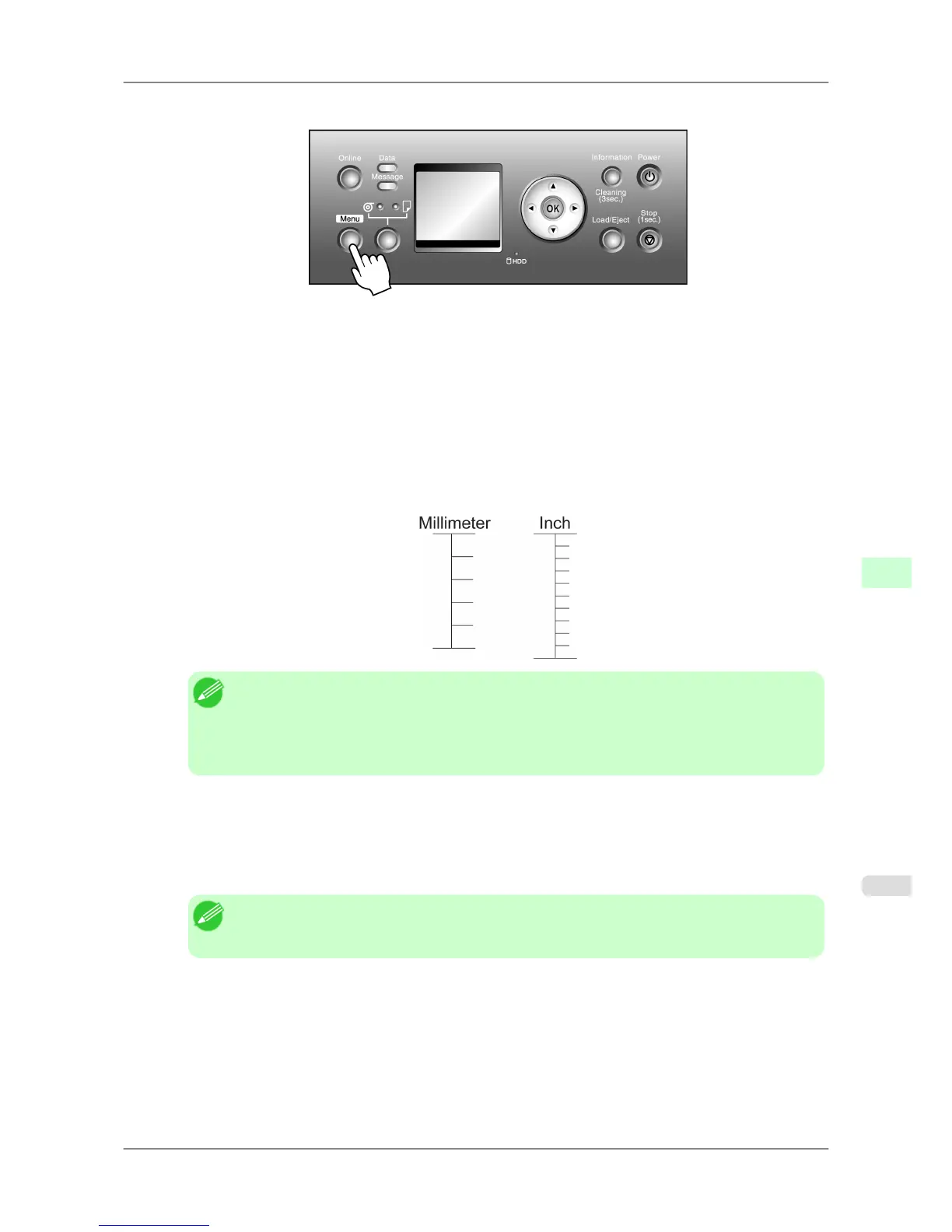
2. Press the Menu button to display MAIN MENU.
3. Press ▲ or ▼ to select Adjust Printer, and then press the ▶ button.
4. Press ▲ or ▼ to select Adjust Length, and then press the ▶ button.
5. Press ▲ or ▼ to select A:High or B:Standard/Draft, and then press the ▶ button.
6. Press ▲ or ▼ to select Yes, and then press the OK button.
A
test pattern is printed for adjustment based on the amount of paper stretching or shrinkage. The scale bar
shows Millimeter in 50 mm units and Inch in 1 inch units.
Note
• A
test pattern is printed in black when you choose A:High or in magenta if you choose B:Stand-
ard/Draft.
• To cancel printing the test pattern for adjustment, hold down the Stop button for a second or
more, and then go to step 7.
7. Measure
the length of the adjustment pattern. Calculate the difference between the measured length and actual
length. Enter it as a percentage and press the OK button.
You can adjust the value in 0.02% increments. Press ▲ to increase the value or ▼ to decrease it.
If the scale is printed shorter than actual size, set the value toward the positive side; if it is printed longer, set the
value toward the negative side.
Note
• You
can also specify the adjustment value in Adjust Length in the Paper Details menu. In this
case, no test pattern for adjustment is printed.
Adjustments for Better Print Quality
>
Adjusting the feed amount
>
iPF825 Adjusting Line Length (Adjust Length)
8
641














 To Next Page