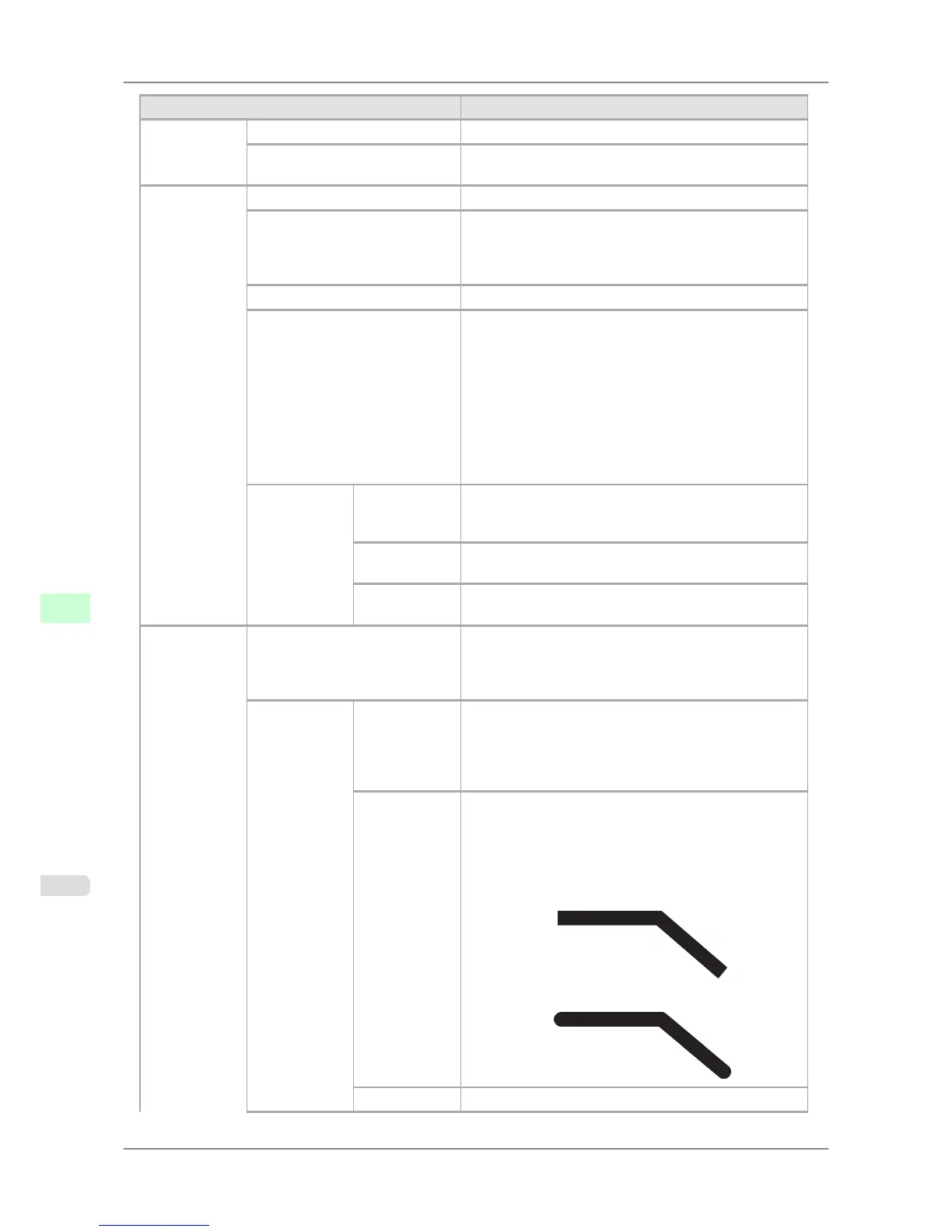
Setting Item Description, Instructions
Quality Man-
ager
Input Resolution Choose the printer input resolution, 600dpi or 300dpi.
Print (Economy) Although printing quality is diminished, less ink is con-
sumed than in regular printing. Select On to conserve ink.
Paper Manag-
er
Paper Source Choose the source of paper for HP-GL/2 printing.
Margin Specify the margin around paper. The margin for the trail-
ing edge of sheets is 23 mm (0.9 in).
However, if you have specified the leading margin in Pa-
per Details, the value in Paper Details has priority.
Conserve Paper Conserves paper when printing.
Auto Rotate If the long side of an original is shorter than the roll width,
the original is automatically rotated 90 degrees to conserve
paper. Similarly, if the long side of an original in land-
scape orientation is longer than the roll width and the short
side is shorter than the roll width, the original is reposi-
tioned to fit on the paper.
HP RTL print jobs are not rotated. Because HP RTL im-
ages are not rotated even if the paper is rotated 90 degrees,
images may be cut off or the blank paper may be ejected.
In this case, set Auto Rotate to Off.
Nesting Use Nesting Selecting On will store print jobs until multiple documents
can be arranged to fill up the roll width, instead of printing
each print job as it is received.
Nesting Wait-
Time
Specify a time to wait until printing, as desired.
Cut Lines Select On to print cut lines between each document on the
roll.
Line & Pen
Manager
Enable merge Specify whether to merge or print over colors where lines
overlap.
Choose Off to print the second line over the first. Choose
On to merge all overlapping colors.
Pen Setup Select Palette As pen values, choose Software, Palette A, Palette B, or
Factory.
Choose Software to print according to software settings.
Choose Palette A or Palette B to print using the value
specified in Define Palette.
Define Palette Specify the Width, Color, and Line Attributes in the pa-
lette Pen no.. Choose Factory to confirm the values when
Factory is selected in Select Palette.
In Line Attributes, choose No Setting or Circle Setting
as the processing for the ends and junctions of lines.
• If you choose No Setting
• If you choose Circle Setting
Reset Palette Restore Define Palette to the default palette settings.
Printer Parts
>
Control Panel
>
Main Menu Settings iPF825
9
684














 To Next Page