*1: The quantity of cartridges required depends on the capacity of the Maintenance Cartridge in use.
1. Remove the Wheeled Output Stacker from the printer.
(See "Using the Wheeled Output Stacker.")
→P.623
2. Remove the paper.
• Rolls (See "Removing the Roll from the Printer.") →P.597
• Sheets (See "Removing Sheets.") →P.621
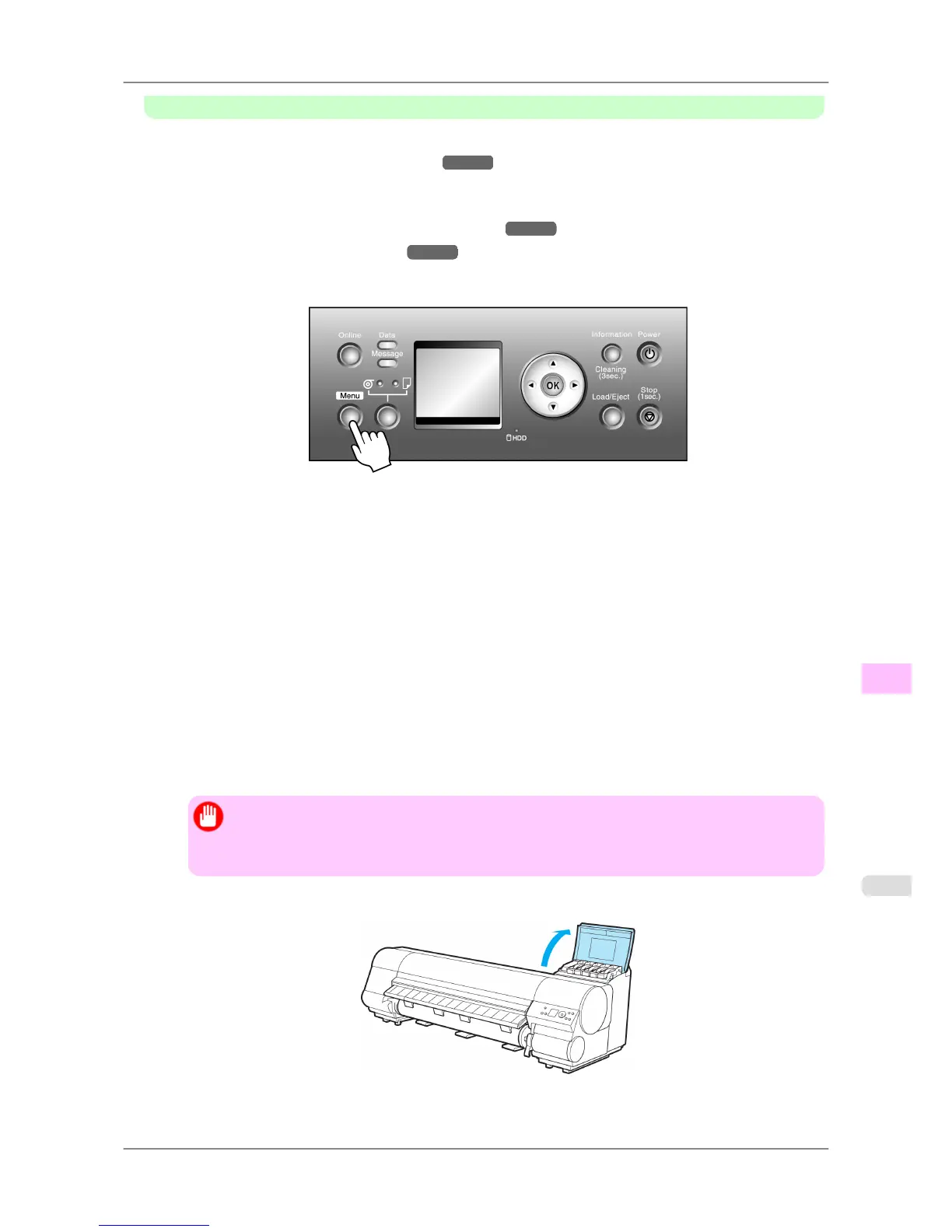
3. Press the Menu button to display MAIN MENU.
4. Press ▲ or ▼ to select Maintenance, and then press the ▶ button.
5. Press ▲ or ▼ to select Move Printer, and then press the ▶ button.
6. Press ▲ or ▼ to select the level of transfer, and then press the OK button.
7. After
the message "Always contact service before preparing to move the printer." is shown on the Display
Screen, press the OK button.
The Display Screen indicates "Please Wait..".
• If you have selected Level 1 in step 6, after processing in preparation to move the printer is finished, the
message "Finished preparing to move printer. Turn off printer." is shown on the Display Screen. Go to
step 15.
• When you are finished preparing to transfer the printer after selecting Level 2 or Level 3 conditions, the
Display Screen requests you to open the Ink Tank Cover. Follow the procedure starting with step 8.
Important
• If consumables must be replaced, the message "Consumables must be replaced. Call for serv-
ice." is shown on the Display Screen and preparation is not possible. If this message is displayed,
press the OK button and contact your Canon dealer for assistance.
8. Open the Ink Tank Cover.
Maintenance
>
Other Maintenance
>
iPF825 Preparing to Transfer the Printer
11
777














 To Next Page